Session Type
ProxiesThis guide explains how to configure Rotating and Sticky sessions in Geonode, set a custom session duration, and test your proxy connection.
When to Use Each Session Type
Geonode supports two session types:
| Session Type | When to Use |
|---|---|
| Rotating | When you need IP rotation between requests |
| Sticky | When you need to maintain the same exit IP across multiple requests for a set duration |
For a detailed explanation of session behaviour, see the Session Type Knowledge Base.
You can also learn more about Rotating Proxies and Sticky Sessions.
Availability
Session type selection is available for all three Geonode proxy products:
- Residential Proxies
- Rotating Datacenter Proxies
- Unlimited Residential Proxies
Available connection details may differ depending on the proxy product.
How to Configure Session Type
Open your Geonode Dashboard and select your proxy product.
Under Proxy configuration, select your preferred Protocol, either HTTP/HTTPS or SOCKS5.
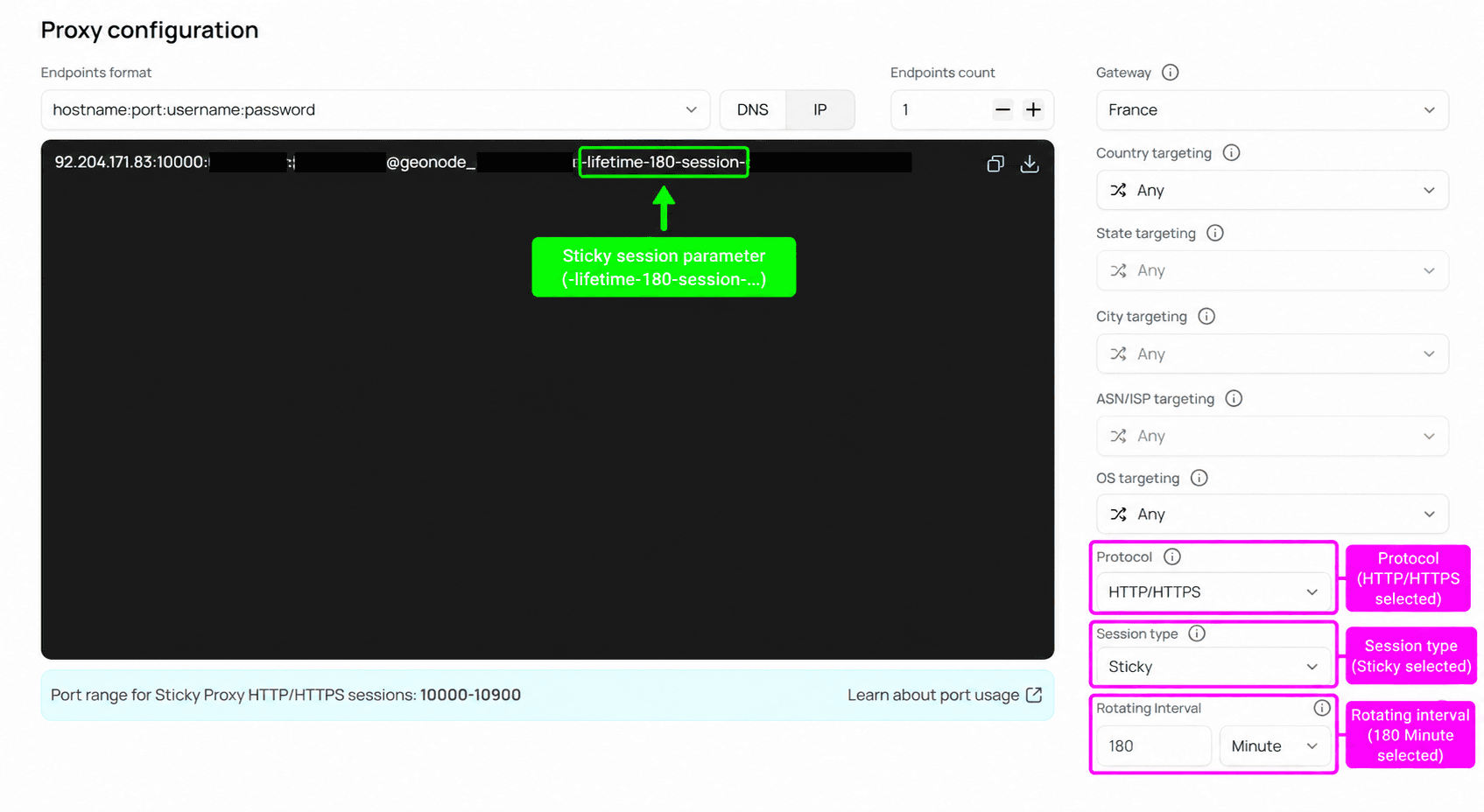
Find Session type and select Rotating or Sticky.
If you select Sticky, enter your preferred Rotating Interval and choose Minute or Hour.
Copy the updated proxy endpoint.
Rotating Interval
When you select Sticky, the dashboard displays a Rotating Interval setting to control the session duration.
| Setting | Description | Example |
|---|---|---|
| Minute | Set the session duration in minutes | 180 minutes |
| Hour | Set the session duration in hours | 3 hours |
| Maximum | Maximum allowed session duration | 24 hours (1,440 minutes) |
Geonode converts the selected duration into minutes in the generated proxy username.
| Selected Interval | Username Parameter |
|---|---|
| 3 Minutes | -lifetime-3 |
| 3 Hours | -lifetime-180 |
Sticky sessions also include a session identifier using the -session- parameter.
For example:
YOUR_PROXY_USERNAME-lifetime-180-session-DEMO123| Parameter | Description |
|---|---|
-lifetime-180 | Sets the session duration to 180 minutes |
-session-DEMO123 | Identifies the sticky session |
For more information about session duration and IP persistence, see the Sticky Sessions guide.
Session Duration
The maximum Rotating Interval is 24 hours or 1,440 minutes. The dashboard displays a validation error when you exceed the allowed limit.
Session Type Port Ranges
The port range depends on your selected protocol and session type.
| Protocol | Session Type | Port Range |
|---|---|---|
| HTTP/HTTPS | Rotating | 9000-9010 |
| HTTP/HTTPS | Sticky | 10000-10900 |
| SOCKS5 | Rotating | 11000-11010 |
| SOCKS5 | Sticky | 12000-12010 |
Port Availability
These port ranges are shown for Residential Proxies. Other proxy products may use different connection details. Always use the endpoint generated in your dashboard.
Test Your Session Type
Use cURL to test a Sticky session configured with a 3-hour interval.
Request
The following tested request uses HTTP/HTTPS with a Sticky session and a duration of 180 minutes.
curl -x 92.204.171.83:10000 \
  -U "YOUR_PROXY_USERNAME-lifetime-180-session-DEMO123:YOUR_PROXY_PASSWORD" \
  http://ip-api.com
Replace the placeholder credentials and demo session ID with the values generated in your dashboard.
Response
The tested request returned:
{
  "status": "success",
  "continent": "North America",
  "continentCode": "NA",
  "country": "United States",
  "countryCode": "US",
  "region": "MO",
  "regionName": "Missouri",
  "city": "Saint Joseph",
  "district": "",
  "zip": "64507",
  "lat": 39.7534,
  "lon": -94.8191,
  "timezone": "America/Chicago",
  "offset": -18000,
  "currency": "USD",
  "isp": "Metronet",
  "org": "Metronet",
  "as": "AS30600 Metronet",
  "asname": "AS-CMN",
  "mobile": false,
  "proxy": false,
  "hosting": false,
  "query": "52.144.117.153"
}
The request succeeded using the Sticky session configuration and returned an exit IP associated with Saint Joseph, Missouri, United States.
Verifying Session Persistence
A successful request confirms connectivity. To verify that the exit IP remains consistent, send multiple requests using the same session ID and compare the returned IP addresses.
Frequently Asked Questions
Was this page helpful?