Configure
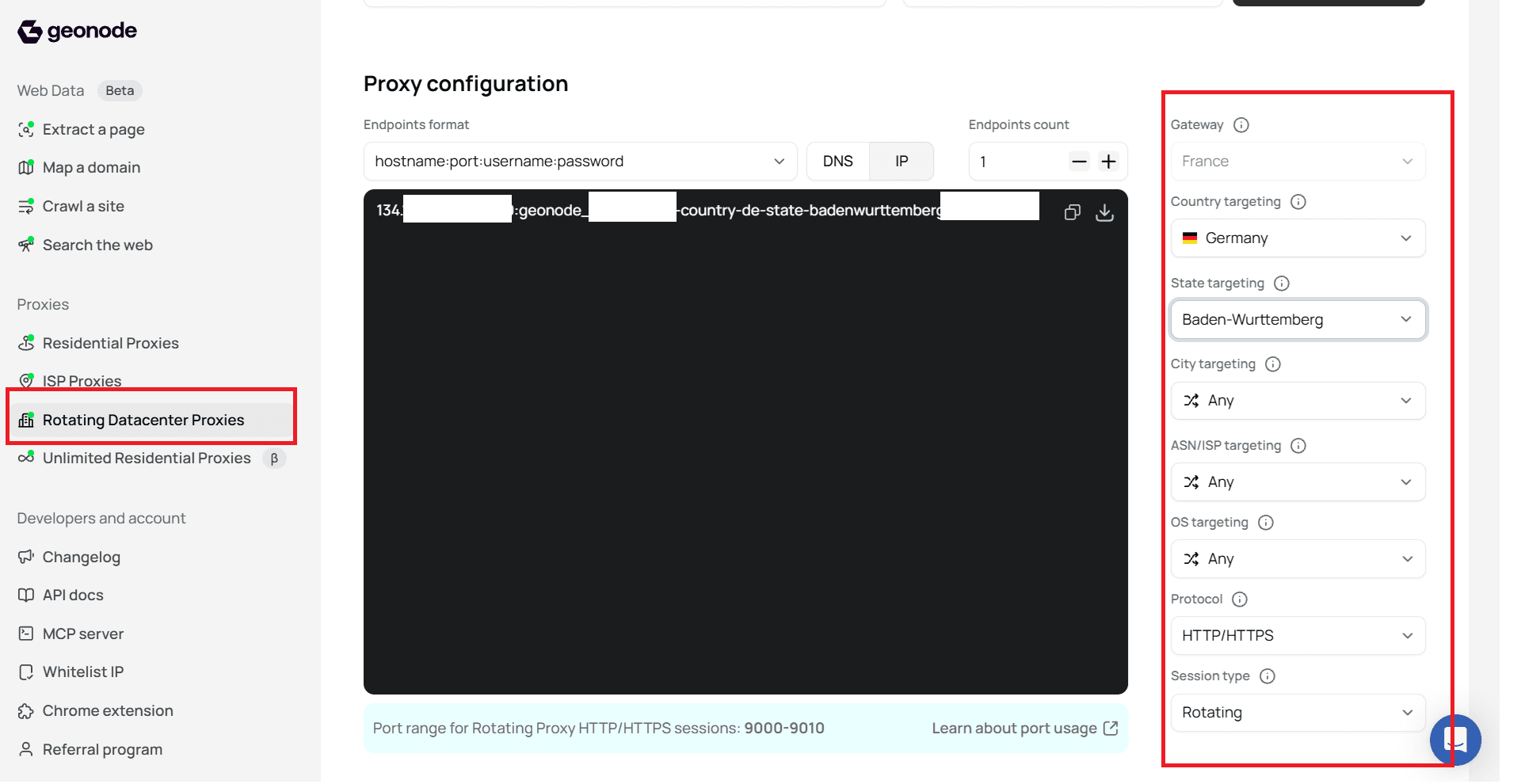
ProxiesConfigure Rotating Datacenter Proxies in the dashboard under Proxy configuration. Each targeting and connection option you pick is written into the generated endpoint.
Open Proxy configuration
- Sign in to the Geonode dashboard.
- Under Proxies, open Rotating Datacenter Proxies.
- Select the Proxy configuration tab.
Use the controls on the right (gateway, country, state, city, ASN/ISP, OS, protocol, session type). The endpoint box updates as you change them.
Endpoints format
Connect using this format:
hostname:port:username:passwordFrom the product docs and dashboard:
| Setting | Value |
|---|---|
| Hostname (DNS) | proxy.geonode.io |
| HTTP/HTTPS ports | 9000-9010 |
| SOCKS5 ports | 11000-11010 |
You can also switch between DNS and IP in the dashboard:
| Mode | What you get |
|---|---|
| DNS | Hostname such as proxy.geonode.io |
| IP | Numeric host |
Endpoints count controls how many endpoint lines are generated.
Example endpoint
With country Germany and state Baden-Württemberg selected (city / ASN / OS left on Any), rotating HTTP/HTTPS, the username gains location flags like this:
proxy.geonode.io:9000:YOUR_USERNAME-country-de-state-badenwurttemberg:YOUR_PASSWORDBreak down the string
| Part | Value in the example | Meaning |
|---|---|---|
| Host | proxy.geonode.io | Proxy host (DNS mode) |
| Port | 9000 | Port for rotating HTTP/HTTPS (range 9000-9010) |
| Username base | YOUR_USERNAME | Your API username from the dashboard |
| Targeting flags | -country-de-state-badenwurttemberg | Options appended to the username |
| Password | YOUR_PASSWORD | Your API password from the dashboard |
Targeting is always applied by appending flags to the username, not by changing the password.
How each selection changes the endpoint
Set options from broad to specific. Country first, then state, then city. Availability can vary by country and current inventory.
Gateway
Gateway is the entry point you connect to. It does not add a -country- (or similar) flag to the username. Country targeting controls the exit IP location; gateway controls where you enter the Geonode network.
Country targeting
- Open Country targeting.
- Select a country (for example Germany, or United States for USA rotating proxies).
| Selection | Flag added to username |
|---|---|
| Germany | -country-de |
| United States | -country-us |
State targeting
- Keep a country selected.
- Open State targeting.
- Select a state when available (for example Baden-Württemberg).
| Selection | Flag added to username |
|---|---|
| Baden-Württemberg | -state-badenwurttemberg |
Leave Any when you do not need state-level targeting. The state flag is omitted.
City targeting
- Keep country (and state if required) selected.
- Open City targeting.
- Select a city when available, or leave Any.
City options depend on current inventory.
ASN / ISP and OS targeting
Open ASN/ISP targeting or OS targeting when you need those filters. Leave Any when you do not. Matching options depend on location and inventory.
Protocol and session type
| Setting | Options / notes |
|---|---|
| Protocol | HTTP/HTTPS or SOCKS5 |
| Session type | Rotating or Sticky |
Rotating changes the IP across requests. Sticky keeps the same IP when several requests need continuity (for example pagination, a form, or a browsing flow).
Session lifetime defaults to 10 minutes. You can set a session duration from 3 minutes to 24 hours, depending on the task.
For rotating HTTP/HTTPS, the dashboard notes a port range such as 9000-9010.
Keep credentials private
Always copy your own username and password from the dashboard. Do not publish real credentials.
Was this page helpful?