Block List
The Block list lets you prevent your Geonode proxies from accessing specific domains, IPs, or wildcards.
When to use the Block list
Use the Block list when you want to prevent your proxy from accessing specific destinations, such as unwanted or background requests.
For example, if your browser sends requests to mozilla.dev that you do not need, you can add it to the Block list.
How it works
Once a target is added to the Block list, requests to that target return 468 Target Forbidden. Other destinations continue to work normally.
Block list vs. Location Exclude
These features control different things:
| Feature | Controls | Example |
|---|---|---|
| Block list | Which destinations the proxy can access | Block mozilla.dev |
| Location exclude | Which proxy locations can be used | Exclude Germany |
Use the Block list to control where your proxy can connect and Location Exclude to control which proxy locations you receive.
Screenshots
Image paths below are placeholders. Drop the dashboard captures into
/images/functionalities/how-to/block-list/ using the filenames in each step.
Step 1: Open the Block list
- Log in to the Geonode Dashboard.
- Go to Proxies → Residential Proxies.
- Open the Block list tab.
Direct link: app.geonode.com/proxies?tab=block-list
The same tab is also available from Rotating Datacenter Proxies (and other products that use this proxy dashboard).
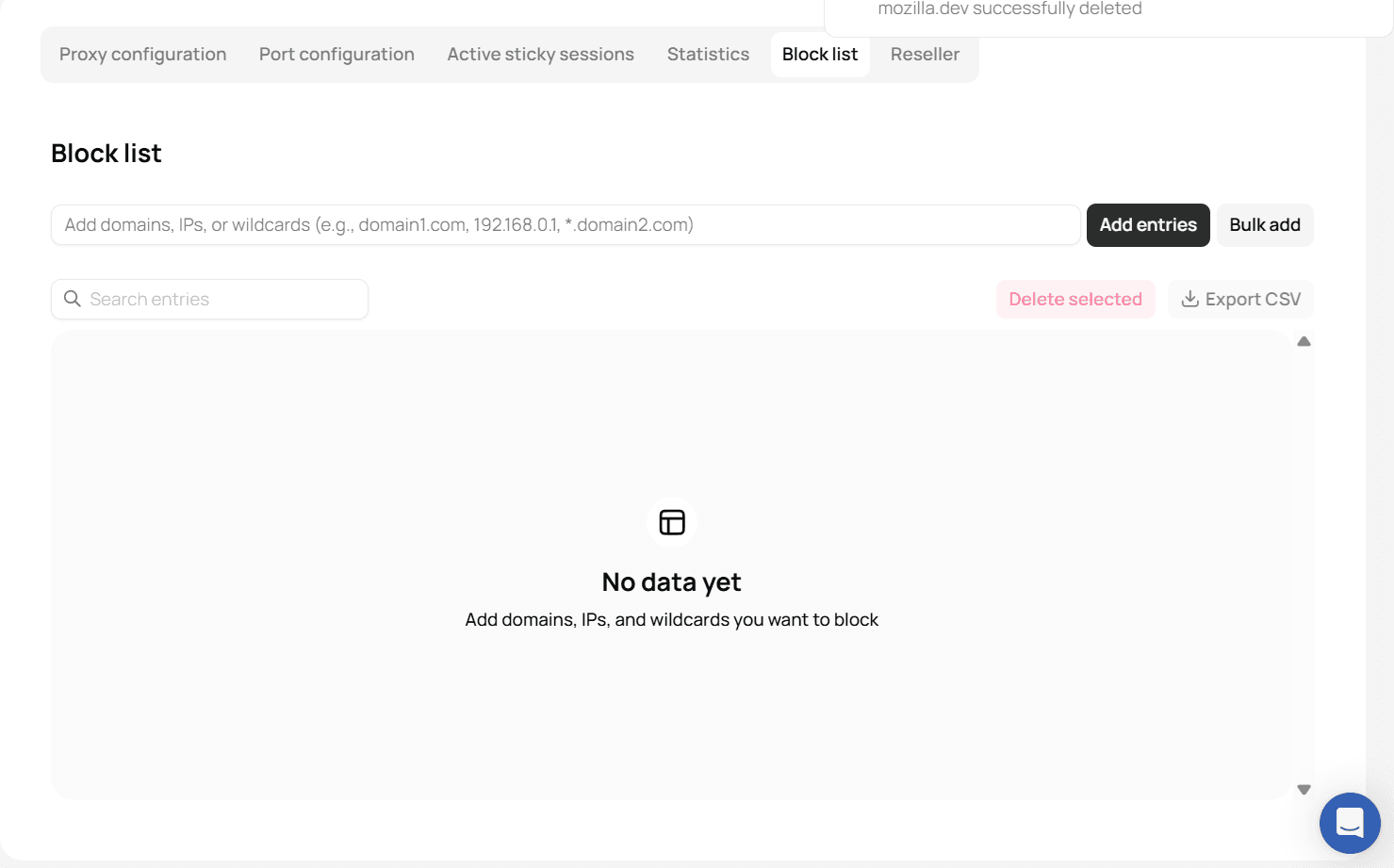
If the list is empty, you will see No data yet.
Step 2: What you can add
The input accepts:
| Type | Example | Use when |
|---|---|---|
| Domain | mozilla.dev | Block that host |
| IP | 192.168.0.1 | Block a specific address |
| Wildcard | *.domain2.com | Block a host and its subdomains |
The placeholder in the dashboard shows the same formats: domain1.com, 192.168.0.1, *.domain2.com.
Do not add the site you actually need (for example your scrape target or ip-api.com if you use it to test). Only add outlier hosts you want the proxy to drop.
Step 3: Add a single entry
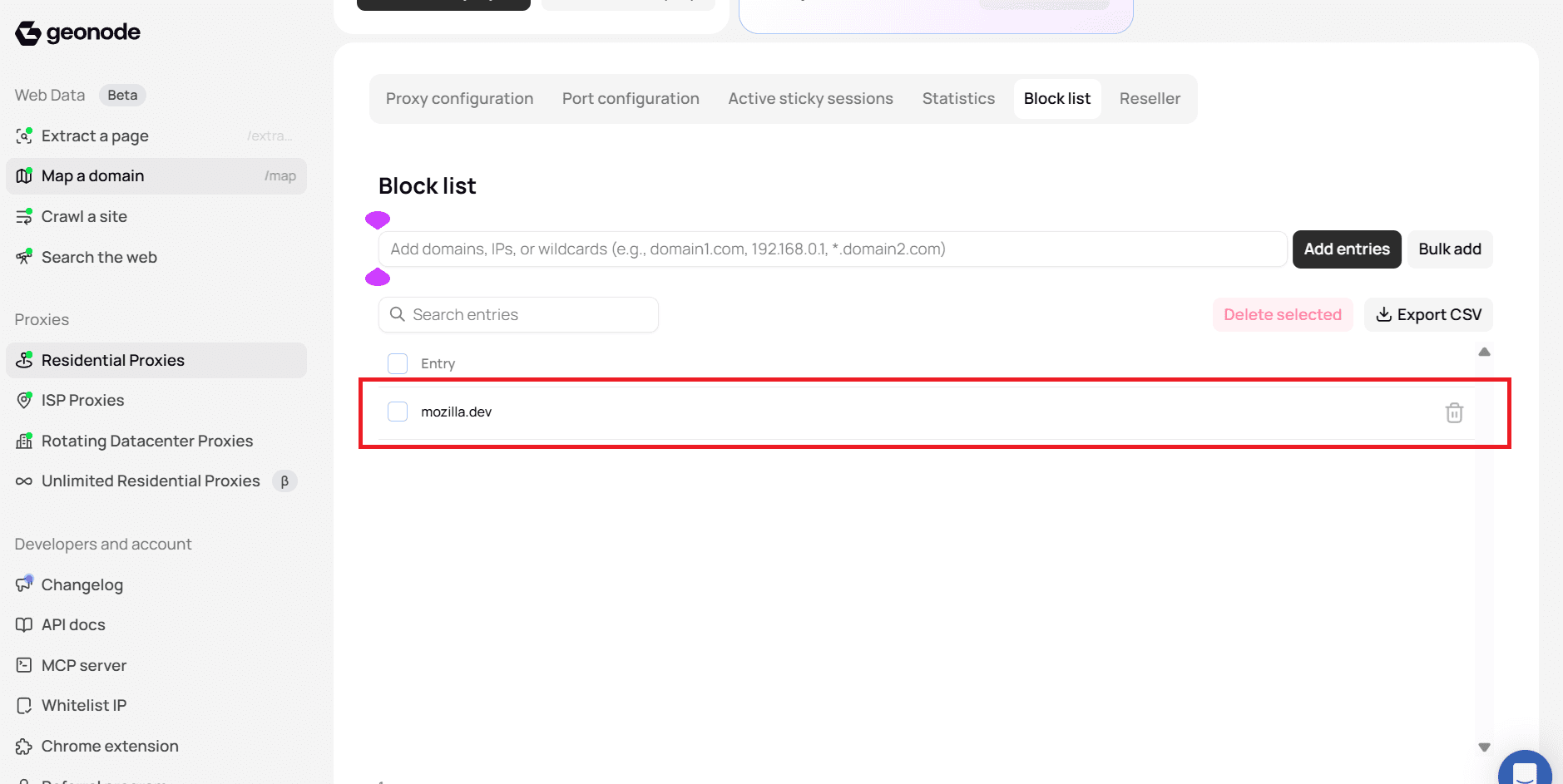
- Type a domain, IP, or wildcard in the field (for example
mozilla.dev). - Click Add entries.
- Confirm the row appears in the table.
Wait a few seconds, then send a request (see Verify the block).
Step 4: Bulk add
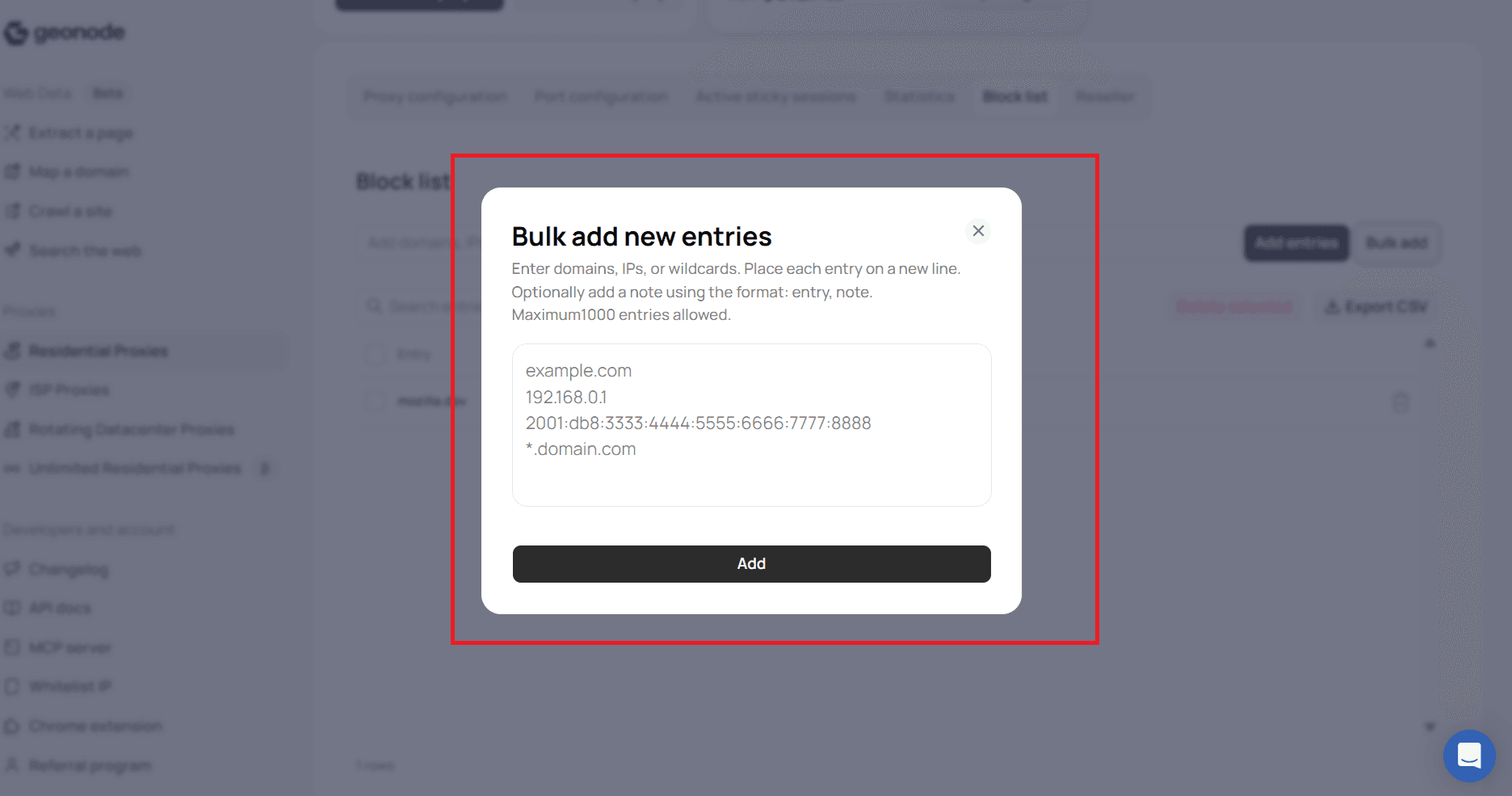
Use Bulk add when you have many hosts at once (trackers, helper domains, a list from a HAR file).
- Click Bulk add.
- Paste the domains, IPs, or wildcards.
- Confirm. The new rows appear in the table.
You can also type several values in the main field (comma-separated, matching the placeholder examples) and click Add entries.
Step 5: Search, delete, and export CSV
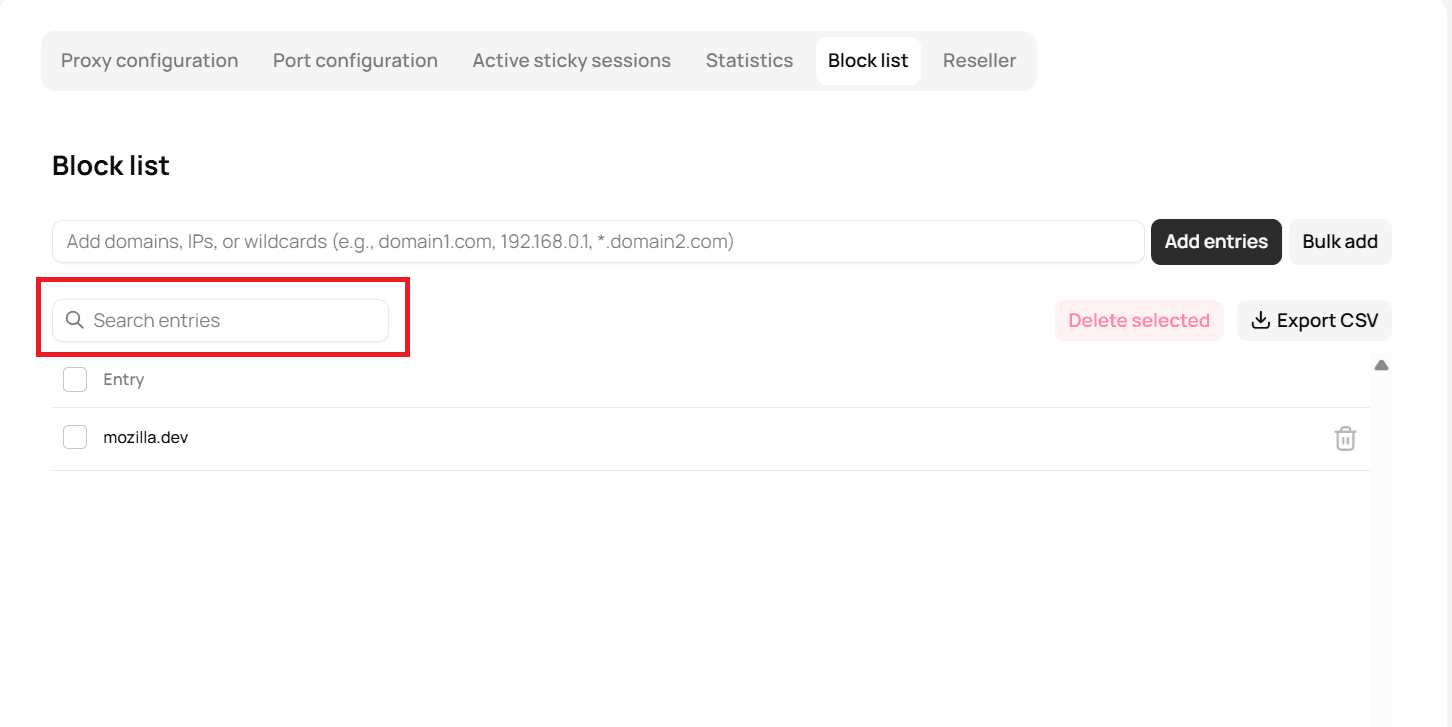
Search
Use Search entries to filter a long list by domain, IP, or wildcard.
Delete
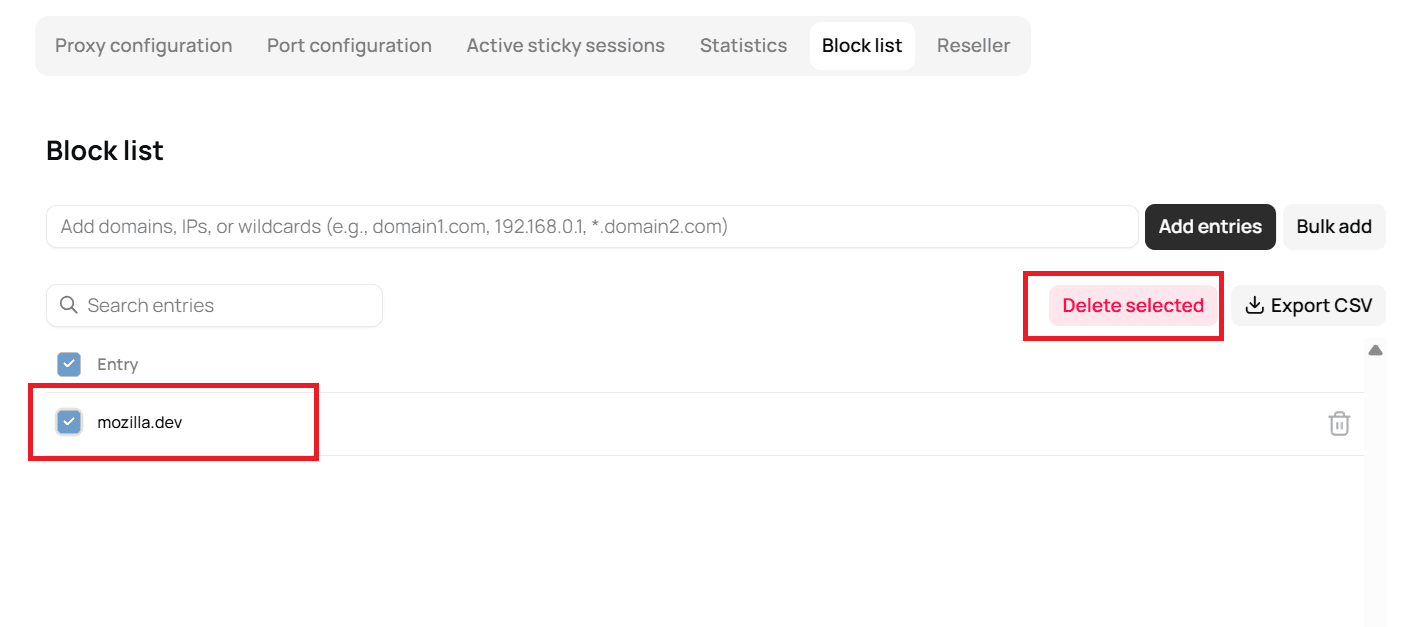
- Select one or more checkboxes, then click Delete selected.
- Or use the trash icon on a single row.
After you delete an entry, wait a few seconds. That host is allowed again.
Export CSV
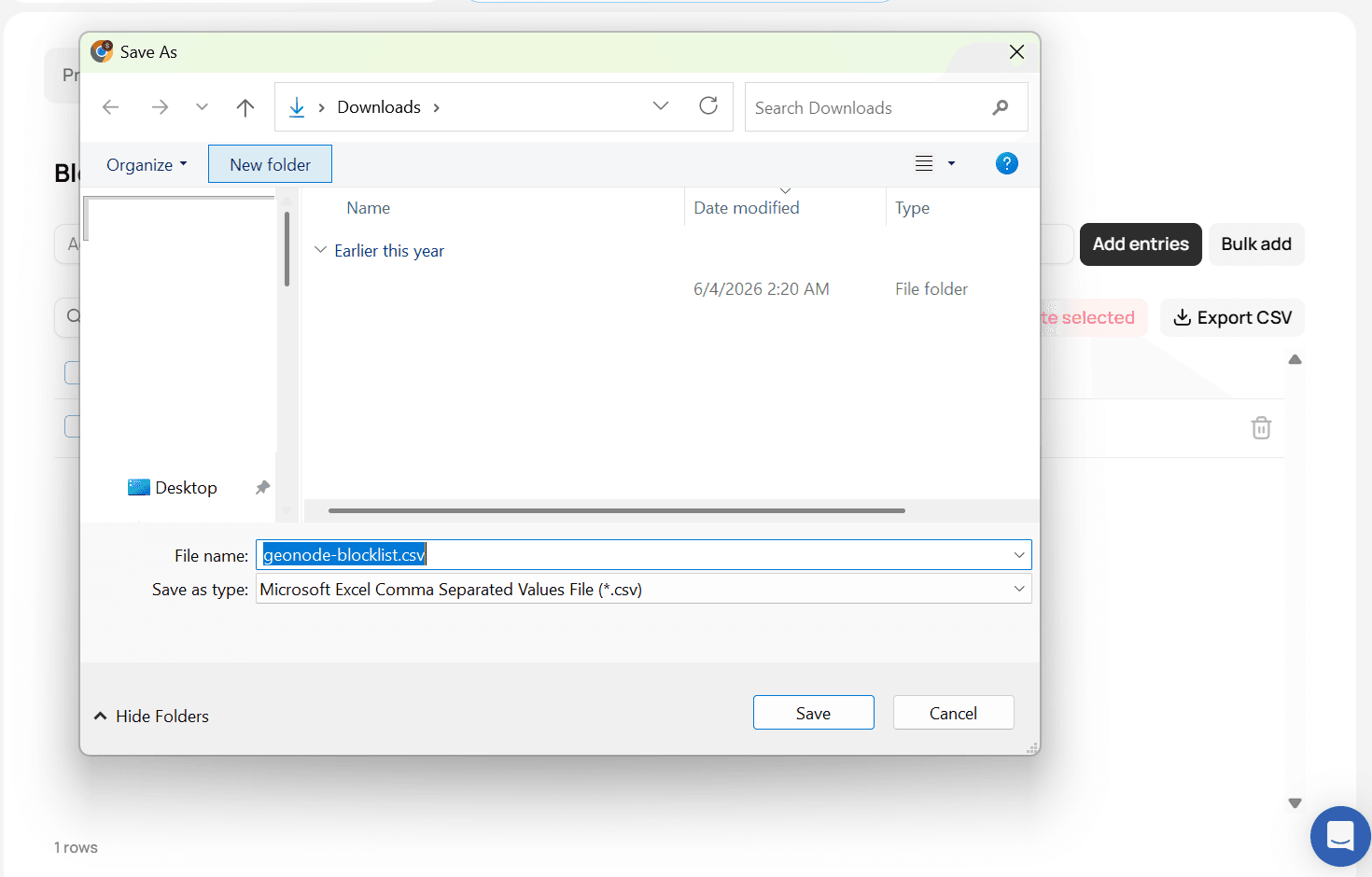
Click Export CSV to download the current list. Use it as a backup, to review entries offline, or to share the list with your team.
Verify the block
After mozilla.dev is on the list, send two requests through the same proxy: one allowed host, one blocked host.
Replace USERNAME and PASSWORD with the values from Proxy configuration. For rotating residential HTTP, use port 9000 and a username that includes -type-residential.
cURL
curl -x "http://USERNAME:PASSWORD@proxy.geonode.io:9000" -I "http://ip-api.com/json"

curl -x "http://USERNAME:PASSWORD@proxy.geonode.io:9000" -I "http://mozilla.dev"
Python
import requests

username = "geonode_demouser-type-residential"
password = "demopass"
proxy = {
    "http": f"http://{username}:{password}@proxy.geonode.io:9000",
    "https": f"http://{username}:{password}@proxy.geonode.io:9000",
}

allowed = requests.get("http://ip-api.com/json", proxies=proxy, timeout=30)
print(allowed.status_code, allowed.text[:200])

blocked = requests.get("http://mozilla.dev", proxies=proxy, timeout=30)
print(blocked.status_code, blocked.reason)
What you should see
| Target | Result |
|---|---|
http://ip-api.com/json | 200 — still allowed |
http://example.com | 200 — still allowed |
http://mozilla.dev | 468 Target Forbidden |
https://mozilla.dev | Tunnel fails with 468 Target Forbidden |
The proxy refuses the blocked host immediately. It does not fetch the page.
468 vs 464
Platform security policies can return 464. A host on your Block list
returns 468 Target Forbidden. If mozilla.dev still loads, wait 10–30
seconds and retry, or confirm the row is still in the table.
Delete mozilla.dev from the list, wait, and run the same request again. It should succeed like any other allowed host.
Tips
- Block only outliers, not the destination you are trying to reach.
- Browser sessions benefit the most: one page load can trigger many extra hosts.
- After add or delete, wait a moment before testing.
- Export CSV before a large cleanup so you can restore the list.
- Failed Block list hits can show up as failed requests in Usage Stats & Analytics.
For other proxy error codes, see Error Handling.
Was this page helpful?