Configure
ProxiesAfter your ISP Proxies subscription is active, manage assigned IPs from the dashboard under ISP Proxies. Each IP has its own host, port, username, and password. There is no rotation to configure.
Open ISP Proxies
- Sign in to the Geonode dashboard.
- Under Proxies, open ISP Proxies.
- Use the Proxy list tab (Statistics is available for usage metrics).
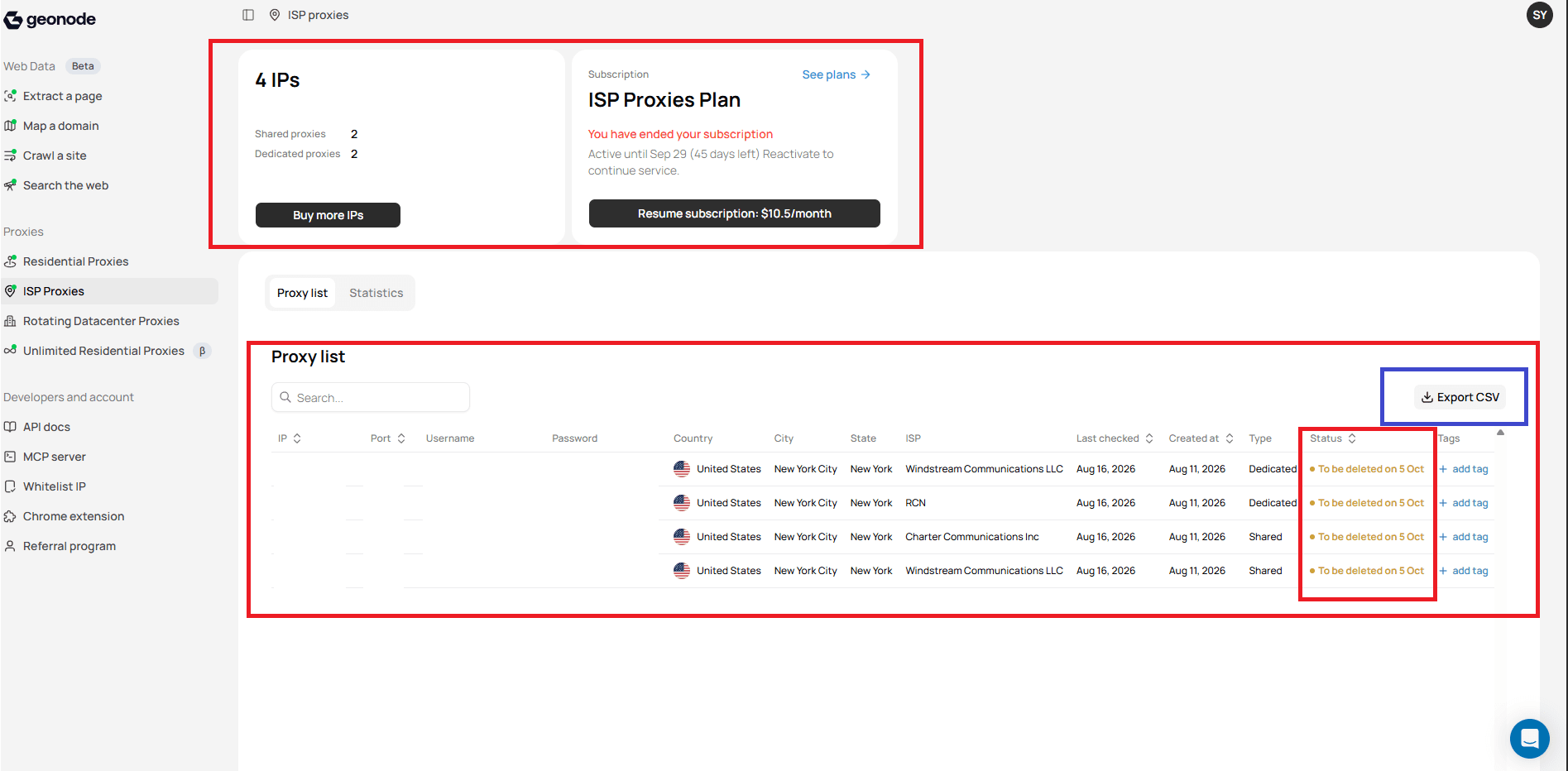
Subscription overview
The top of the page shows your package:
- Total number of assigned IPs
- Number of Shared proxies
- Number of Dedicated proxies
- Subscription status and renewal or resume options
- Buy more IPs when you need to expand
The number of rows in the Proxy list matches your package.
Proxy list
Each row includes connection and network details:
| Field | Description |
|---|---|
| IP | IP address of the proxy |
| Port | Port used to connect |
| Username | Username for this proxy |
| Password | Password for this proxy |
| Country | Country associated with the IP |
| City / State | City and state associated with the IP |
| ISP | Internet Service Provider for the IP |
| Last checked | Most recent check time |
| Created at | When the proxy was created |
| Type | Shared or Dedicated |
| Status | Current status of the proxy |
| Tags | Tags assigned to the proxy |
Use Search above the list to find a specific IP. Use Export CSV to download the list.
Protect credentials
The proxy list and CSV export include usernames and passwords. Store them securely and do not share them publicly.
View IP details
Select a proxy from the list to open IP details.
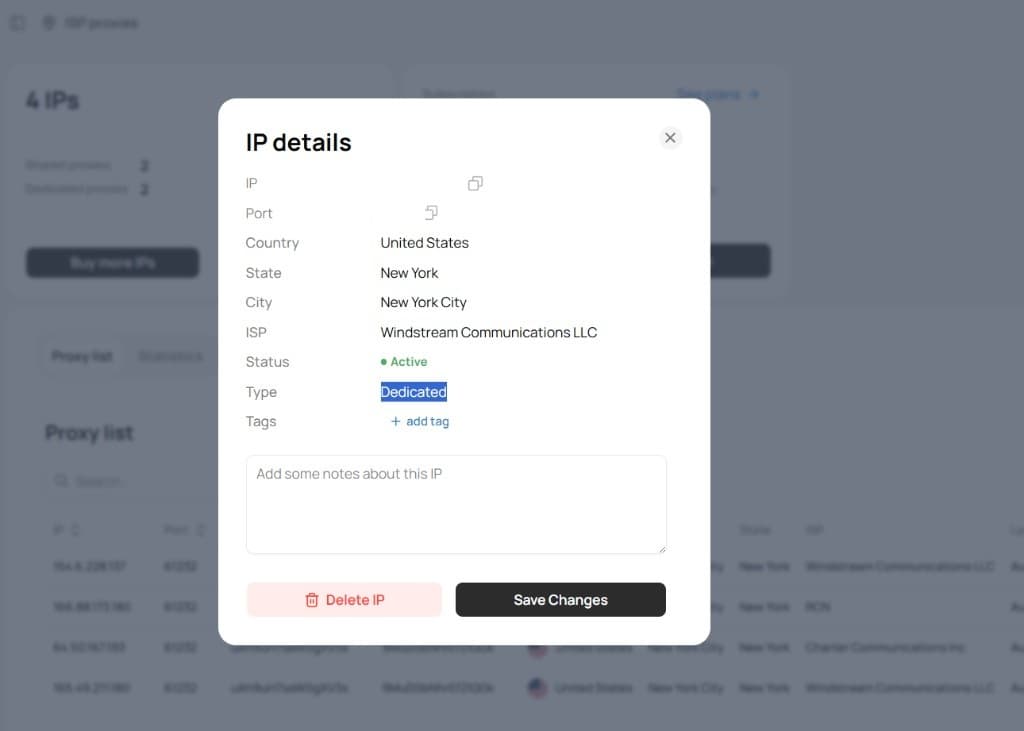
The details view shows:
- IP address and port (with copy controls)
- Country, state, city, and ISP
- Status (for example Active)
- Type (Shared or Dedicated)
- Tags and notes
Add notes
Use the notes field to store information about how you use that IP. Select Save Changes after editing.
Delete an IP
Use Delete IP when you want to remove a selected proxy from your account. Make sure you no longer need it before deleting.
Organize with tags
Select + add tag on a proxy to open the Tags dialog.
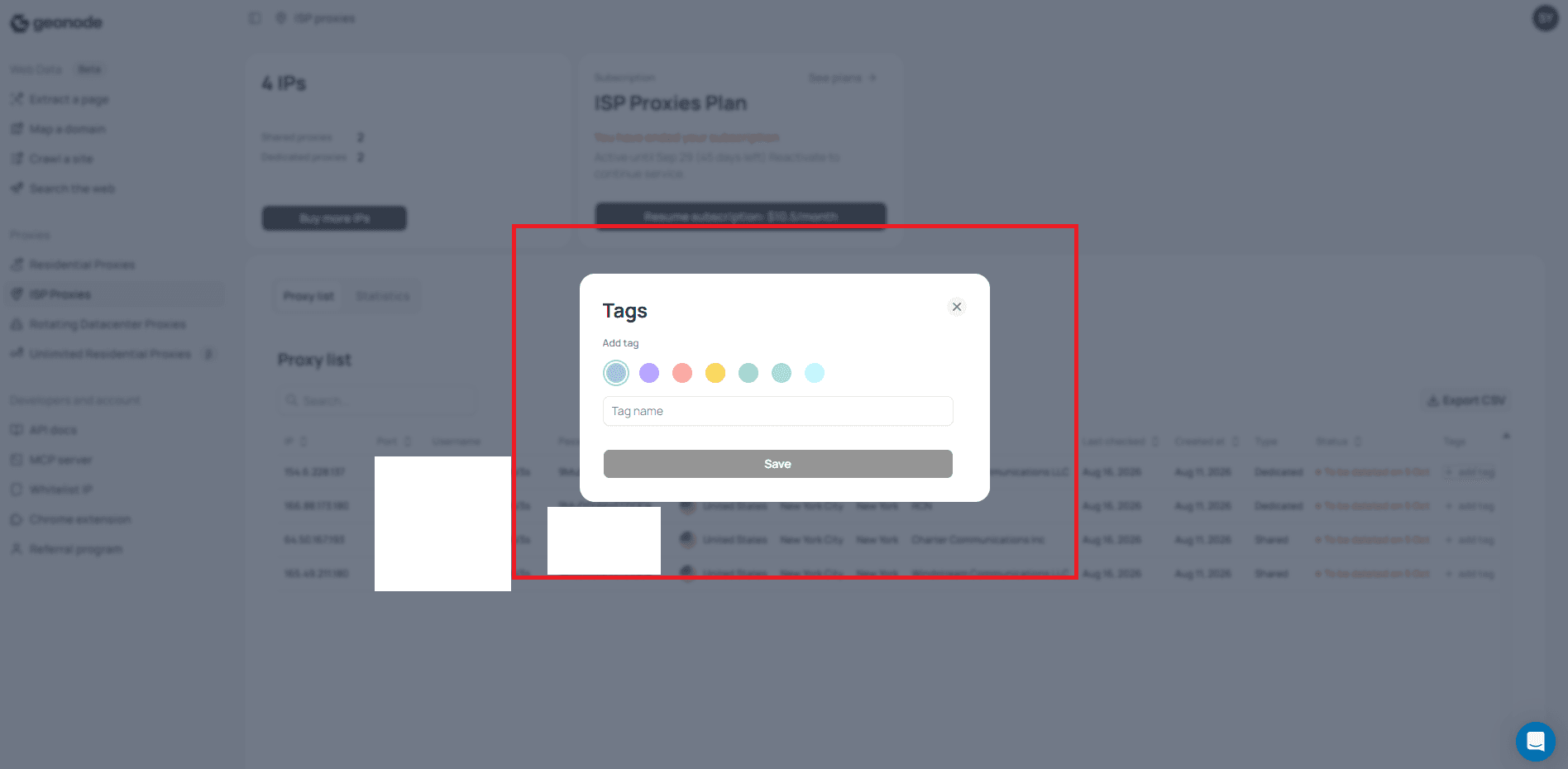
You can:
- Choose a tag color.
- Enter a tag name.
- Select Save.
Tags help group proxies by project, application, or any label that fits your workflow.
Statistics
Open the Statistics tab to review usage for a time range such as last 24 hours, 7 days, 30 days, 90 days, or a custom range. Metrics can include total requests, success rate, average duration, and request charts.
Endpoint shape
Each assigned proxy uses a static endpoint:
IP:PORT:USERNAME:PASSWORDCopy these values from the proxy list or IP details. There are no rotation flags or session lifetime settings on ISP Proxies.
When your credentials look right, continue to Send Your First Request.
Was this page helpful?