Configure
ProxiesConfigure Residential Proxies in the dashboard under Proxy configuration. Each targeting and connection option you pick is written into the generated endpoint. This guide shows how those selections map to the endpoint string.
Open Proxy configuration
- Sign in to the Geonode dashboard.
- Under Proxies, open Residential Proxies.
- Select the Proxy configuration tab.
Use the controls on the right (gateway, country, state, city, ASN/ISP, OS, protocol, session type). The endpoint box updates as you change them.
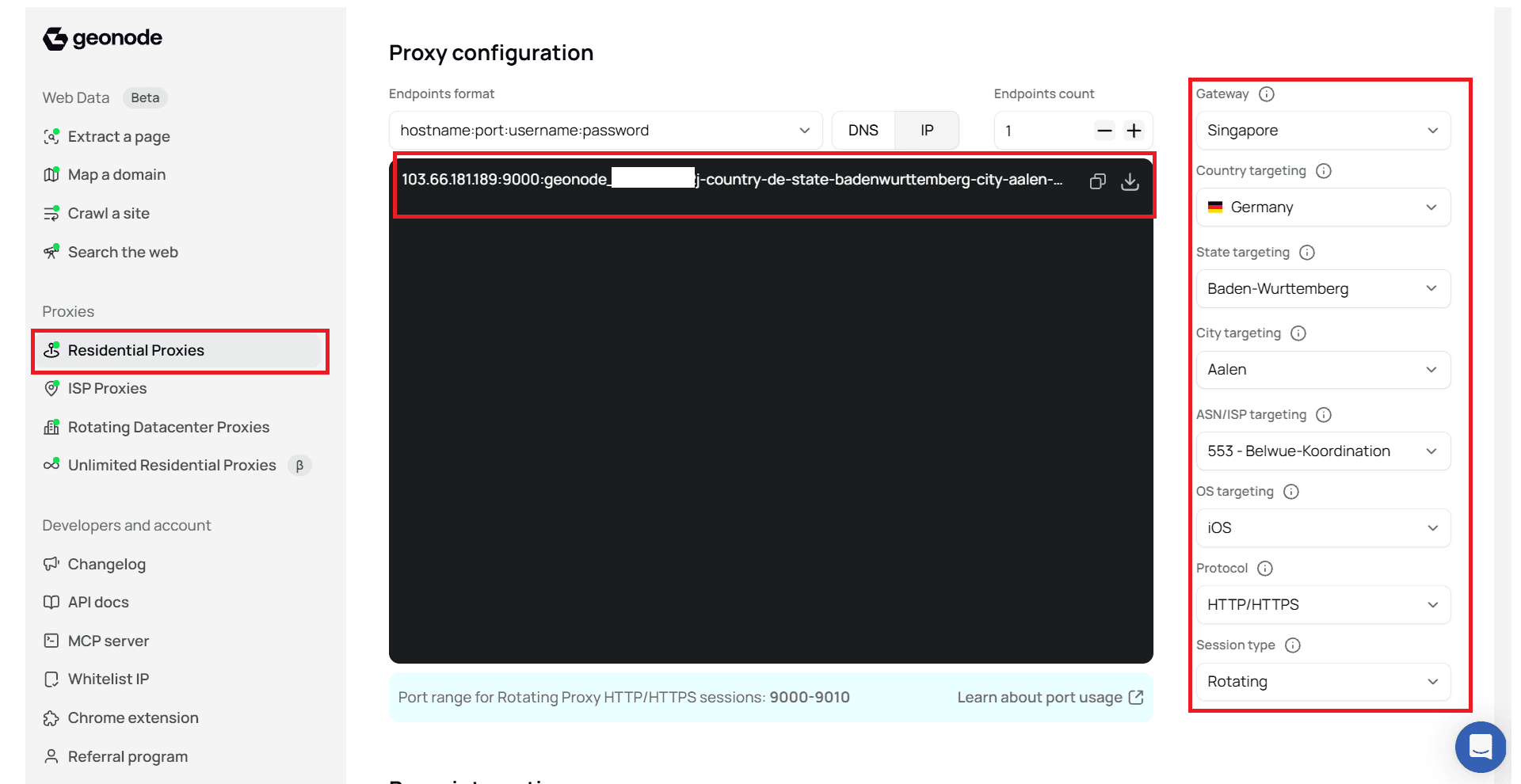
Endpoints format
At the top of the configuration area, choose how endpoints are printed. In this example the format is:
hostname:port:username:passwordYou can also switch between DNS and IP:
| Mode | What you get |
|---|---|
| IP | Numeric host (for example 103.66.181.189) |
| DNS | Hostname instead of a raw IP |
Endpoints count controls how many endpoint lines are generated (set to 1 in the example below).
Example endpoint
With the selections in the screenshot, the dashboard generates an endpoint like this:
103.66.181.189:9000:YOUR_USERNAME-country-de-state-badenwurttemberg-city-aalen-asn-553-os-ios:YOUR_PASSWORDBreak down the string
| Part | Value in the example | Meaning |
|---|---|---|
| Host | 103.66.181.189 | Proxy host (IP mode) |
| Port | 9000 | Port for this protocol + session type |
| Username base | YOUR_USERNAME | Your API username from the dashboard |
| Targeting flags | -country-de-state-badenwurttemberg-city-aalen-asn-553-os-ios | Options appended to the username |
| Password | YOUR_PASSWORD | Your API password from the dashboard |
Targeting is always applied by appending flags to the username, not by changing the password.
How each selection changes the endpoint
Set options from broad to specific. Country first, then state, then city. ASN/ISP options depend on the location you already chose.
Gateway
Gateway is the entry point you connect to (for example Singapore). It does not add a -country- (or similar) flag to the username. Country targeting controls the exit IP location; gateway controls where you enter the Geonode network.
Gateway vs country
You can use a Singapore gateway with Germany country targeting. They are independent settings.
Country targeting
- Open Country targeting.
- Select a country (for example Germany).
The username gains a two-letter country code:
| Selection | Flag added to username |
|---|---|
| Germany | -country-de |
| United States | -country-us |
State targeting
- Keep a country selected.
- Open State targeting.
- Select a state (for example Baden-W�rttemberg).
| Selection | Flag added to username |
|---|---|
| Baden-W�rttemberg | -state-badenwurttemberg |
Spaces and special characters are normalized in the flag (for example Baden-W�rttemberg ? badenwurttemberg).
City targeting
- Keep country and state selected.
- Open City targeting.
- Select a city (for example Aalen).
| Selection | Flag added to username |
|---|---|
| Aalen | -city-aalen |
ASN / ISP targeting
- Set location first (country, and optionally state and city).
- Open ASN/ISP targeting.
- Select a network (for example 553 - Belwue-Koordination).
| Selection | Flag added to username |
|---|---|
| ASN 553 | -asn-553 |
OS targeting
- Open OS targeting.
- Select an OS (for example iOS).
| Selection | Flag added to username |
|---|---|
| iOS | -os-ios |
Protocol and session type
These control connection behavior and which port range you use. They do not always add username flags the same way geo options do, but they change the host:port the dashboard prints.
| Setting in the example | Value | Effect |
|---|---|---|
| Protocol | HTTP/HTTPS | HTTP(S) proxy access |
| Session type | Rotating | New IP behavior across requests; rotating HTTP/HTTPS ports |
For rotating HTTP/HTTPS, the dashboard notes a port range such as 9000-9010. The example endpoint uses port 9000.
Sticky sessions use a different port range and can add session lifetime flags when configured. Choose Sticky under Session type when you need the same IP for a period of time.
Putting it together
With the example selections:
| Control | Selected value | In the endpoint |
|---|---|---|
| Endpoints format | hostname:port:username:password | Full string shape |
| DNS / IP | IP | Host 103.66.181.189 |
| Gateway | Singapore | Entry point (not a username flag) |
| Country | Germany | -country-de |
| State | Baden-W�rttemberg | -state-badenwurttemberg |
| City | Aalen | -city-aalen |
| ASN/ISP | 553 - Belwue-Koordination | -asn-553 |
| OS | iOS | -os-ios |
| Protocol | HTTP/HTTPS | Port in rotating HTTP range |
| Session type | Rotating | Port 9000 (within 9000-9010) |
Resulting username flags (in order):
-country-de-state-badenwurttemberg-city-aalen-asn-553-os-iosLeave a level on Any (or clear it) when you do not need that restriction. The matching flag is removed from the username and the endpoint updates immediately.
Keep credentials private
Never share or commit your real username and password. Always copy them from your own dashboard and replace the placeholders in examples.
When your endpoint looks right, continue to Send Your First Request to use it in a live call.
Was this page helpful?