Dashboard Overview
The GeoNode Dashboard provides a graphical interface for using the Scraper and Map APIs without writing code. From the dashboard, you can submit extraction and mapping requests, monitor usage, review previous jobs, and manage your account from a single place.
After signing in, you'll see the main dashboard with navigation on the left and your selected tool in the main workspace.
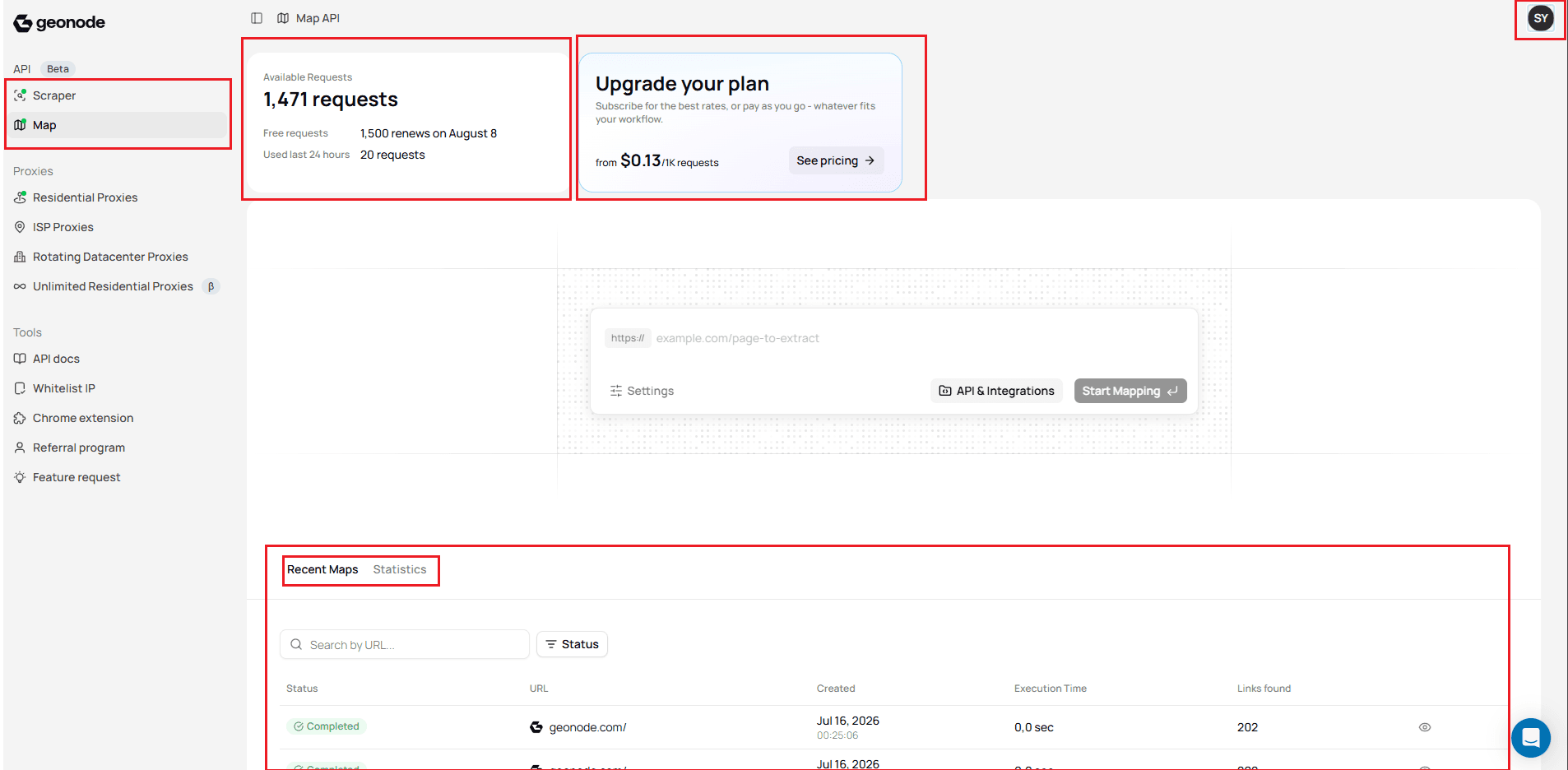
Available Requests
The Available Requests card provides a quick overview of your current usage, including:
- Remaining requests available in your account.
- Your free request allowance.
- When your request quota renews.
- The number of requests used during the last 24 hours.
This allows you to monitor your usage without leaving the dashboard.
Upgrade Your Plan
The Upgrade Your Plan section lets you review available pricing plans and upgrade your subscription whenever you need additional requests or higher usage limits.
Dashboard Navigation
Use the navigation menu on the left to switch between the available tools.
- Extraction - Extract structured content from one or more web pages.
- Mapping - Discover URLs from websites before extracting their content.
- Search - Search the web for specific content.
- Crawl - Crawl a website and extract its content.
Settings
Both the Scraper and Map dashboards include a Settings panel where you can configure your requests before starting a job.
Detailed explanations of each setting are available in the corresponding API Guides and are not repeated in the Dashboard documentation.
Recent Jobs
The lower section of each dashboard displays your recent activity.
Depending on the selected tool, you can:
- View recent extraction or mapping jobs.
- Check the current job status.
- Search previous jobs.
- Open completed results.
- Review execution times.
Dedicated guides explain how to work with jobs in more detail.
Statistics
The Statistics tab provides an overview of your API usage and request activity, helping you monitor your overall usage over time.
Next Steps
Now that you're familiar with the dashboard layout, continue with one of the following guides:
- Scraper Overview – Learn how to extract content from web pages using the Dashboard.
- Map Overview – Learn how to discover URLs from websites using the Dashboard.
- Crawl Overview – Learn how to crawl a website and download results using the Dashboard.
- Search Overview – Learn how to search the web using the Dashboard.
Was this page helpful?