Search and View Results
Use the Search dashboard to enter a search query, configure search options, and review the results directly in the dashboard.
Configure Your Search
Enter your search query in the Search field.
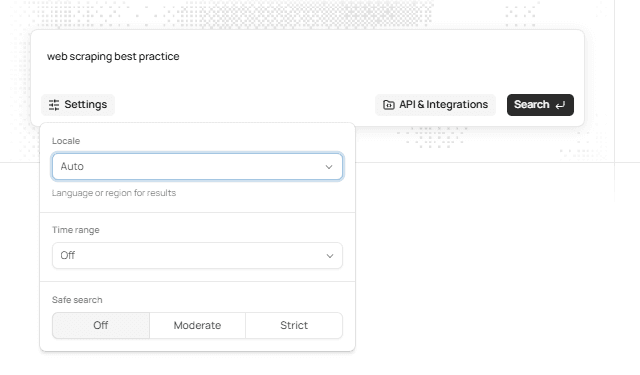
You can open Settings to configure options such as:
- Locale
- Time range
- Safe search
For detailed information about the available search parameters and how they affect your request, see Search Parameters.
Locale
The Locale setting controls the language or region used for the search results.
The default option is Auto.
Time Range
The Time range setting allows you to apply a time range to the search.
The default option is Off.
Safe Search
The Safe search setting controls the level of filtering applied to the search results.
Available options are:
- Off
- Moderate
- Strict
For the complete list of supported search parameters and their values, see Search Parameters.
Submit the Search
After entering your query and configuring the available settings, select Search to start the search.
The search is then submitted and the results are displayed in the dashboard.
Review Search Results
Once the search is completed, the results section displays the returned search results.
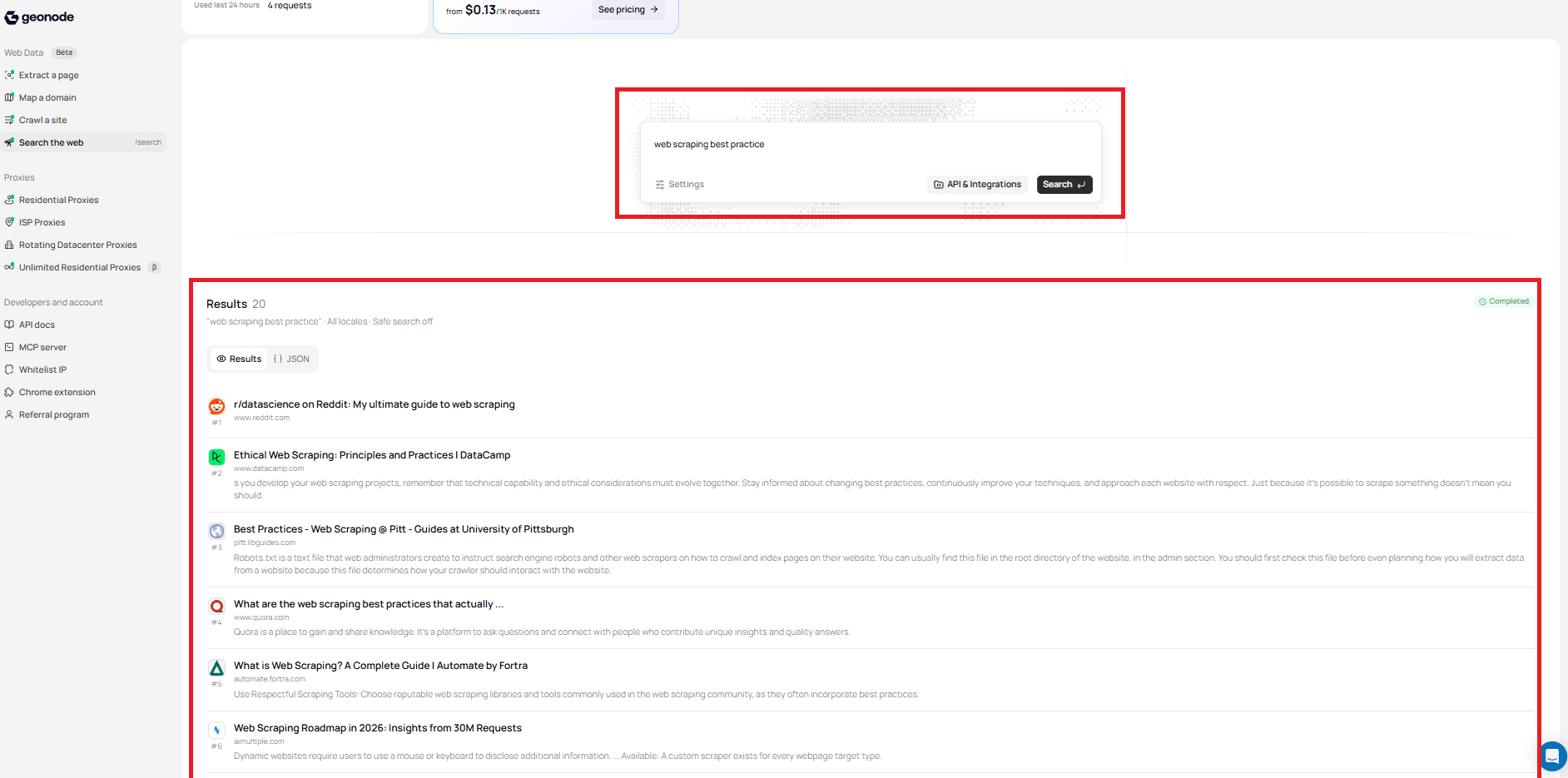
The results view includes:
- Result count — Number of results returned.
- Query — Search query used for the request.
- Locale — Locale used for the search.
- Safe search — Safe search setting used for the search.
- Status — Current status of the search.
Each result can include:
- Result position
- Title
- URL
- Snippet
- Displayed URL
View Results as JSON
The results section provides two views:
- Results — Displays the search results in a readable format.
- JSON — Displays the returned results as JSON.
Select JSON when you need to inspect the returned search data in its JSON format.
What's Next?
You now know how to configure a search, submit a query, and review the returned results.
Continue to Manage Search Jobs to learn how to search, filter, and manage your previous searches.
Was this page helpful?