Manage Crawl Jobs
The Crawl dashboard lets you manage previous crawls and monitor your crawl activity from one place.
Recent Crawls
Open the Recent Crawls tab to view your previous crawl jobs.
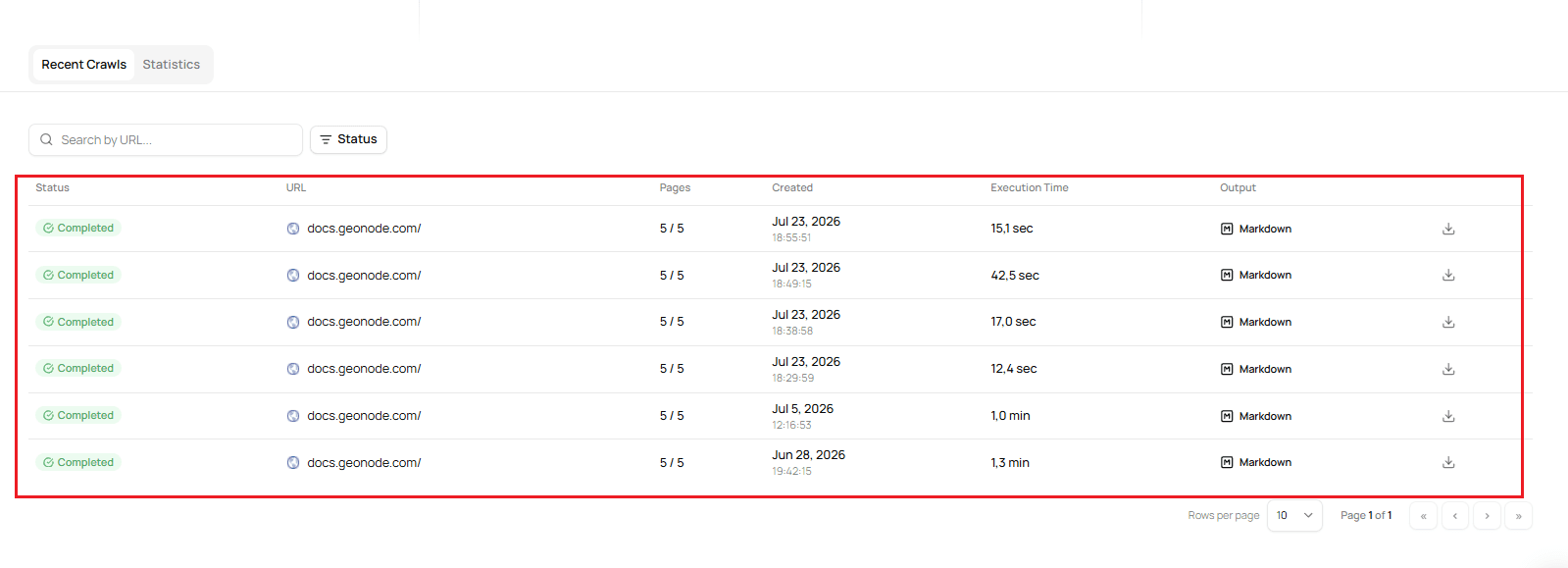
The Recent Crawls section provides:
- Search by URL — Find a previous crawl by its starting URL.
- Status — Filter crawls by their current status.
- URL — View the starting URL used for each crawl.
- Pages — See how many pages were crawled.
- Created — See when the crawl was created.
- Execution Time — See how long the crawl took to complete.
- Output — View the output format and download the results.
You can also use the pagination controls to move between pages of crawl jobs and change the number of rows displayed per page.
Filter Crawl Jobs
Use Search by URL to find a specific crawl.
For example, you can enter:
docs.geonode.comto find crawls for that domain.
You can also use the Status filter to narrow the list of crawls by their current status.
Download Crawl Output
Each completed crawl job includes a download action in the Output column.
Select the download icon to export the crawl results for that job.
Statistics
The Statistics tab provides an overview of your Crawl API usage.
Open Statistics to review crawl activity for a selected time period.
You can typically:
- Select a custom date range.
- Choose a predefined time range, such as the last 24 hours, 7 days, 30 days, or 90 days.
- View the total number of crawls.
- Monitor your success rate.
- Review the average crawl duration.
- See the number of requests used during the selected period.
What's Next?
You now know how to review previous crawls, filter crawl jobs, download output, and monitor Crawl API usage.
For the API-level details of crawl jobs, see Managing Crawl Jobs.
Was this page helpful?