Crawl Overview
The Crawl dashboard provides a workspace for crawling a website, reviewing recent crawl jobs, and monitoring crawl usage.
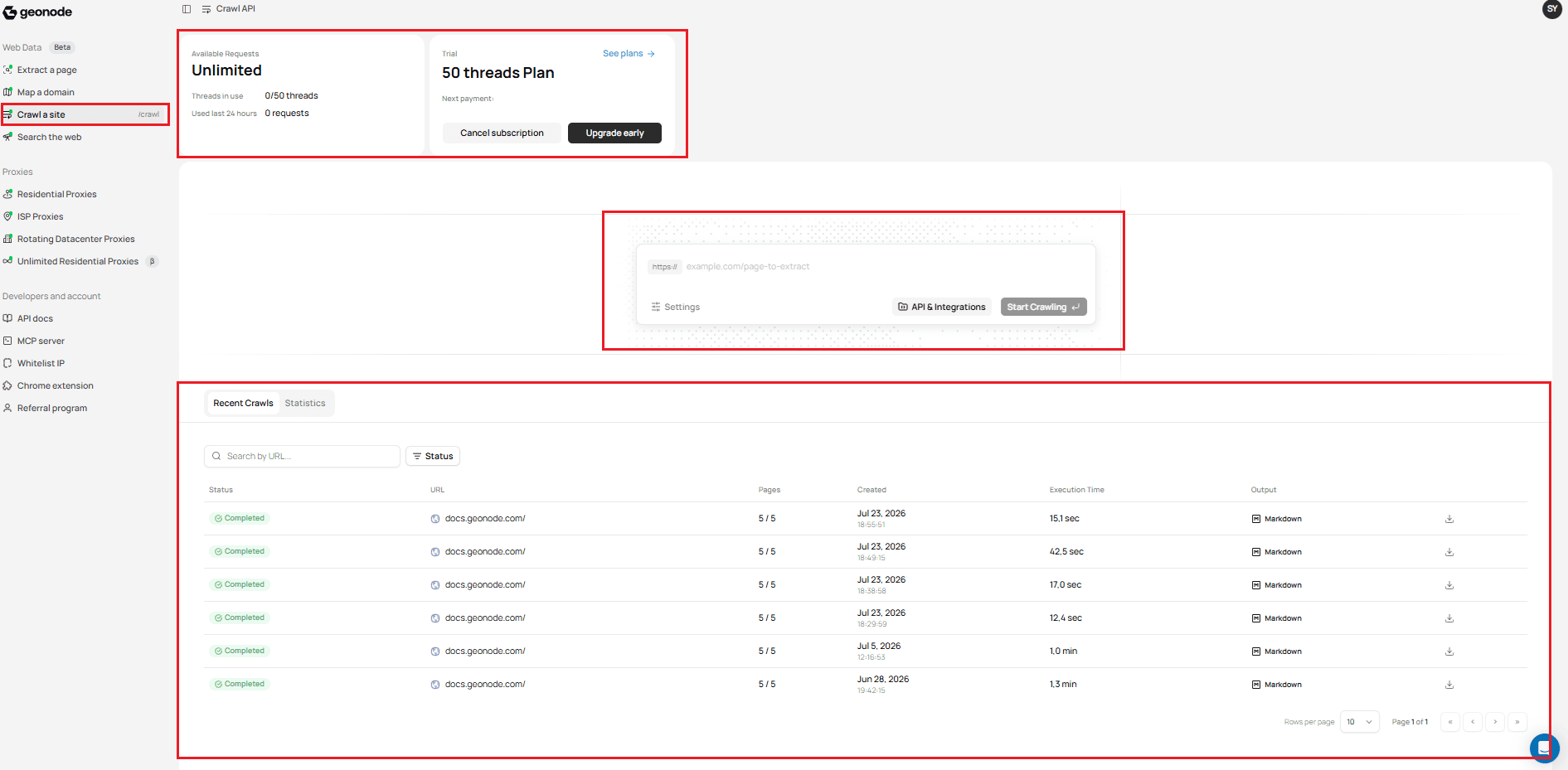
Account Overview
At the top of the Crawl dashboard, you can view your current request usage and plan.
The account overview shows:
- Available Requests — Number of requests currently available, or Unlimited depending on your plan.
- Threads in use — Current thread usage for your plan.
- Used last 24 hours — Number of requests used during the last 24 hours.
- Plan — Your current subscription plan and upgrade options.
You can also use See plans to review available pricing.
Crawl Workspace
The main Crawl workspace is where you enter the website URL you want to crawl.
Enter the URL in the field and use:
- Settings to configure the crawl.
- API & Integrations to access API-related options.
- Start Crawling to submit the crawl.
For information about configuring and starting a crawl from the dashboard, see Crawl a Site.
Recent Crawls
The Recent Crawls section displays your previous crawl jobs.
Each crawl displays:
- Status — Current status of the crawl job.
- URL — Starting URL that was crawled.
- Pages — Number of pages crawled, such as
5 / 5. - Created — Date and time when the crawl was created.
- Execution Time — Time taken to complete the crawl.
- Output — Output format, such as Markdown, with a download action.
You can also:
- Search previous jobs by URL.
- Filter jobs by status.
- Change the number of rows displayed per page.
- Move between result pages.
- Download crawl output from completed jobs.
Crawl Status
Crawl jobs can appear with different statuses depending on their current state.
Use the Status filter to narrow the list of recent crawls by status.
Statistics
The Crawl dashboard also includes a Statistics tab for viewing crawl usage.
Open Statistics to view your crawl activity and usage information.
For more information about managing crawl jobs and monitoring usage, see Manage Crawl Jobs.
What's Next?
You now know the main sections of the Crawl dashboard.
Continue to Crawl a Site to learn how to configure a crawl and start crawling from the dashboard.
Was this page helpful?