Discover URLs
The Map dashboard helps you discover URLs from a website before extracting content. Enter the website URL, optionally configure the mapping settings, and start the mapping request. Once the mapping is complete, you can review, copy, or download the discovered URLs.
Step 1. Enter the website URL
Enter the website you want to map into the URL field.
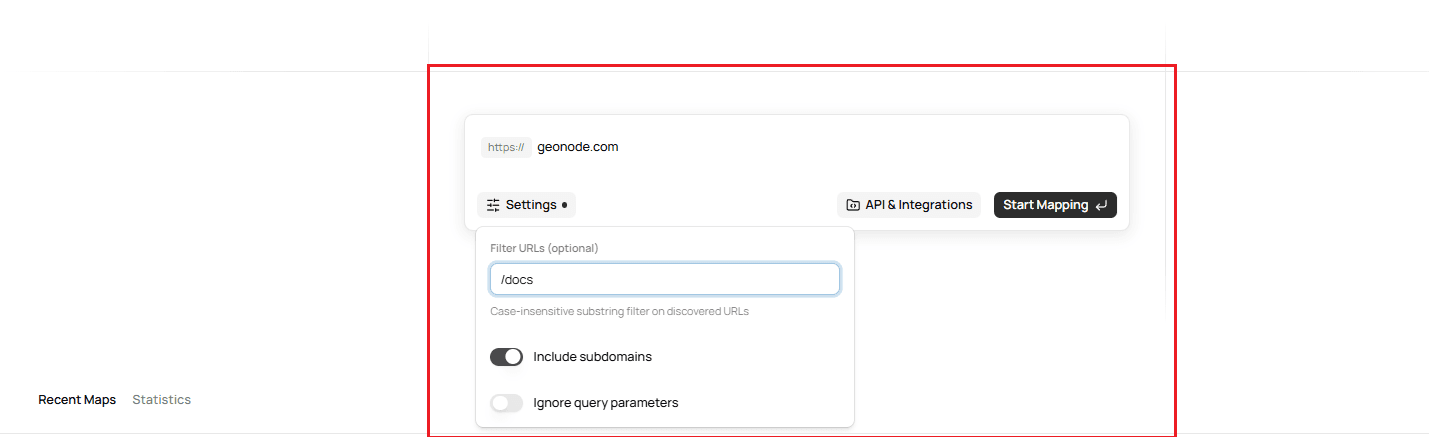
Optionally, you can configure the mapping request before starting it.
Available options include:
- Filter URLs
- Include subdomains
- Ignore query parameters
For a detailed explanation of these options and the recommended mapping workflow, refer to the following guides:
After reviewing the settings, click Start Mapping.
Step 2. View the mapping job
Once the mapping request has been submitted, it appears in the Recent Maps section.
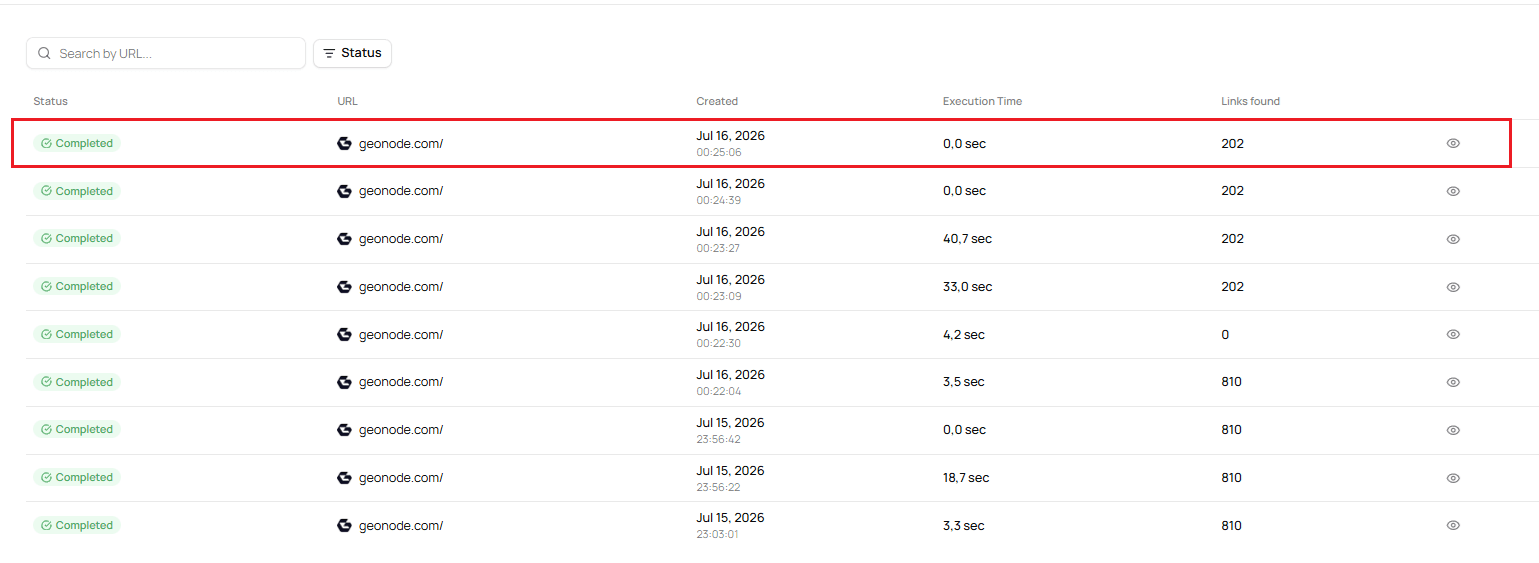
Each completed mapping request displays:
- Status
- Website URL
- Creation date
- Execution time
- Number of discovered links
Click the View icon to open the mapping results.
Step 3. Review the discovered URLs
The Map Preview displays all discovered URLs for the completed mapping request.
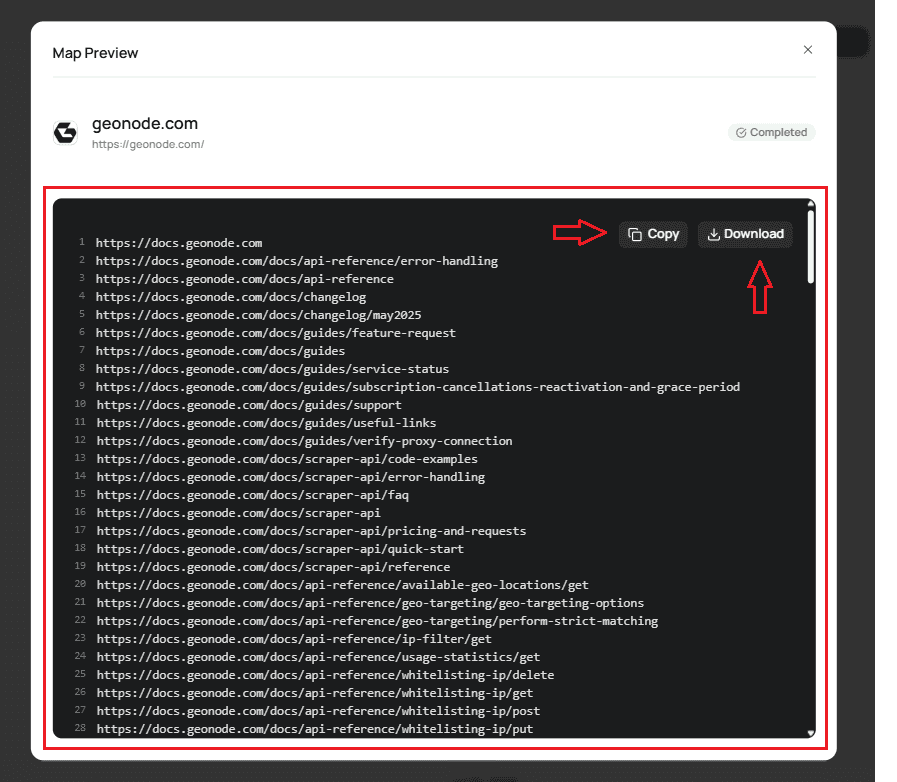
From the preview, you can:
- Review all discovered URLs.
- Copy the complete list to your clipboard.
- Download the discovered URLs as a file.
Next Step
Continue with Manage Map Jobs to learn how to search, filter, and review previous mapping requests.
Was this page helpful?