Manage Map Jobs
The Recent Maps section lets you review all mapping requests submitted through the Map dashboard. You can search previous requests, filter them by status, open completed results, and monitor your mapping activity using the built-in statistics.
Search and filter map jobs
Open the Recent Maps tab to view your mapping history.
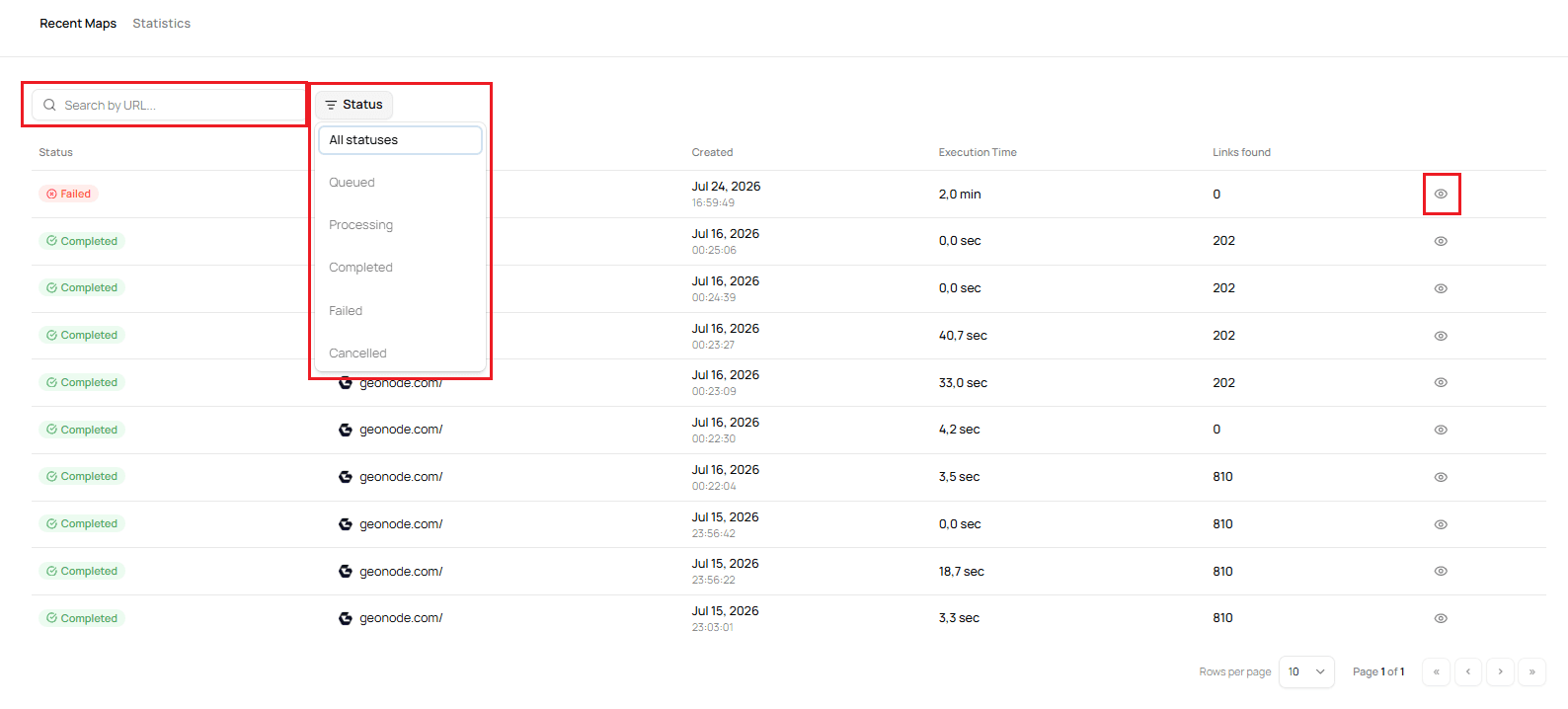
The dashboard allows you to:
- Search previous mapping requests by URL.
- Filter jobs by status.
- Open completed mapping results.
The available status filters include:
- Queued
- Processing
- Completed
- Failed
- Cancelled
Click the View icon to open the discovered URLs for a completed mapping request.
View mapping statistics
Select the Statistics tab to review your mapping activity.
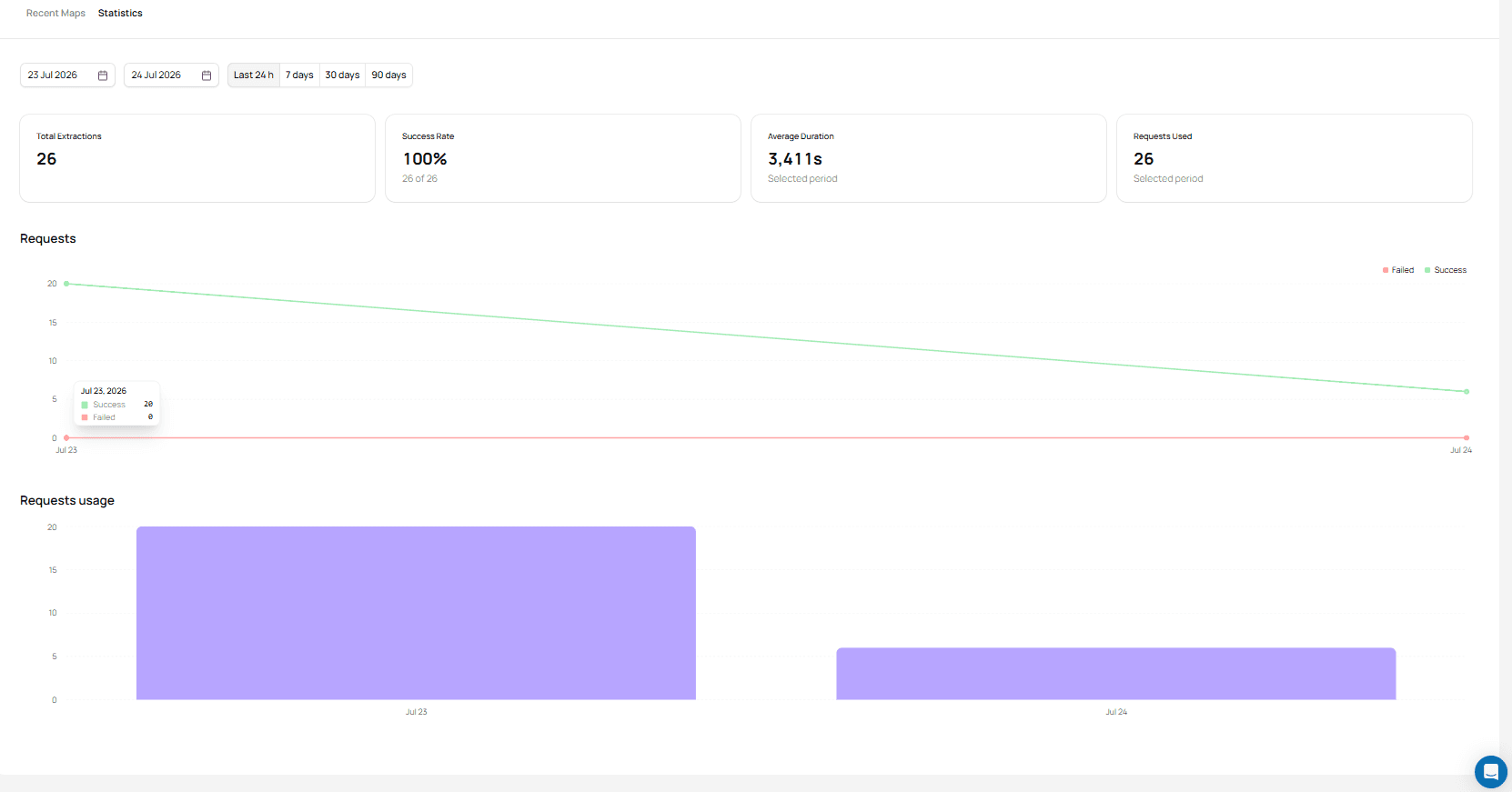
The Statistics page provides an overview of your mapping requests for the selected time period.
You can:
- Select a custom date range.
- Choose a predefined time range, such as the last 24 hours, 7 days, 30 days, or 90 days.
- View the total number of mapping requests.
- Monitor your success rate.
- Review the average mapping duration.
- See the number of requests used during the selected period.
The page also includes charts showing request activity and usage trends over time, helping you monitor mapping performance and request consumption.
Next Step
You're now familiar with the complete Map dashboard workflow, including creating mapping requests, reviewing discovered URLs, and managing previous jobs.
Was this page helpful?