Rotating Proxies
This guide walks you through how to use Rotating Proxies in Geonode.
What Are Rotating Proxies
Rotating proxies automatically change your IP address with every request.
This feature helps maintain anonymity, prevent detection, and ensure smoother automation.
➡️ For a detailed explanation, see What Are Rotating Proxies
Geonode's Rotating Proxies Range
Geonode provides rotating proxies via HTTP and SOCKS5 protocols, with the following ports:
- HTTP: 9000–9010
- SOCKS5: 11000–11010
Each request you send will use a new IP address from a different location, helping to avoid IP-based blocking.
How to Use Rotating Proxies with the Geonode API
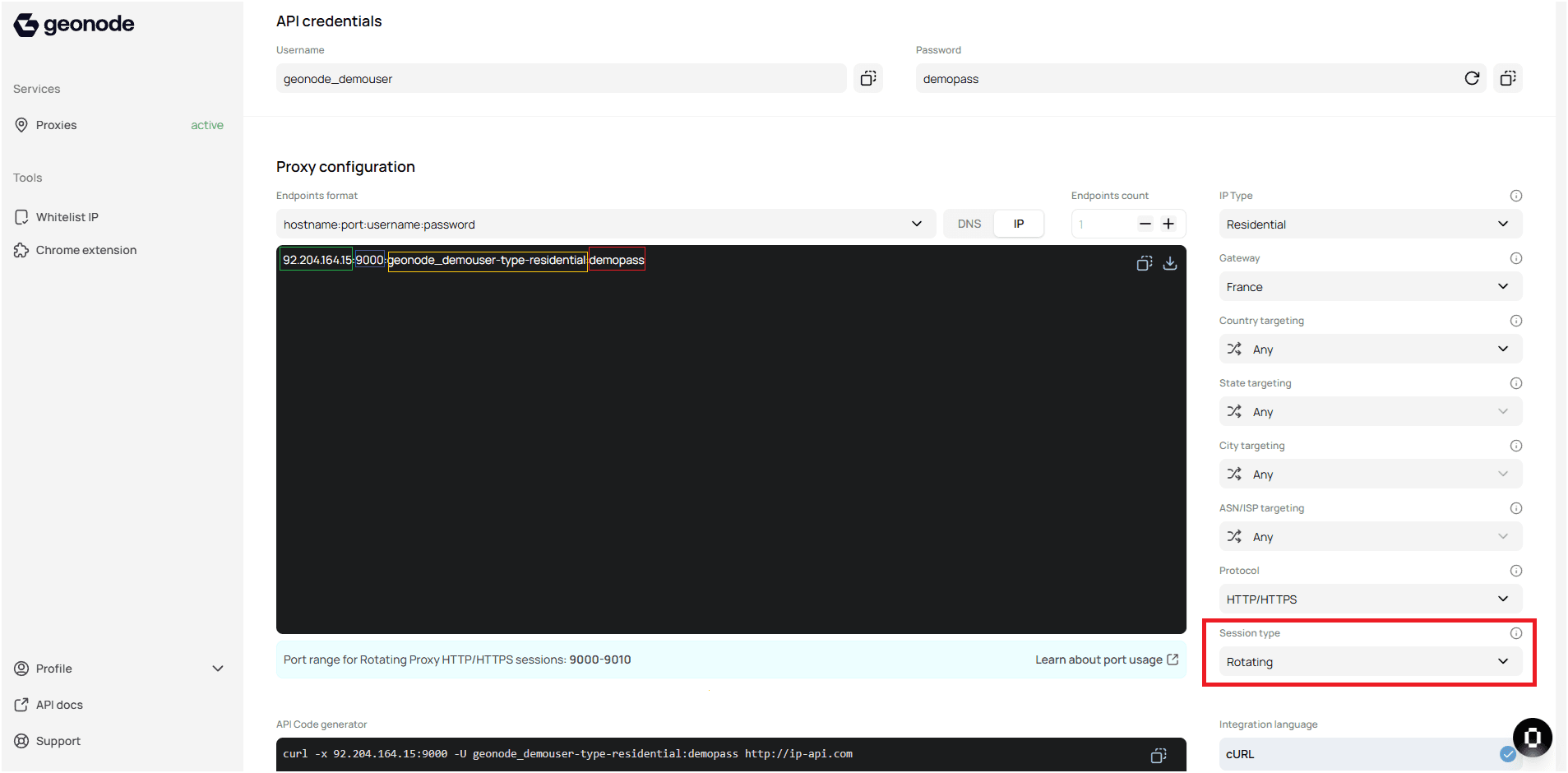
Step 1: Configure Your Proxy Settings
In your Geonode dashboard:
- Open Proxy Configuration.
- Select:
- IP Type: Residential
- Gateway: France (or your preferred location)
- Protocol: HTTP/HTTPS or SOCKS5
- Session Type: Rotating
Example configuration:
Step 2: Generate Proxy Endpoints
Once configured, generate your proxy endpoints.
They will typically look like this:
92.204.164.15:9000:geonode_demouser-type-residential:demopassEach endpoint includes your IP, port, and authentication credentials (username and password).
Step 3: Make API Calls Using Rotating Proxies
Here’s a Python example using the requests library:
import requests

username = "geonode_demouser-type-residential"
password = "demopass"
GEONODE_DNS = "92.204.164.15:9000"
url = "http://ip-api.com"

proxy = {
    "http": f"http://{username}:{password}@{GEONODE_DNS}"
}

response = requests.get(url, proxies=proxy)
print("Response:\n", response.text)
Each request will use a different IP address from Geonode’s proxy pool.
Verify Proxy Connection
To ensure the proxy is working, check your IP address using an online tool or follow this guide:
If you encounter any issues, refer to the troubleshooting section or Geonode support.