New Sticky Session
This guide explains how to create a new sticky session with Geonode.
What Are Sticky Proxies
Sticky proxies allow you to keep the same IP address for a set duration, making them ideal for activities that require stable connections — such as managing social media accounts, scraping sites with login sessions, or performing long-running data collection.
➡️ See the detailed explanation here: What Are Sticky Session Proxies
Geonode's Sticky Proxy Ports
Geonode assigns specific port ranges for sticky sessions to maintain consistent IPs over time:
- HTTP: 10000–10900
- SOCKS5: 12000–12010
How to Create a Sticky Session via the Geonode API
Before creating a session, configure your proxy settings in the Geonode dashboard.
Step 1: Configure Your Proxy Settings
- Log in to the Geonode Dashboard.
- Open the Proxies section from the sidebar.
- Select Sticky as your session type.
- Set the session duration:
- Minimum: 3 minutes
- Maximum: 24 hours (1440 minutes)
- Leave other fields as default unless you have specific preferences.
Example configuration:
- IP Type: Residential
- Gateway: France
- Port Range: HTTP 10000–10900
- Session Type: Sticky Session
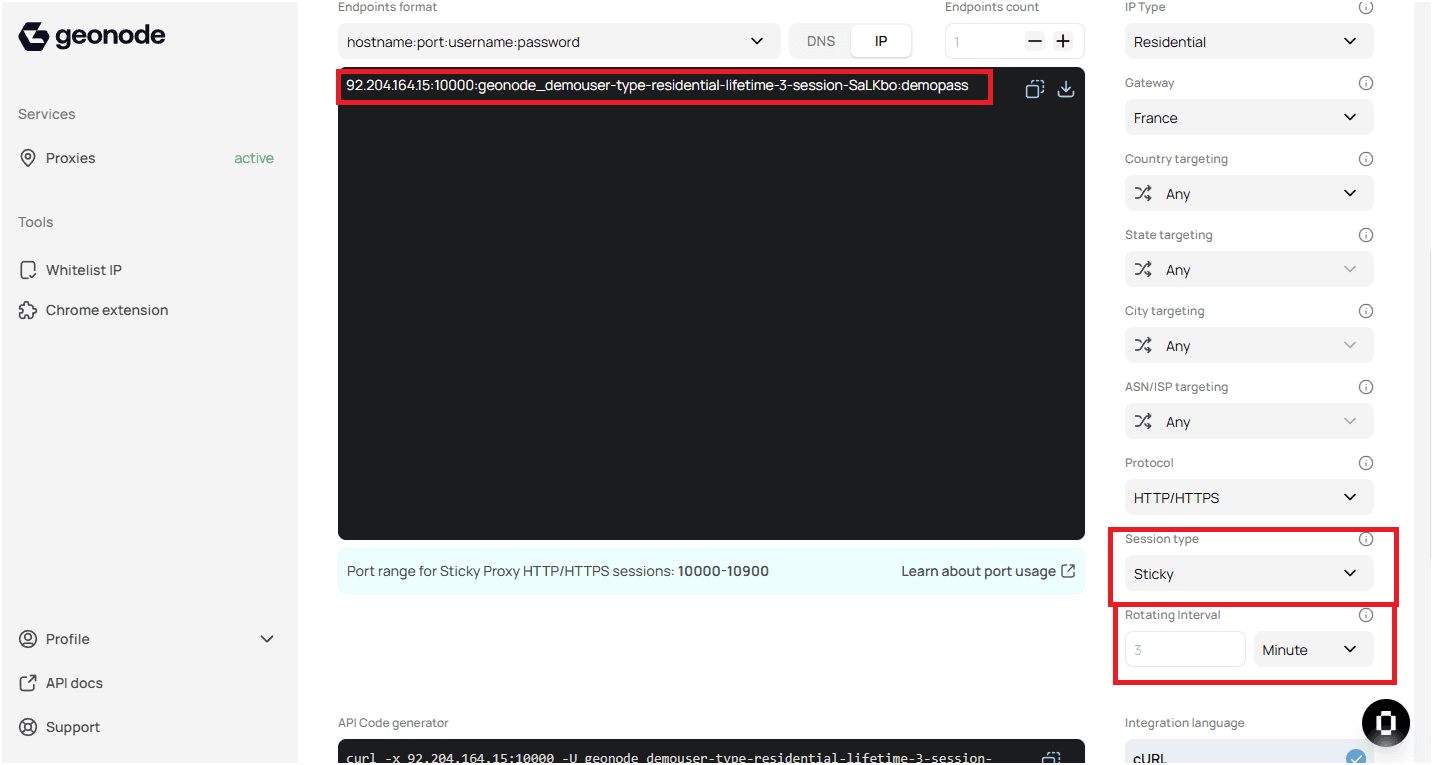
Once configured, copy your proxy endpoint, which looks like this:
92.204.164.15:10000:geonode_demouser-type-residential-lifetime-3-RAOnwRWhere:
- IP →
92.204.164.15 - Port →
10000 - Username →
geonode_demouser-type-residential-lifetime-3-RAOnwR - Password →
demopass
Note
You can use this configuration for API access or in third-party tools such as Chrome extensions.
Step 2: Create a Sticky Session via API
To start a sticky session through the API, make a request to the <ip>:<port> endpoint using your configured username and password.
Example using cURL:
curl -x 92.204.164.15:10000 \
  --user "geonode_demouser-type-residential-lifetime-3-RAOnwR:demopass" \
  --url "http://ip-api.com/json" \
  --header "Accept: application/json"
Follow this Sticky session API Guide to learn more about the API Create a New Sticky Session
Monitor Proxy Usage
Geonode also provides monitoring tools to track the usage of your proxies. You can check for errors, usage statistics, and ensure that the proxies are working as expected.
➡️ Follow this guide to learn in-depth: How to Check Proxy Usage
Verify Proxy Connection
To ensure the proxy is working, check your IP address using an online tool or follow this guide:
If you encounter any issues, refer to the troubleshooting section or Geonode support.