Extract Content from a Single URL
The Scraper dashboard lets you extract structured content from a single web page without writing code. Enter the URL, configure the extraction settings if needed, and start the request. Once the extraction is complete, you can preview or download the results directly from the dashboard.
Step 1. Enter the URL
Enter the URL you want to extract into the URL field.
After entering a valid URL, you can either start the extraction immediately or configure additional settings before submitting the request.
Step 2. Configure the extraction (Optional)
Click Settings to configure the extraction before starting the request.
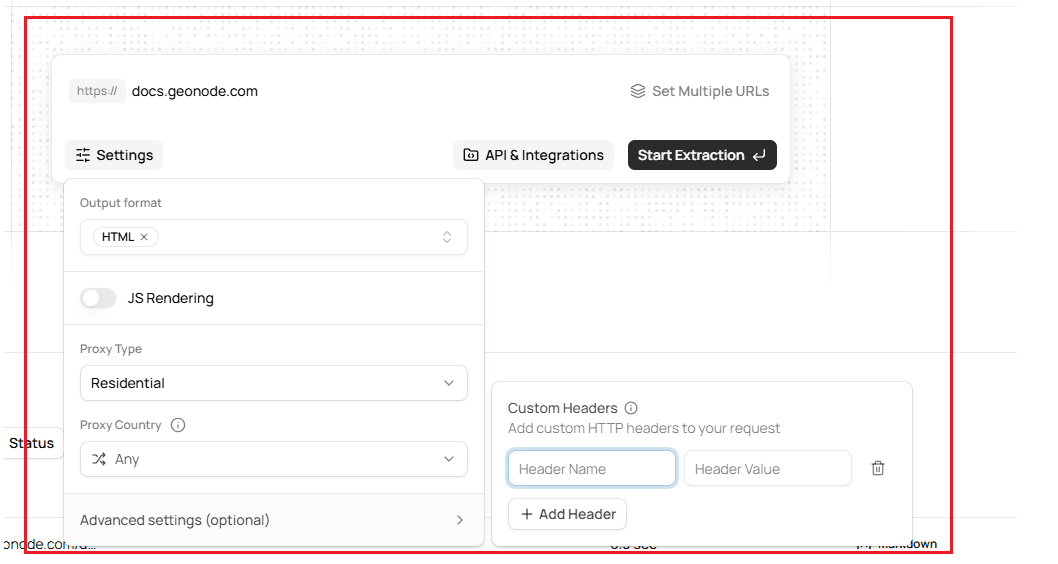
The Settings panel allows you to configure:
Output Formats
JavaScript Rendering
Waiting for Dynamic Content
Processing Modes
Proxy and Geo-Targeting
Using Custom Headers
If required, select a specific proxy country or leave it set to Any to automatically choose the best available location.
The Advanced settings section provides additional request options for more advanced extraction scenarios.
Step 3. Start the extraction
After reviewing your configuration, click Start Extraction.
The dashboard submits the request and begins processing the page.
Step 4. View the results
When the extraction completes, select the job from Recent Jobs to open the result.
The result page includes three output tabs:
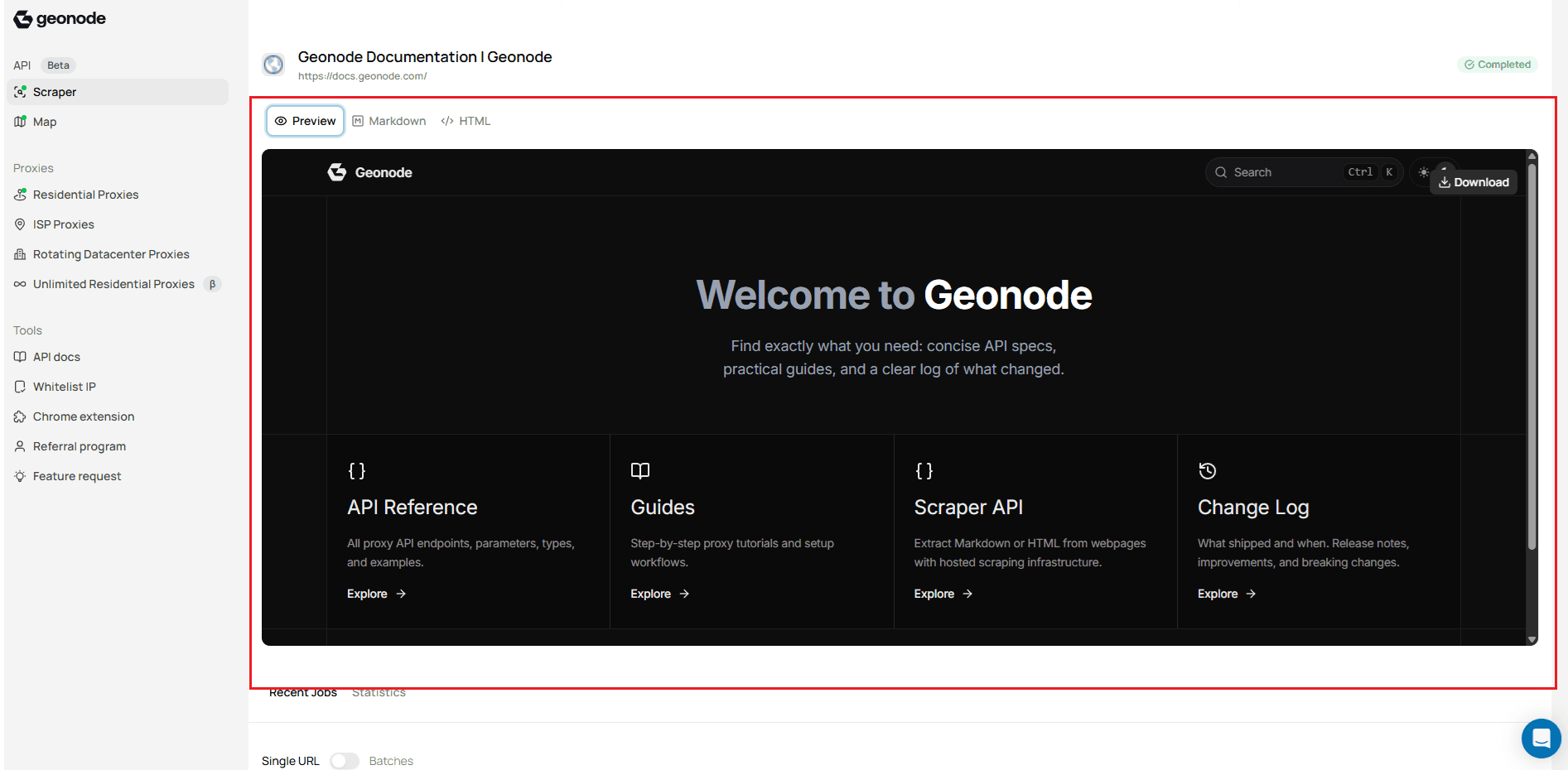
- Preview – Displays the extracted content in an interactive viewer.
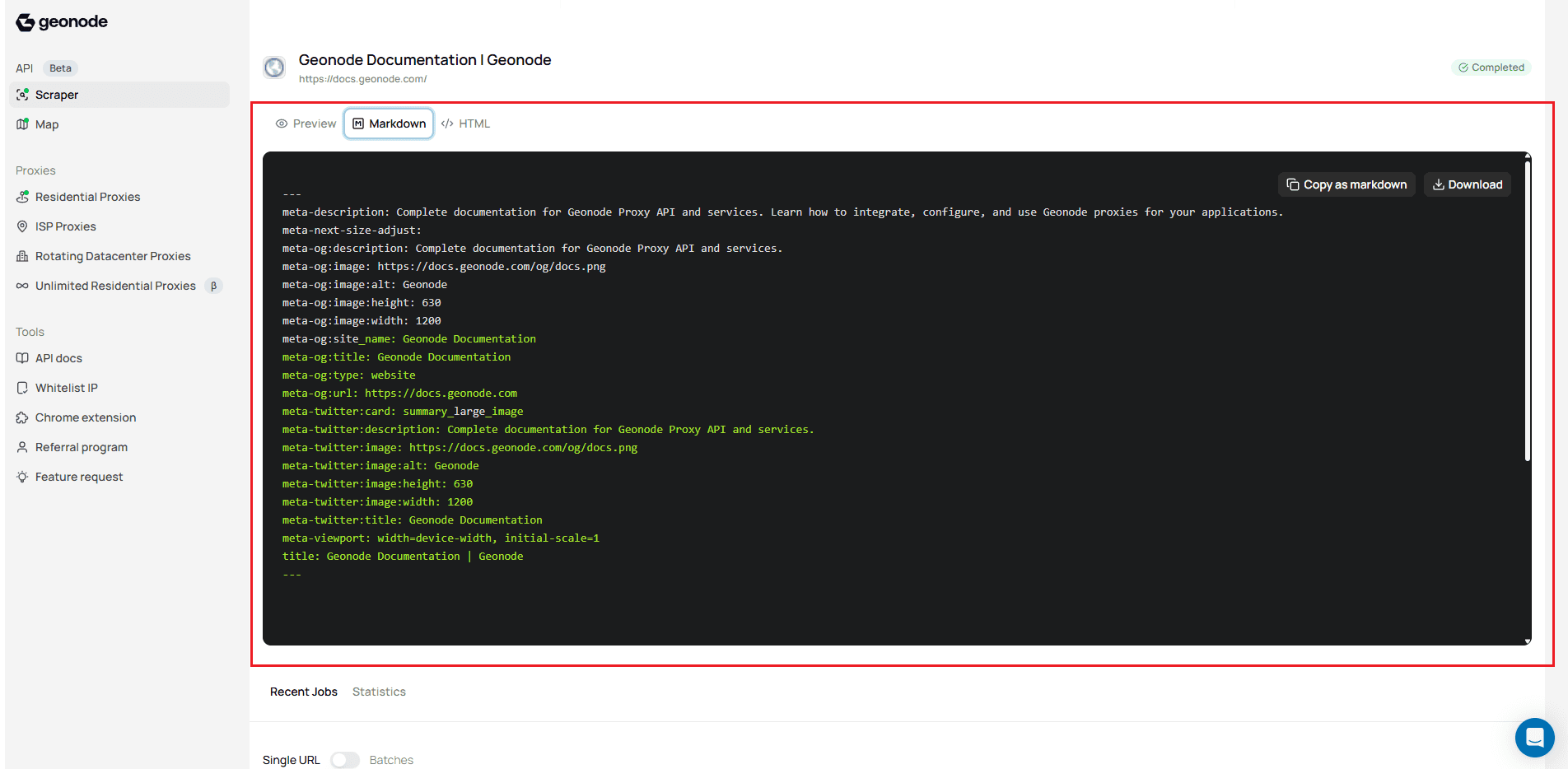
- Markdown – Displays the extracted Markdown output and allows you to copy or download it.
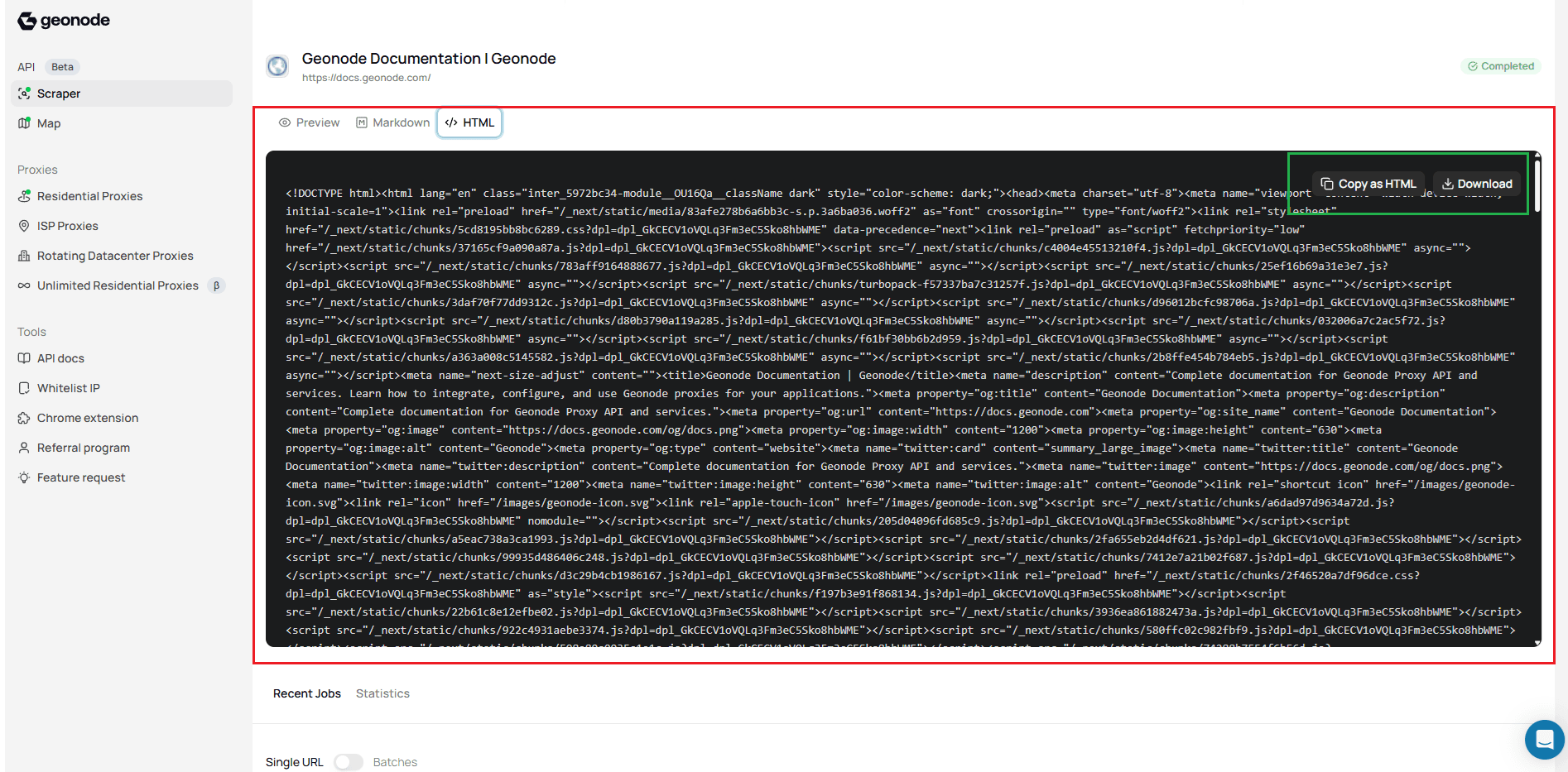
- HTML – Displays the extracted HTML output and allows you to copy or download it.
Switch between the available output formats using the tabs at the top of the result page.
Step 5. Download the output
You can download or copy the extracted content directly from the result page.
Preview
The Preview tab lets you inspect the extracted content before downloading it.
Markdown
The Markdown tab allows you to:
- Copy the Markdown output.
- Download the Markdown file.
HTML
The HTML tab allows you to:
- Copy the HTML output.
- Download the HTML file.
Next Step
Need to extract multiple pages in a single request?
Continue with Extract Content from Multiple URLs.