Manage Extraction Jobs
The Recent Jobs section lets you monitor all extraction requests submitted through the Scraper dashboard. You can switch between single URL and batch jobs, search previous requests, filter jobs by status, download completed results, and review extraction statistics.
Switch between job types
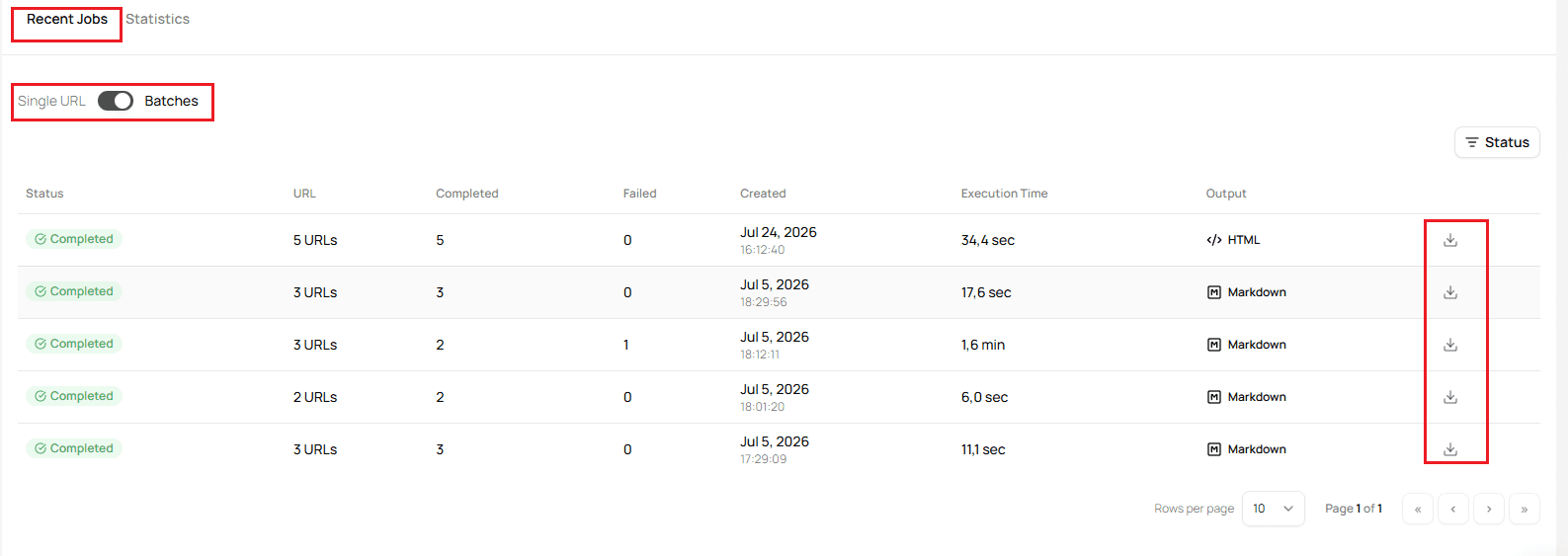
Open the Recent Jobs section and choose the type of jobs you want to view.
- Single URL displays individual extraction requests.
- Batches displays batch extraction requests.
Search and filter jobs
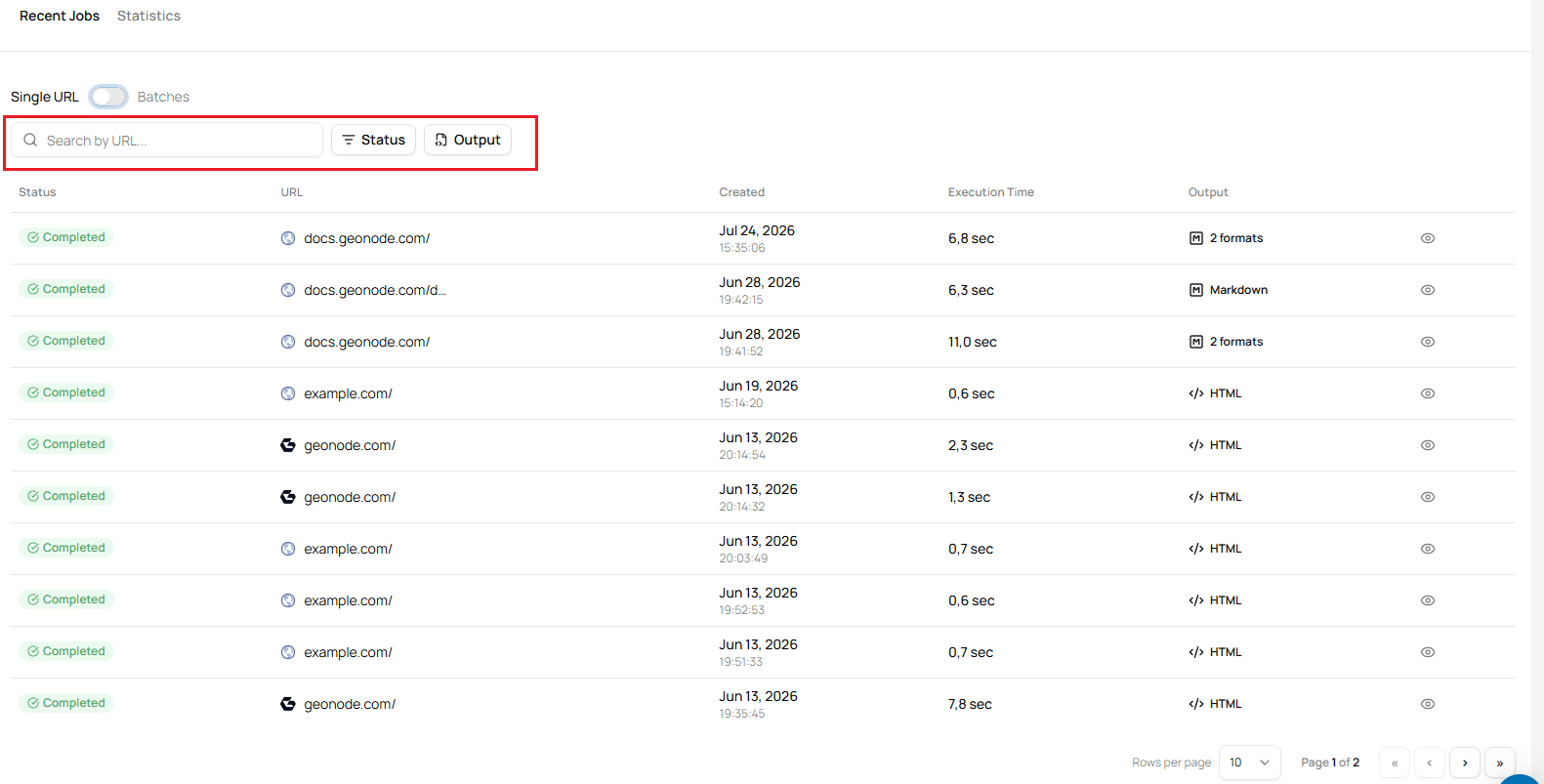
For Single URL jobs, you can quickly find previous requests using the available filters.
The dashboard allows you to:
- Search by URL.
- Filter jobs by status.
- Filter jobs by output format.
Filter by status
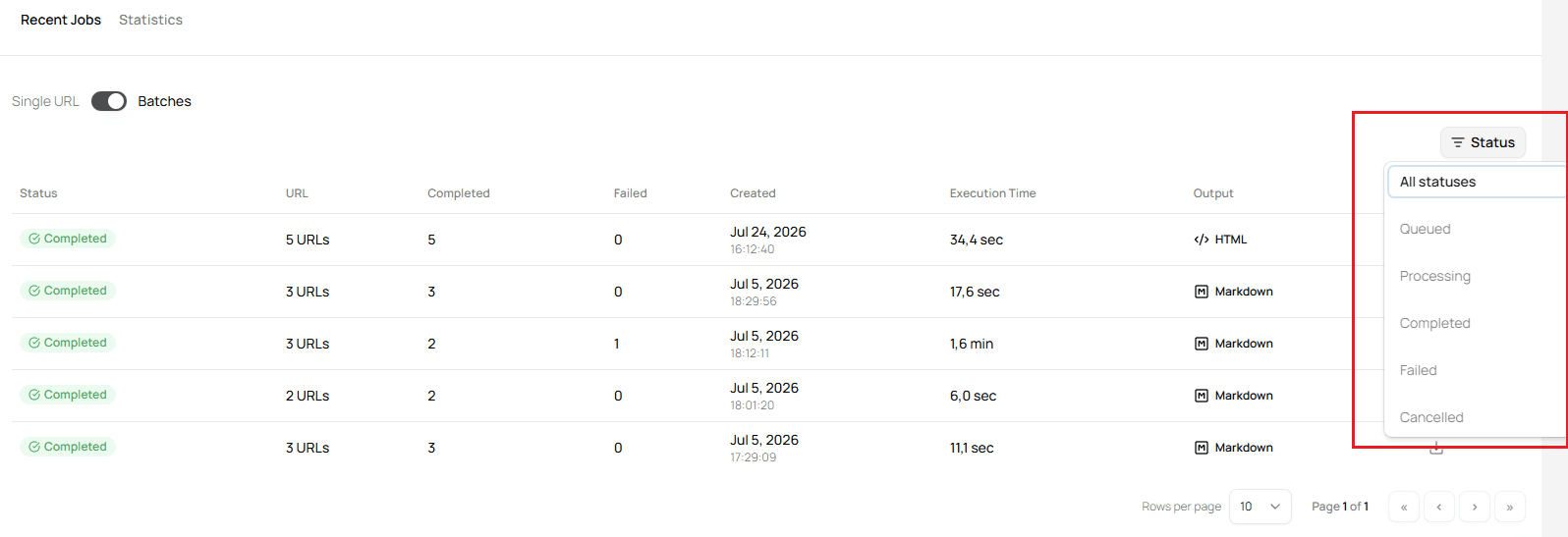
Select the Status filter to display only jobs with a specific status.
Available filters include:
- Queued
- Processing
- Completed
- Failed
- Cancelled
Monitor batch jobs
When viewing Batch jobs, the dashboard displays additional information about each extraction request.
For every batch, you can see:
- Current status
- Number of URLs in the batch
- Completed URLs
- Failed URLs
- Creation date
- Execution time
- Output format
While a batch is running, the Completed and Failed counters update as each URL finishes processing.
Once processing is complete, select the Download icon to download the extraction results.
View extraction statistics
Open the Statistics tab to review your extraction activity.
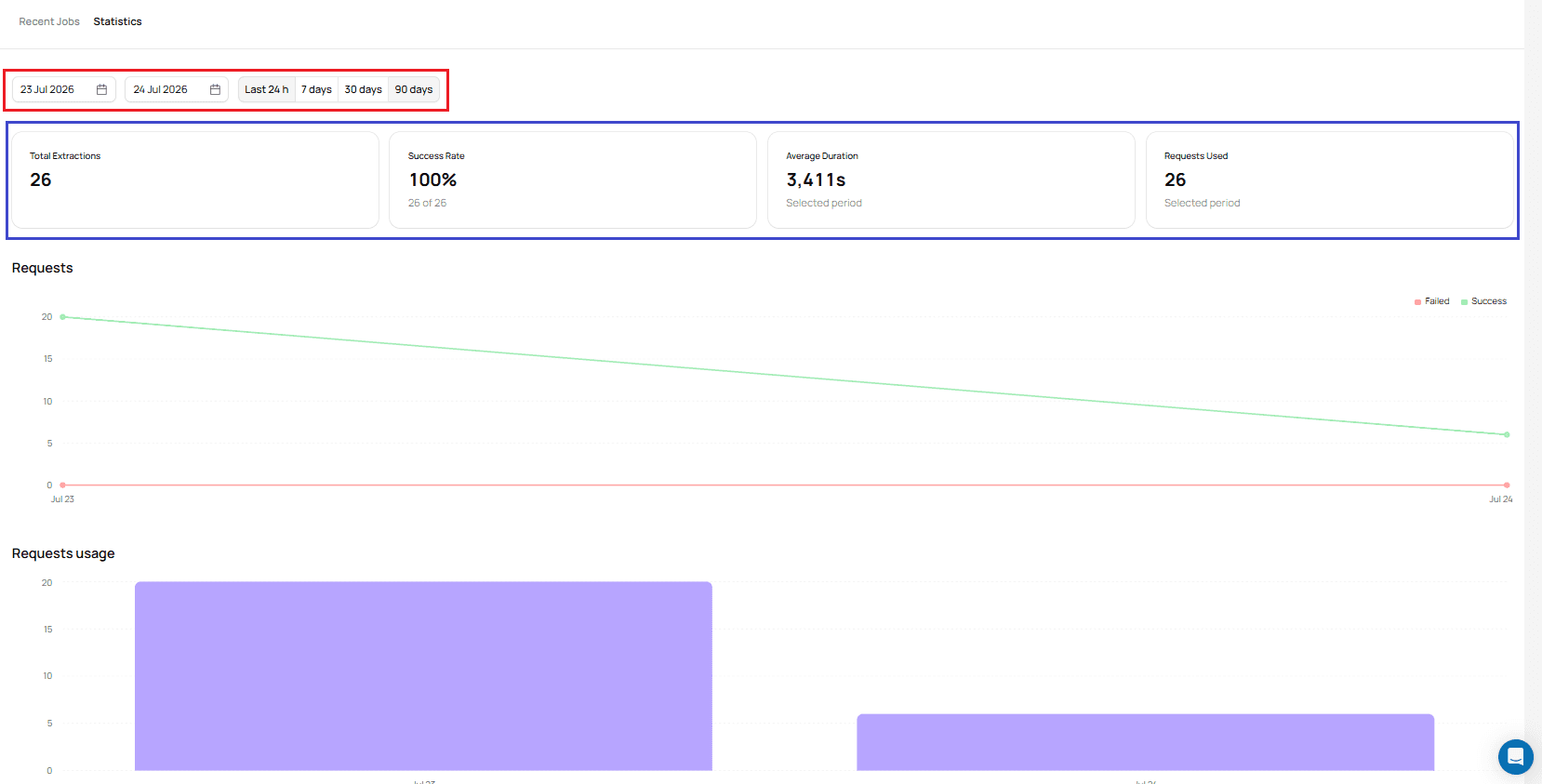
The Statistics page includes:
- Date range selection
- Total extractions
- Success rate
- Average extraction duration
- Requests used
- Request activity over time
- Request usage charts
Use these statistics to monitor extraction performance and understand how your requests are being used over the selected period.