Extract Content from Multiple URLs
The Scraper dashboard lets you extract content from multiple web pages in a single batch request. You can add URLs manually or import them from a CSV file, configure the extraction settings, and download the results once processing is complete.
Step 1. Open Batch Extraction
From the Scraper dashboard, click Set Multiple URLs.
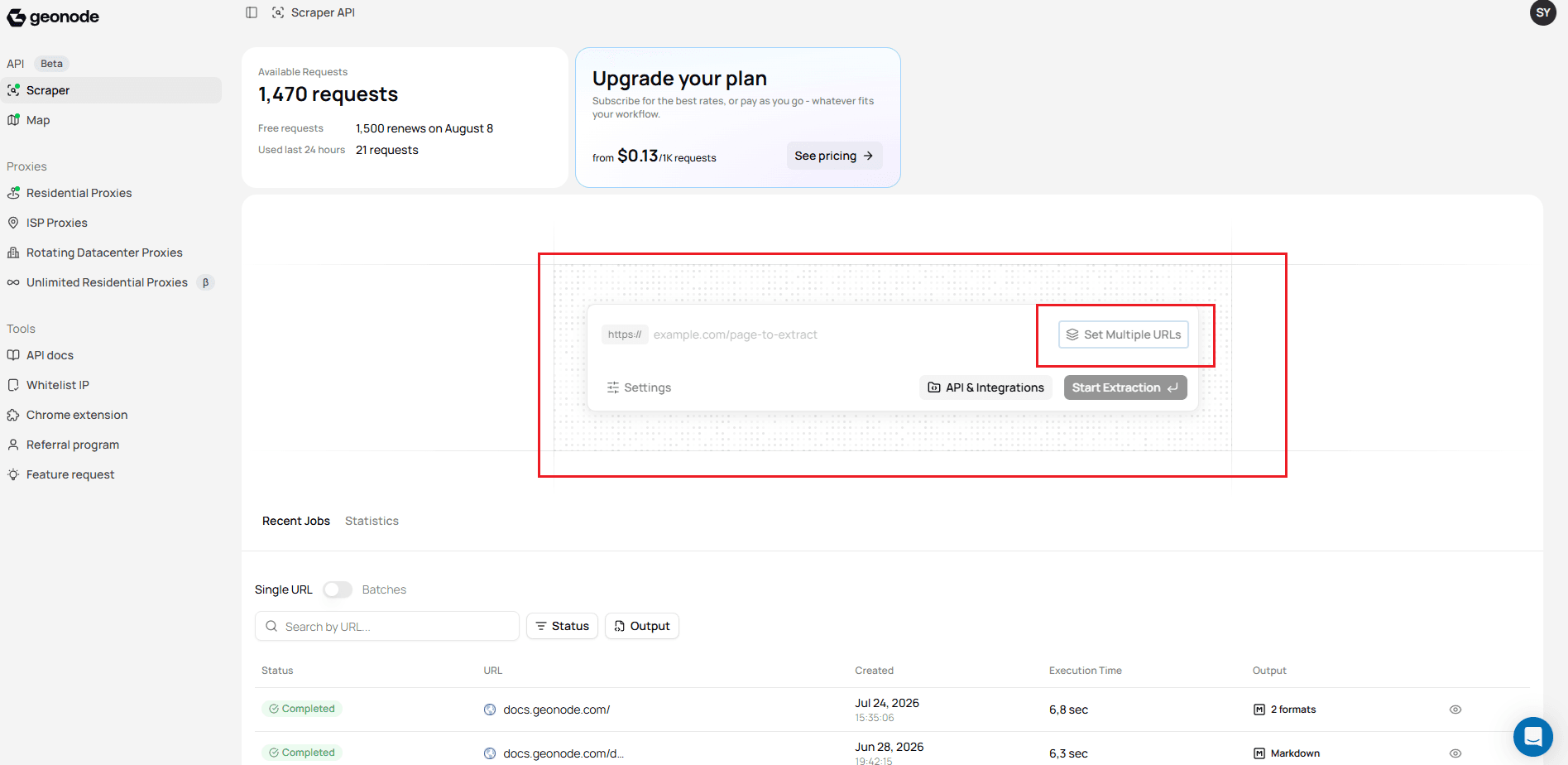
The Batch Extraction dialog opens, allowing you to submit multiple URLs in a single request.
Step 2. Add URLs
You can add URLs in two ways.
Add URLs manually
Enter a URL into the input field and click Add in table. Repeat this step until all required URLs have been added.
Import a CSV file
If you already have a list of URLs, click Import CSV to upload them in bulk.
You can also download the sample CSV template by selecting Download CSV template.
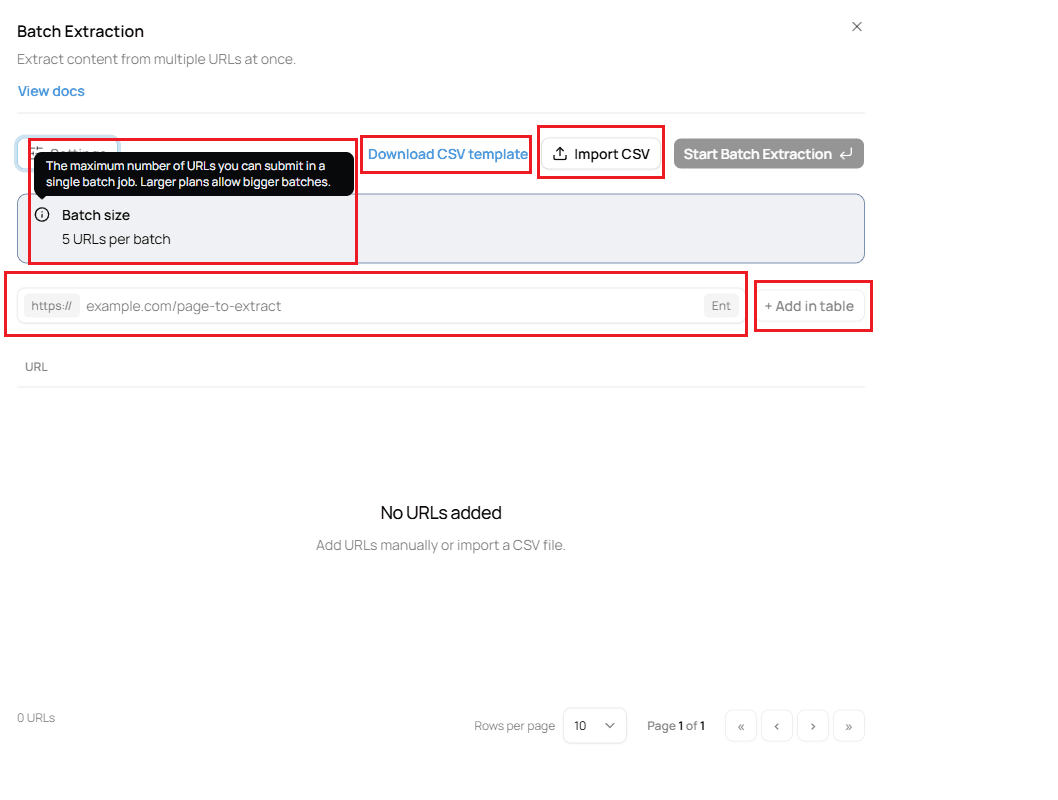
The Batch size section displays the maximum number of URLs that can be included in a single batch based on your current plan.
Step 3. Configure the extraction (Optional)
Select Settings to configure the extraction request before starting the batch.
Available options include:
Output Formats
JavaScript Rendering
Waiting for Dynamic Content
Processing Modes
Proxy and Geo-Targeting
Using Custom Headers
Step 4. Start the batch extraction
After adding your URLs and reviewing the configuration, click Start Batch Extraction.
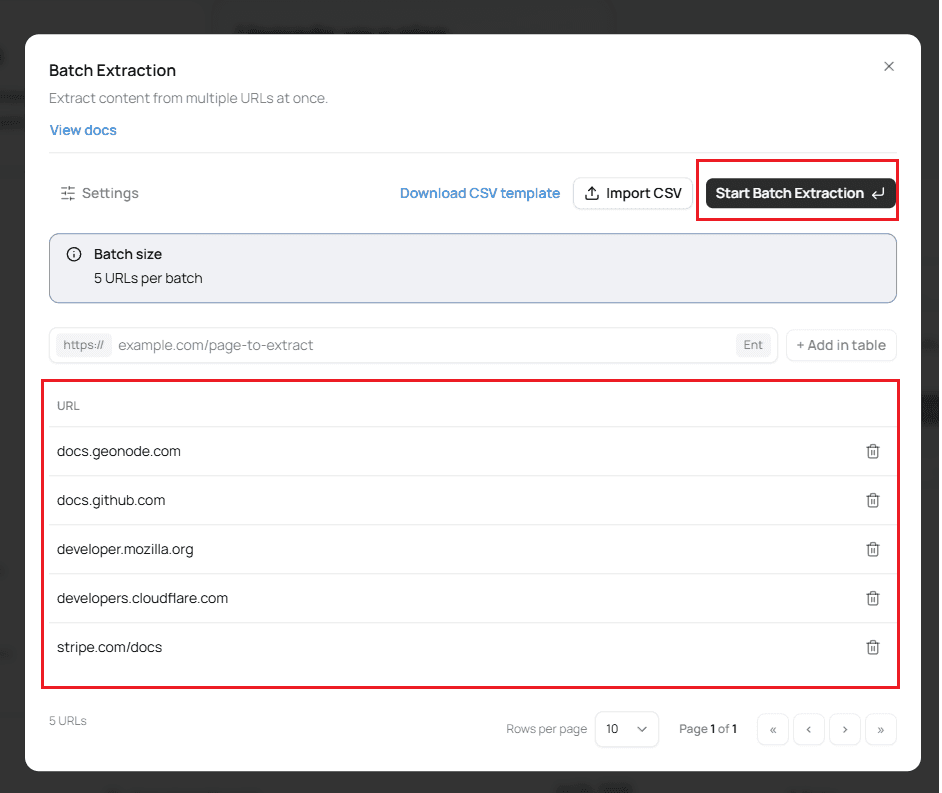
The dashboard creates a batch job and begins processing each URL.
Step 5. Monitor the batch job
Return to the Recent Jobs section and switch to the Batches tab.
While the batch is running, you can monitor its progress.
The dashboard displays:
- Current job status
- Total URLs in the batch
- Completed URLs
- Failed URLs
- Creation time
- Selected output format
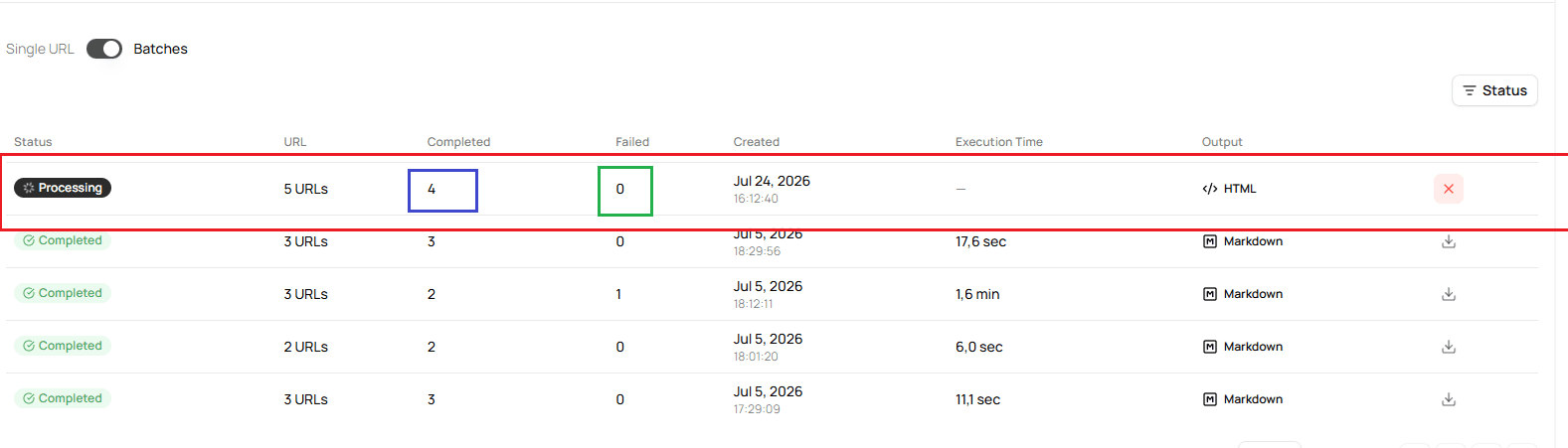
The completed and failed counters update as each URL finishes processing.
Step 6. Download the results
When the batch status changes to Completed, click the Download icon.
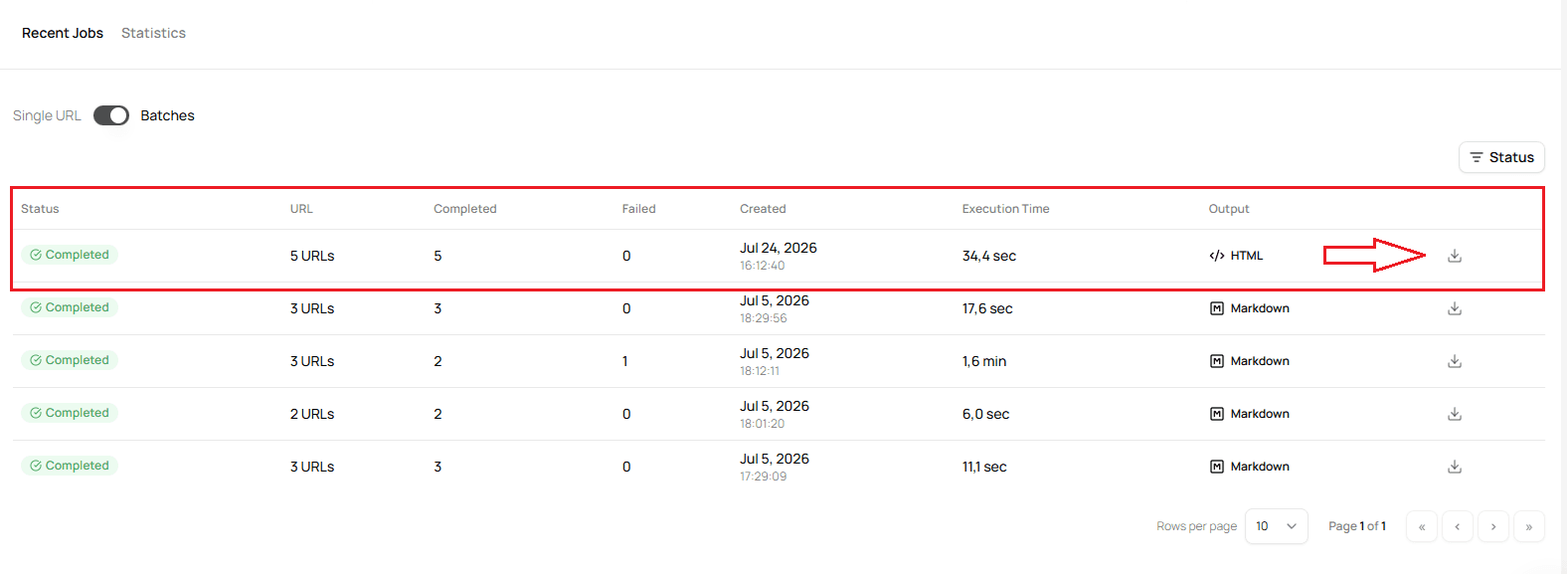
The dashboard downloads the extraction results for every successfully processed URL.
Depending on the selected output format, each URL is saved as an individual file.

Next Step
Learn how to search, monitor, and manage your extraction history in the Manage Extraction Jobs guide.