Claude Desktop
Web DataClaude Desktop supports the Model Context Protocol (MCP), so you can use Geonode scraping tools directly in chat.
Geonode authenticates with a static X-Api-Key header. In Claude Desktop, the working setup today is Settings → Developer → Edit Config with mcp-remote.
Add custom connector is not supported yet
Add custom connector only accepts a server URL and optional OAuth. It has no field for static headers, so it cannot authenticate to Geonode today.
Use Developer → Edit Config instead. Custom connector support will be improved later.
Before you begin
Make sure you've completed the Before You Start guide and have:
- A Geonode API key
- The Geonode MCP endpoint:
https://mcp.geonode.com/mcp - Claude Desktop installed
- Node.js 18+ installed (required by
mcp-remote)
Step 1 — Open Settings
Open Claude Desktop.
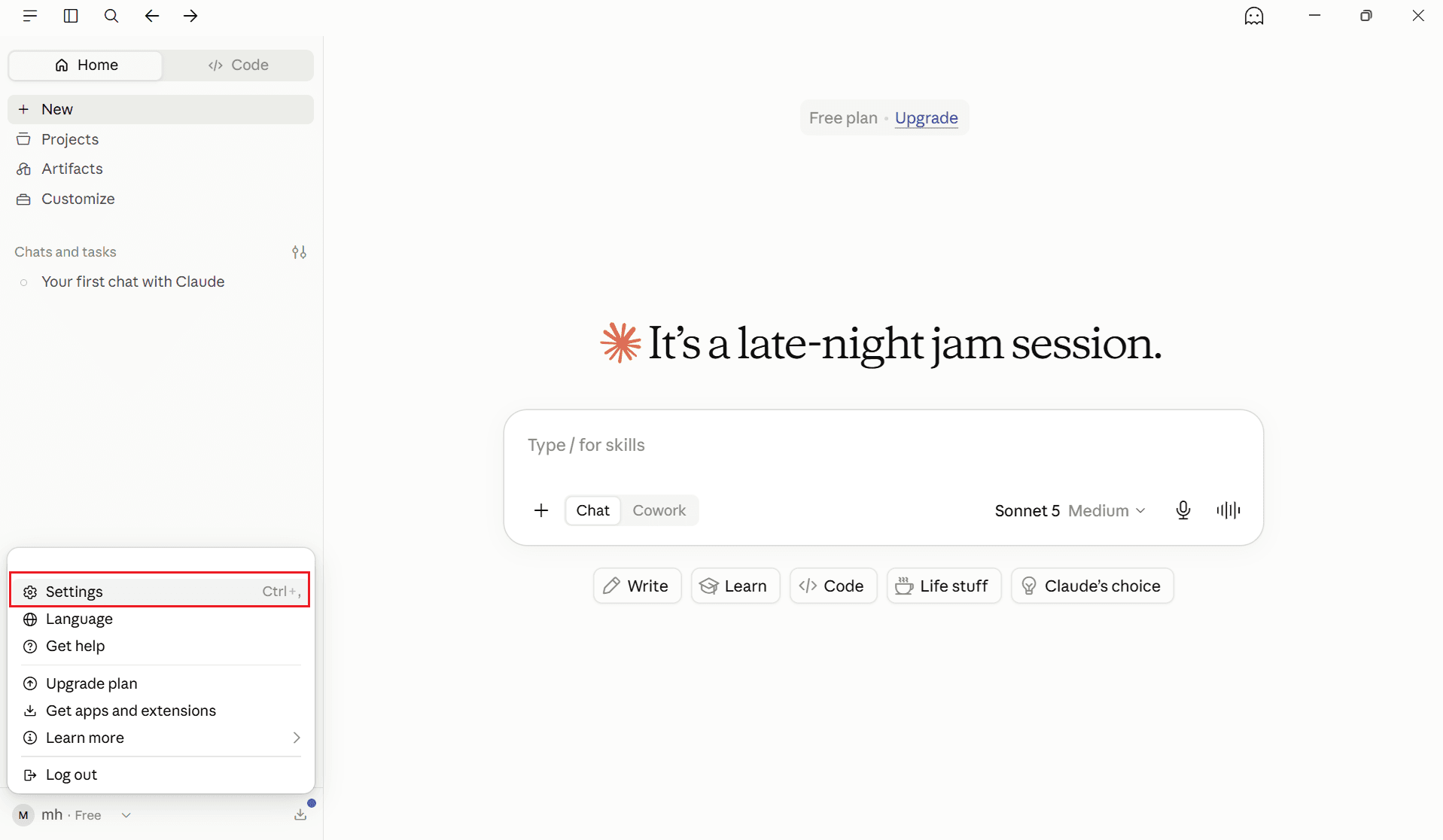
Click your profile menu in the bottom-left corner, then select Settings.
Step 2 — Open Developer → Edit Config
In Settings:
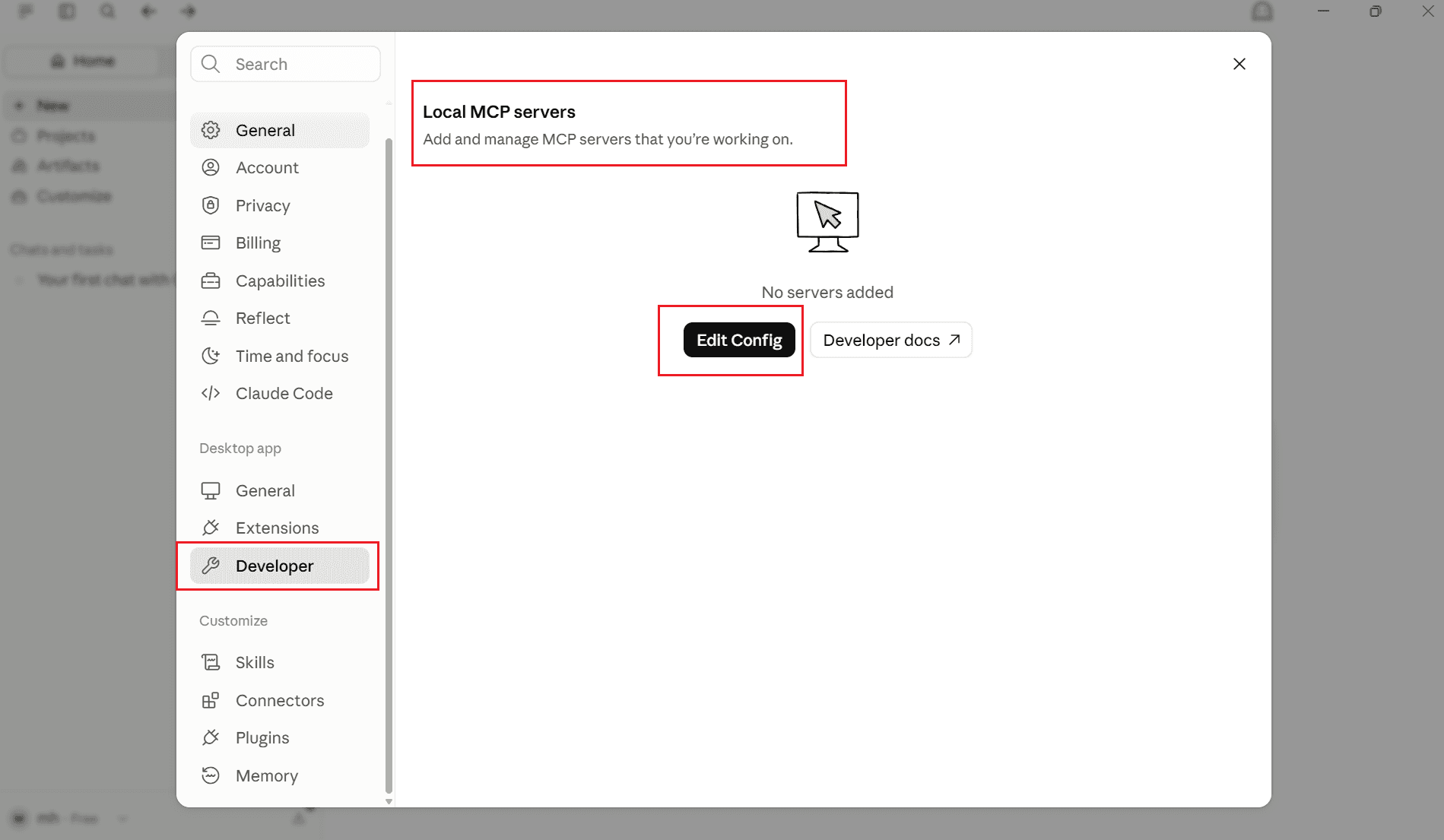
- Under Desktop app, open Developer.
- Find Local MCP servers.
- Click Edit Config.
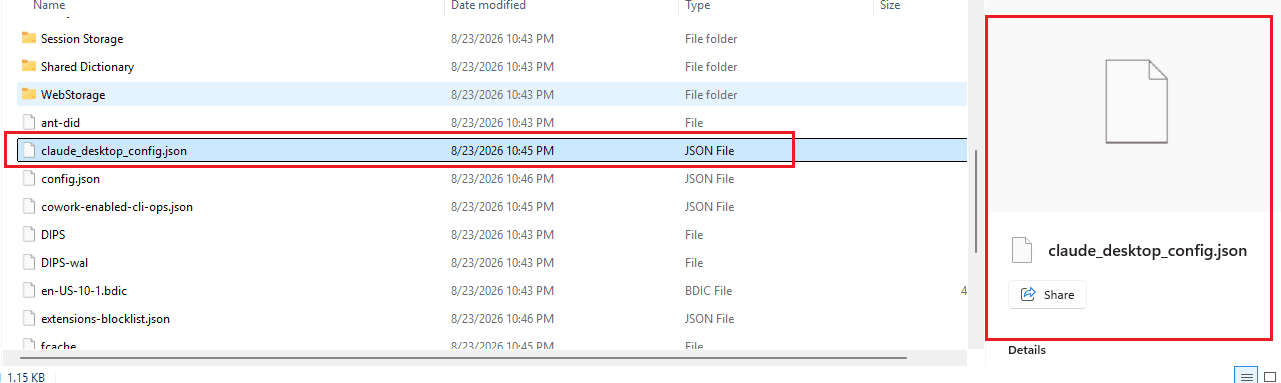
This opens claude_desktop_config.json.
You can also edit the file directly:
| OS | Path |
|---|---|
| macOS | ~/Library/Application Support/Claude/claude_desktop_config.json |
| Windows | %APPDATA%\Claude\claude_desktop_config.json |
Step 3 — Add the Geonode MCP server
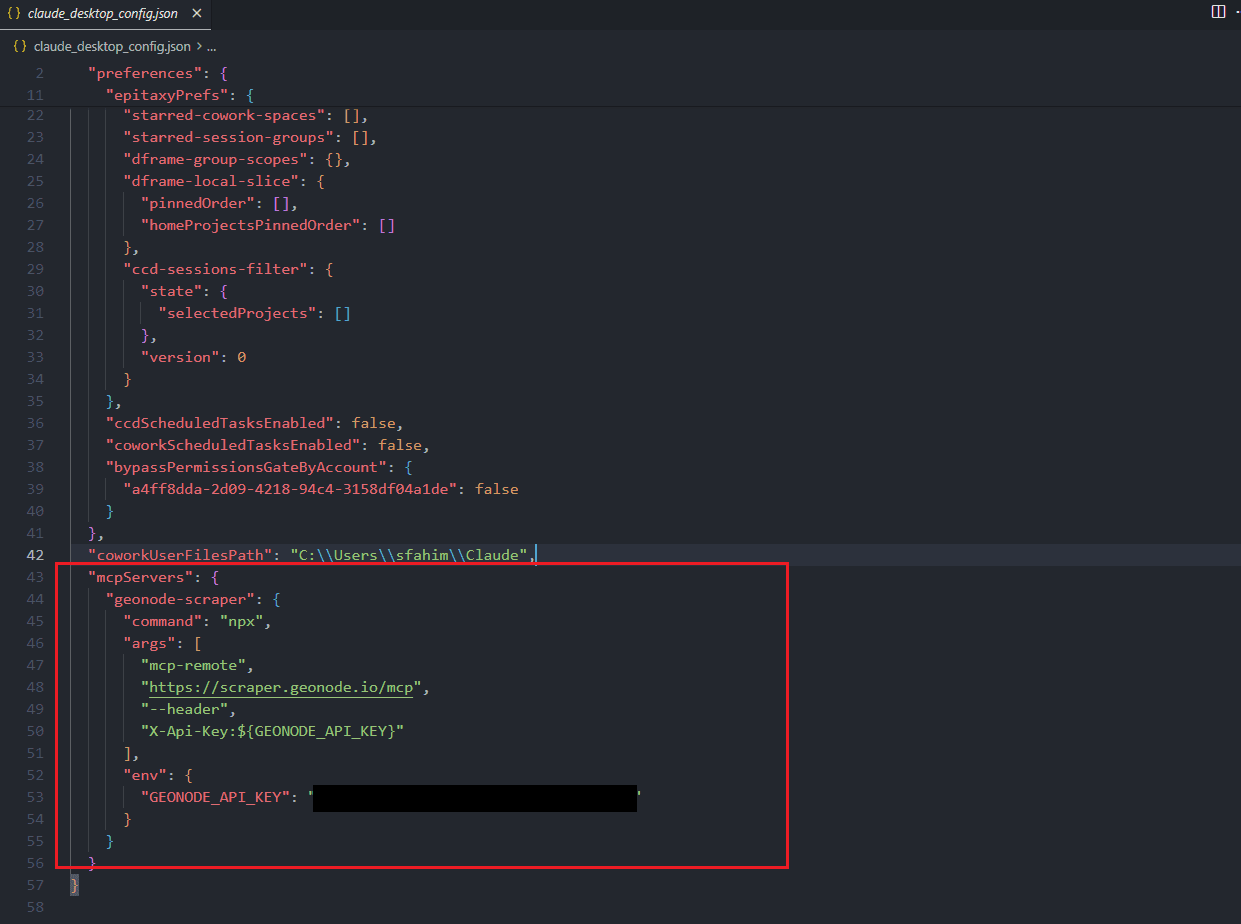
Add the Geonode server under the top-level mcpServers key.
If the file already has other settings, keep them and place mcpServers alongside those top-level keys — do not nest it inside another object.
{
  "mcpServers": {
    "geonode-scraper": {
      "command": "npx",
      "args": [
        "mcp-remote",
        "https://mcp.geonode.com/mcp",
        "--header",
        "X-Api-Key:${GEONODE_API_KEY}"
      ],
      "env": {
        "GEONODE_API_KEY": "YOUR_API_KEY"
      }
    }
  }
}
Replace YOUR_API_KEY with your Geonode API key.
No space after the colon
Write X-Api-Key:${GEONODE_API_KEY} with no space after the colon.
Claude Desktop splits args on spaces. A space after the colon drops the key value and authentication fails with 401.
mcpServers is a top-level key
mcpServers must sit at the root of claude_desktop_config.json, next to any existing keys such as preferences.
Do not nest mcpServers inside another object.
Step 4 — Fully restart Claude Desktop
- Save
claude_desktop_config.json. - Quit Claude Desktop completely — close the process, not only the window.
- Open Claude Desktop again.
- Start a new chat.
A partial window close is not enough. MCP servers load on a full app restart.
Step 5 — Verify the connection
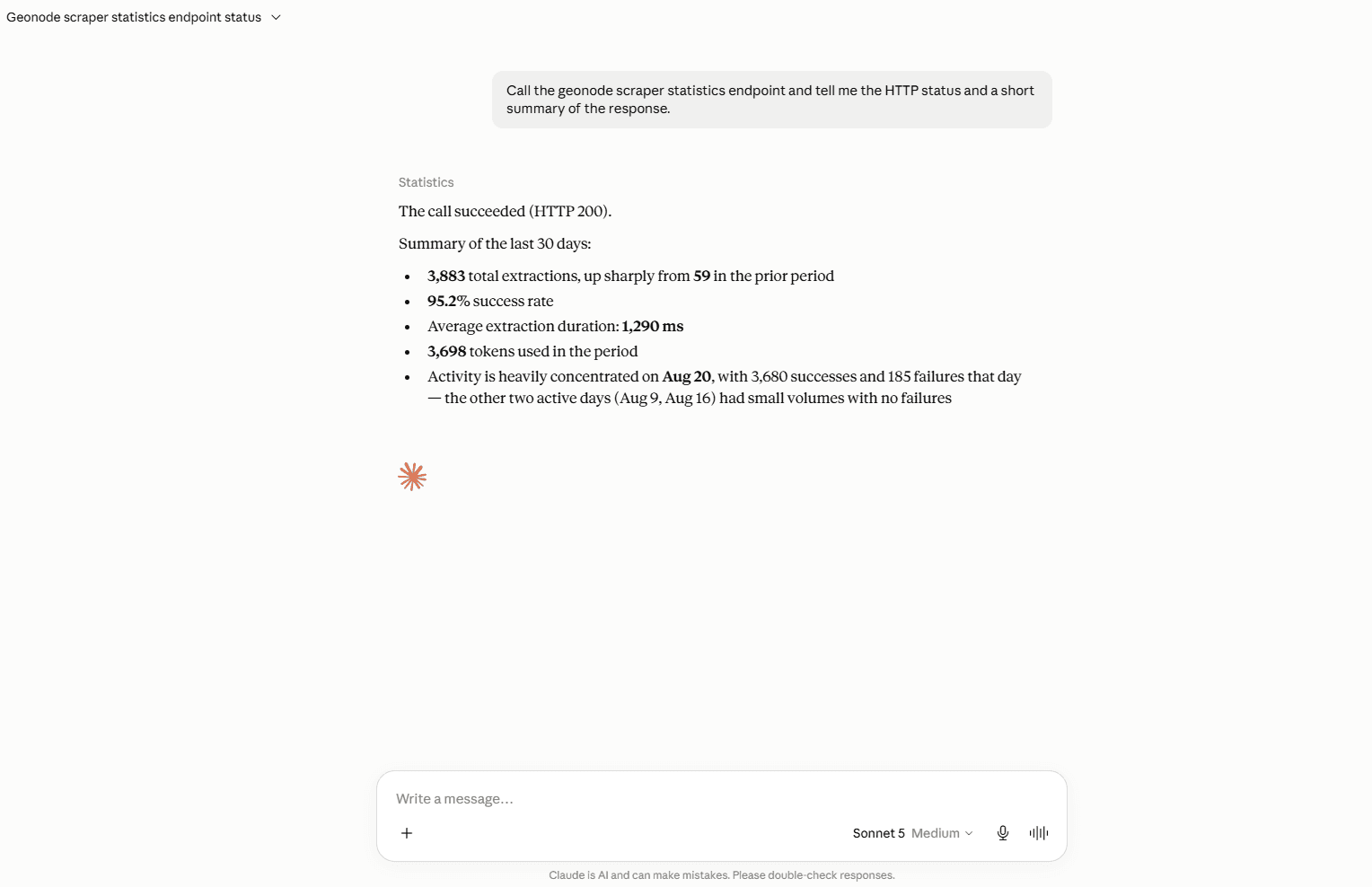
In a new chat, ask Claude to call a Geonode tool. For example:
Call the geonode scraper statistics endpoint and tell me the HTTP status and a short summary of the response.If the connection works:
- Claude uses the Geonode MCP tools
- You do not need to pass
api_keyin the chat prompt - A successful statistics call returns HTTP 200
Step 6 — Start using Geonode MCP
Once connected, describe tasks in natural language. Claude selects the Geonode tool automatically.
Extract a web page
Extract the content from https://geonode.comSummarize a page
Read https://geonode.com and summarize the homepage.Crawl a documentation website
Crawl https://docs.geonode.com and tell me what documentation sections exist.Check extraction statistics
Show my Geonode extraction statistics.Important setup notes
| Requirement | Why it matters |
|---|---|
| Use Edit Config, not Add custom connector | Custom connector cannot send static X-Api-Key headers today |
Keep mcpServers at the top level | Nested config is ignored |
No space in X-Api-Key:${GEONODE_API_KEY} | Spaces break header parsing and cause 401 |
| Node.js 18+ | Required by npx mcp-remote |
| Full app restart + new chat | MCP servers load only after a complete restart |
FAQs
Was this page helpful?