Cursor
Web DataCursor supports remote MCP servers over HTTP, allowing your AI assistant to securely connect to Geonode's scraping platform.
Once connected, Cursor can automatically extract web pages, crawl websites, process batch jobs, and retrieve structured content based on your prompts.
Before you begin
Make sure you've completed the Before You Start guide and have:
- A Geonode API key
- The Geonode MCP endpoint
- Cursor installed
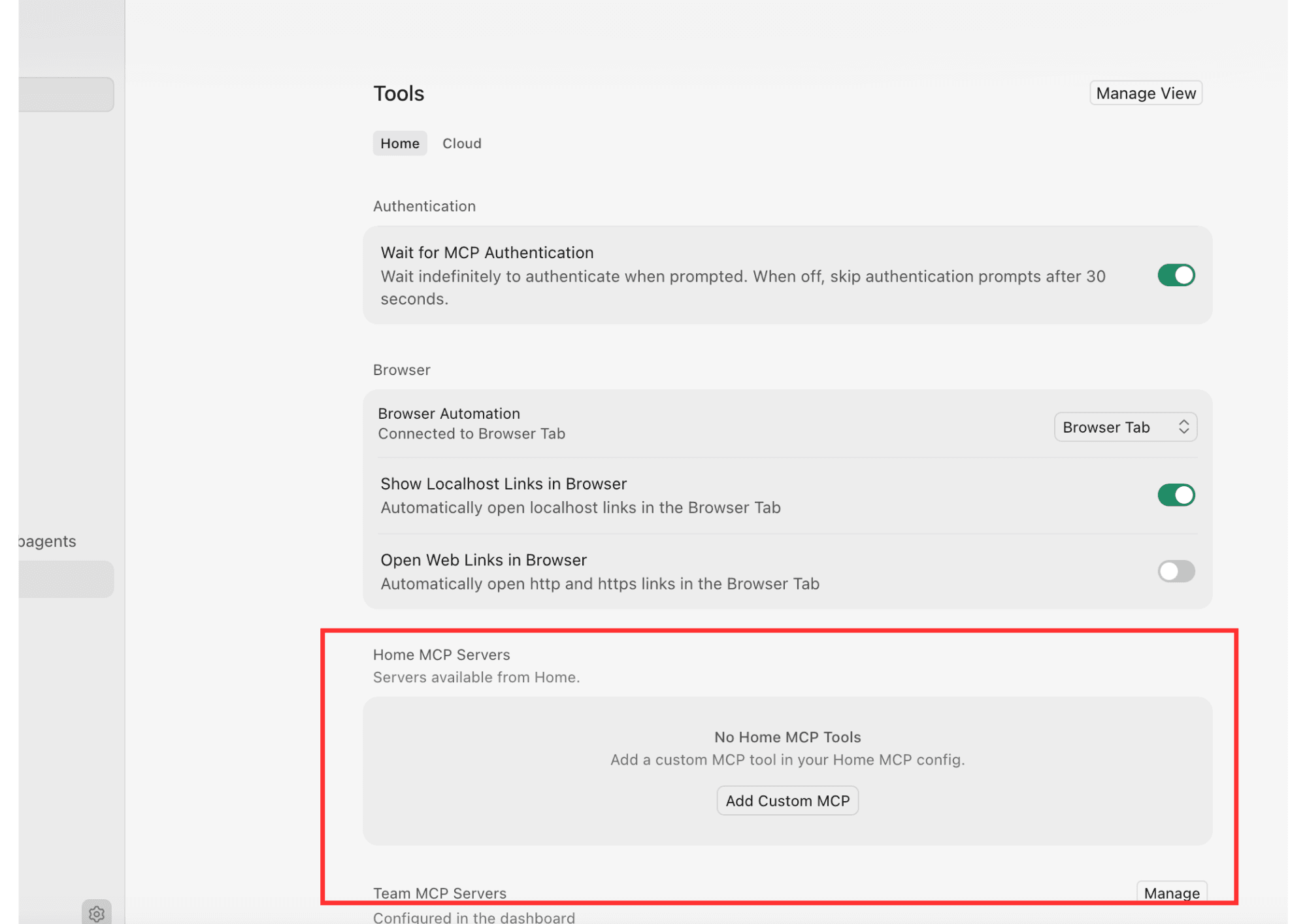
Step 1 — Open MCP Settings
Open Cursor and navigate to:
Settings → Tools & MCPs
Under Home MCP Servers, click ew MCP Server
Step 2 — Create a New MCP Server
Configure the server with the following information:
| Field | Value |
|---|---|
| Name | geonode-scraper |
| Type | URL |
| Server URL | https://mcp.geonode.com/mcp |
Under Headers, add:
| Key | Value |
|---|---|
X-Api-Key | YOUR_API_KEY |
Replace YOUR_API_KEY with your Geonode API key.
Step 3 — Save the Configuration
Click Add MCP.
Cursor creates the server configuration automatically.
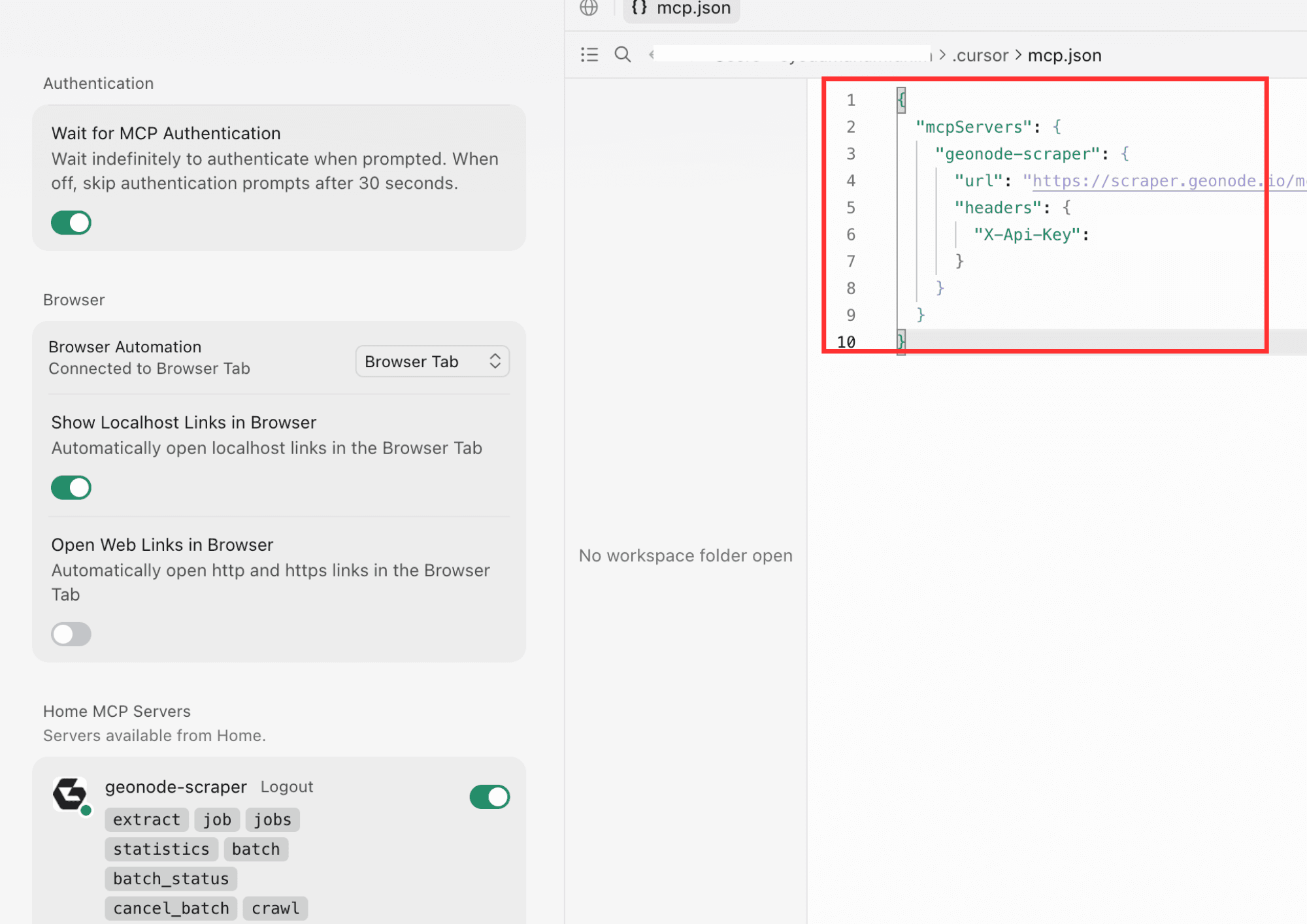
If you prefer editing the configuration manually, the generated mcp.json looks like this:
{
  "mcpServers": {
    "geonode-scraper": {
      "url": "https://mcp.geonode.com/mcp",
      "headers": {
        "X-Api-Key": "YOUR_API_KEY"
      }
    }
  }
}
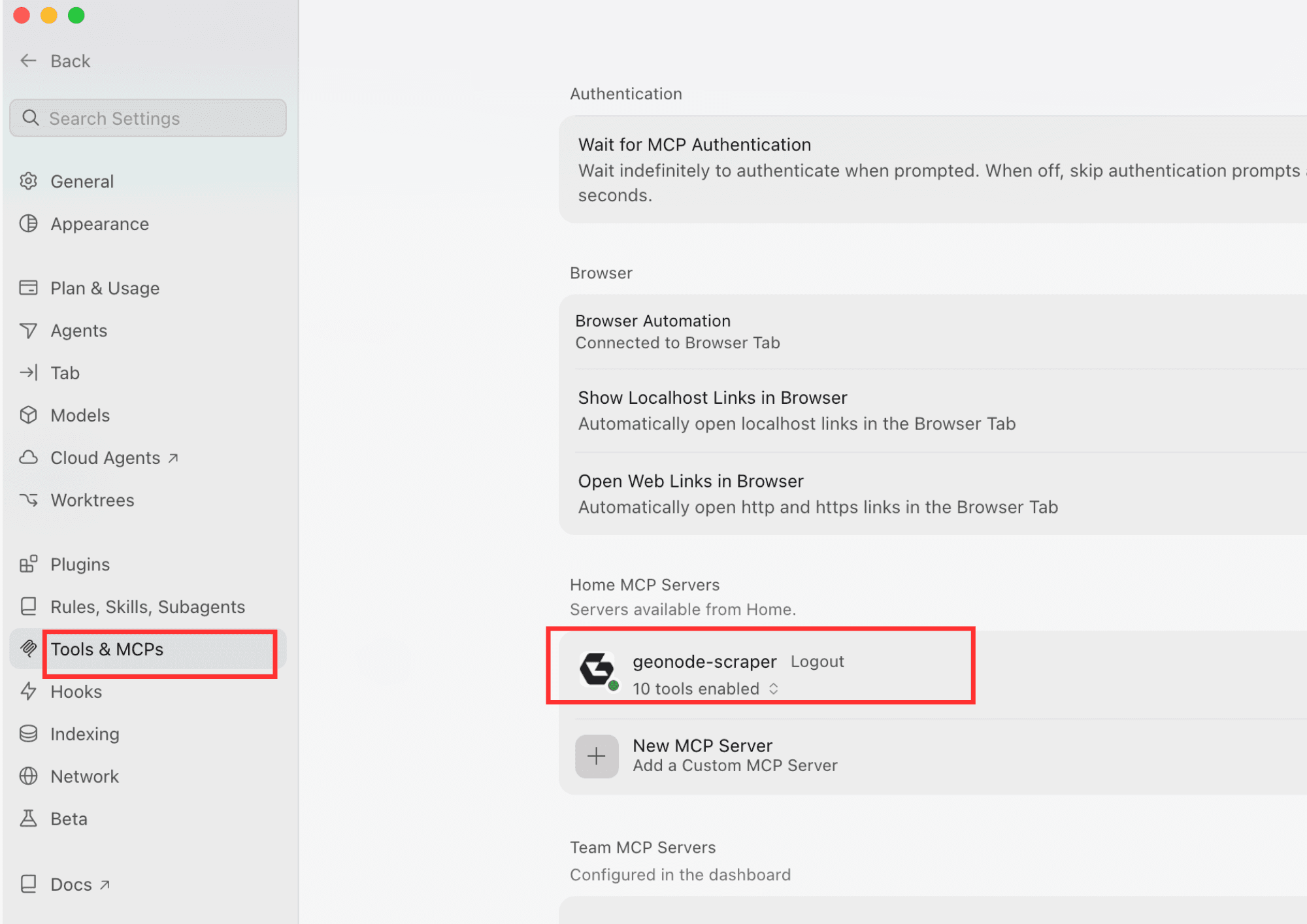
Step 4 — Verify the Connection
Return to Settings → Tools & MCPs.
If the connection is successful, you'll see:
- A green status indicator.
- The geonode-scraper server.
- All available Geonode tools.
The available tools include:
extractjobjobsstatisticsbatchbatch_statuscancel_batchcrawlcrawl_statuscancel_crawl
Step 5 — Start Using Geonode MCP
Open a new Agent or Composer chat.
You don't need to manually select a tool.
Simply describe the task in natural language, and Cursor automatically chooses the appropriate Geonode MCP tool.
For example:
Extract a web page
Extract the content from https://geonode.comSummarize a page
Read https://geonode.com and summarize the homepage.Crawl a documentation website
Crawl https://docs.geonode.com and tell me what documentation sections exist.Process multiple pages
Extract these URLs and summarize each page.

https://example.com/page1
https://example.com/page2
https://example.com/page3
Check extraction statistics
Show my Geonode extraction statistics.How it works
When you send a prompt, Cursor analyzes your request and automatically calls the appropriate Geonode MCP tool.
For example:
| Your Prompt | MCP Tool |
|---|---|
| "Extract this page." | extract |
| "Crawl this documentation site." | crawl |
| "Process these URLs." | batch |
| "Show my extraction statistics." | statistics |
You never need to call these tools manually—Cursor handles tool selection and parameter mapping for you.
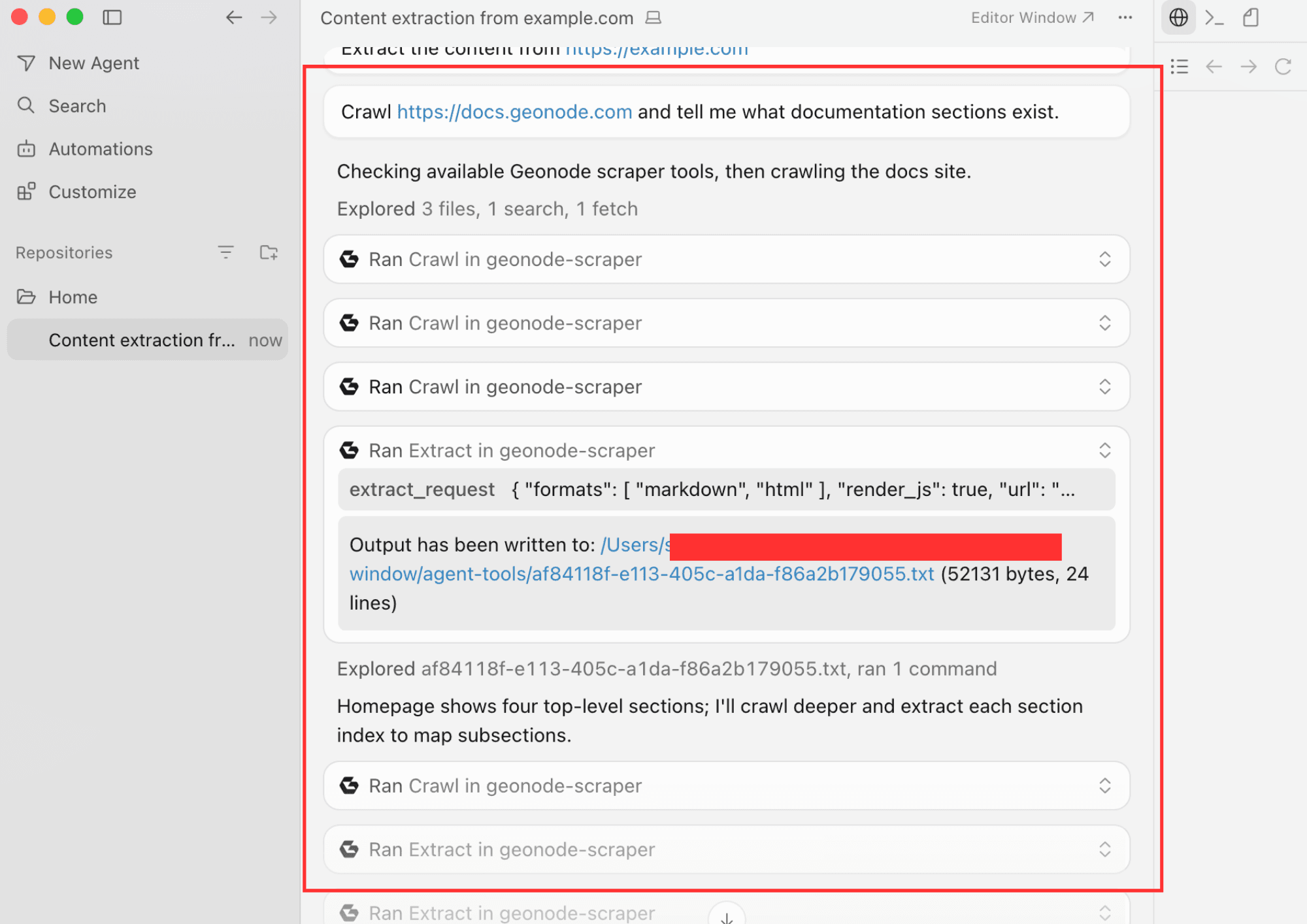
Viewing Tool Calls
During execution, Cursor displays each MCP tool invocation in the chat.
You can expand each tool call to inspect:
- The tool that was executed.
- The request parameters.
- The response returned by the Geonode MCP Server.
This can be useful for debugging, understanding how Cursor interprets your prompts, or learning which MCP tool was used for a particular request.
FAQs
Was this page helpful?