Codex
The Codex desktop application supports the Model Context Protocol (MCP), allowing it to securely connect to external tools such as the Geonode Scraper API.
Once connected, Codex can automatically extract web pages, crawl websites, process multiple URLs, and retrieve structured content using natural language prompts.
Before You Begin
Before continuing, make sure you've completed the Before You Start guide and have:
- A Geonode API key.
- The Geonode MCP endpoint.
- The Codex desktop application installed.
- Internet access.
Step 1 — Open MCP Settings
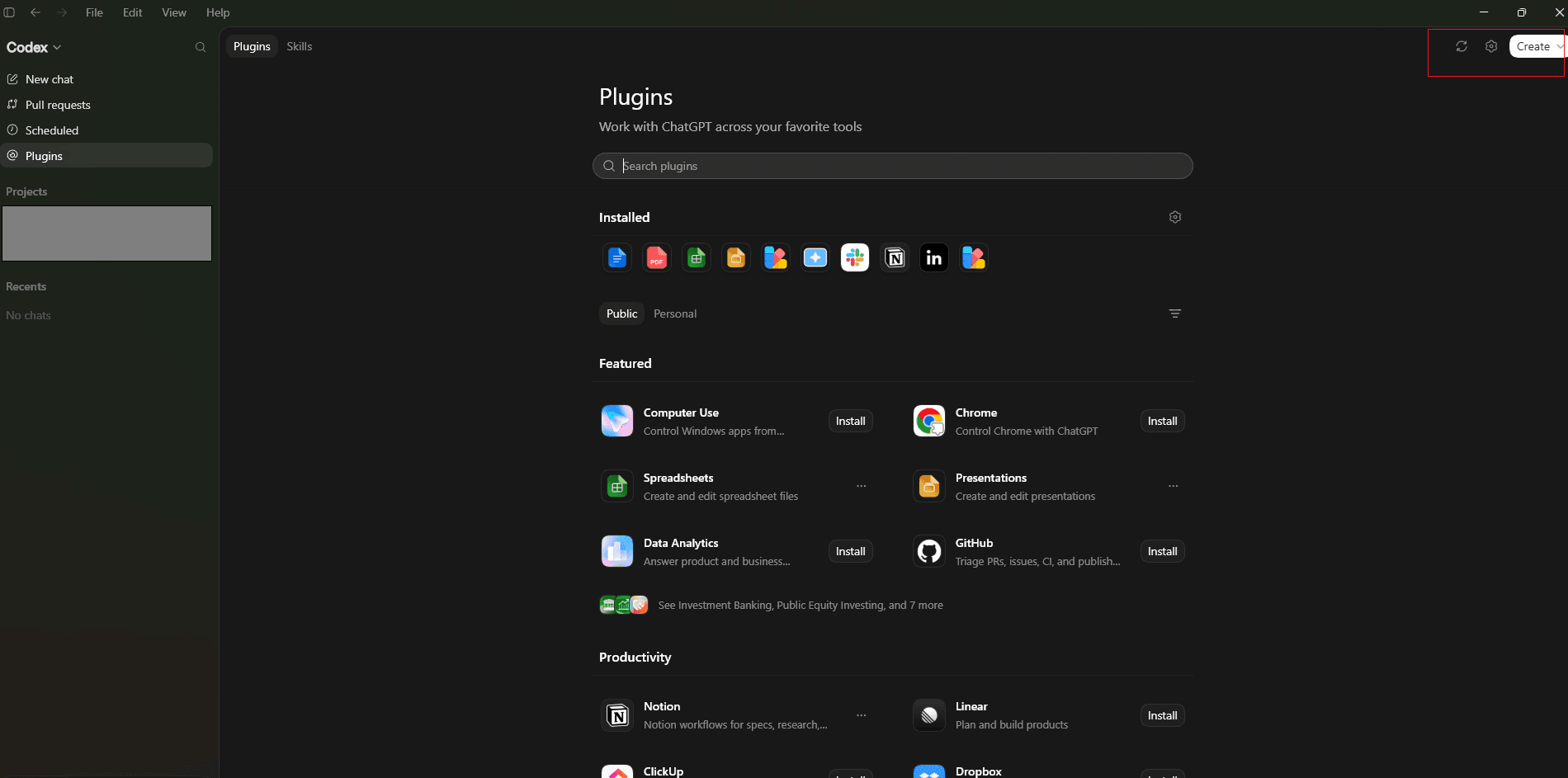
Open the Codex desktop application.
Click the Settings icon in the upper-right corner.
Step 2 — Open the MCP Servers Page
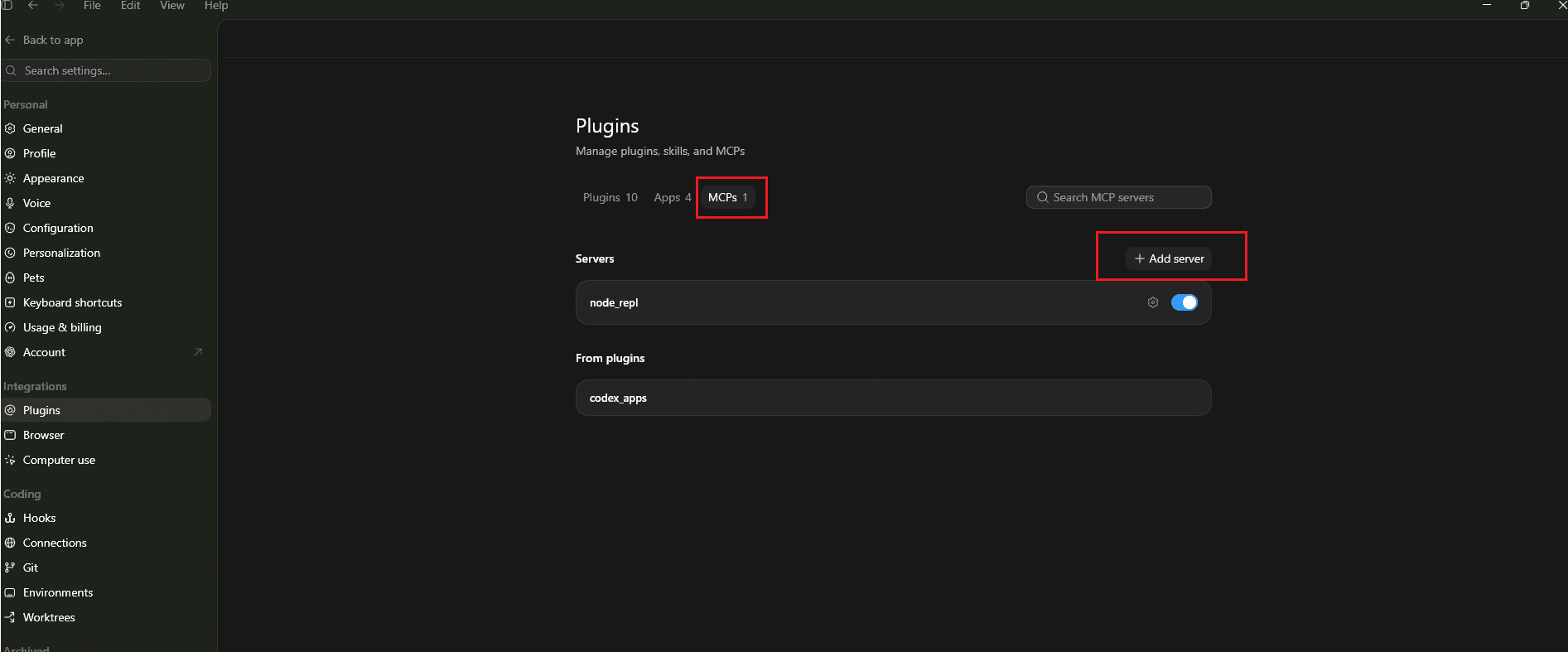
From the Settings menu:
- Select Plugins from the left sidebar.
- Open the MCPs tab.
- Click Add server.
This opens the configuration page for adding a custom MCP server.
Step 3 — Configure the GeoNode MCP Server
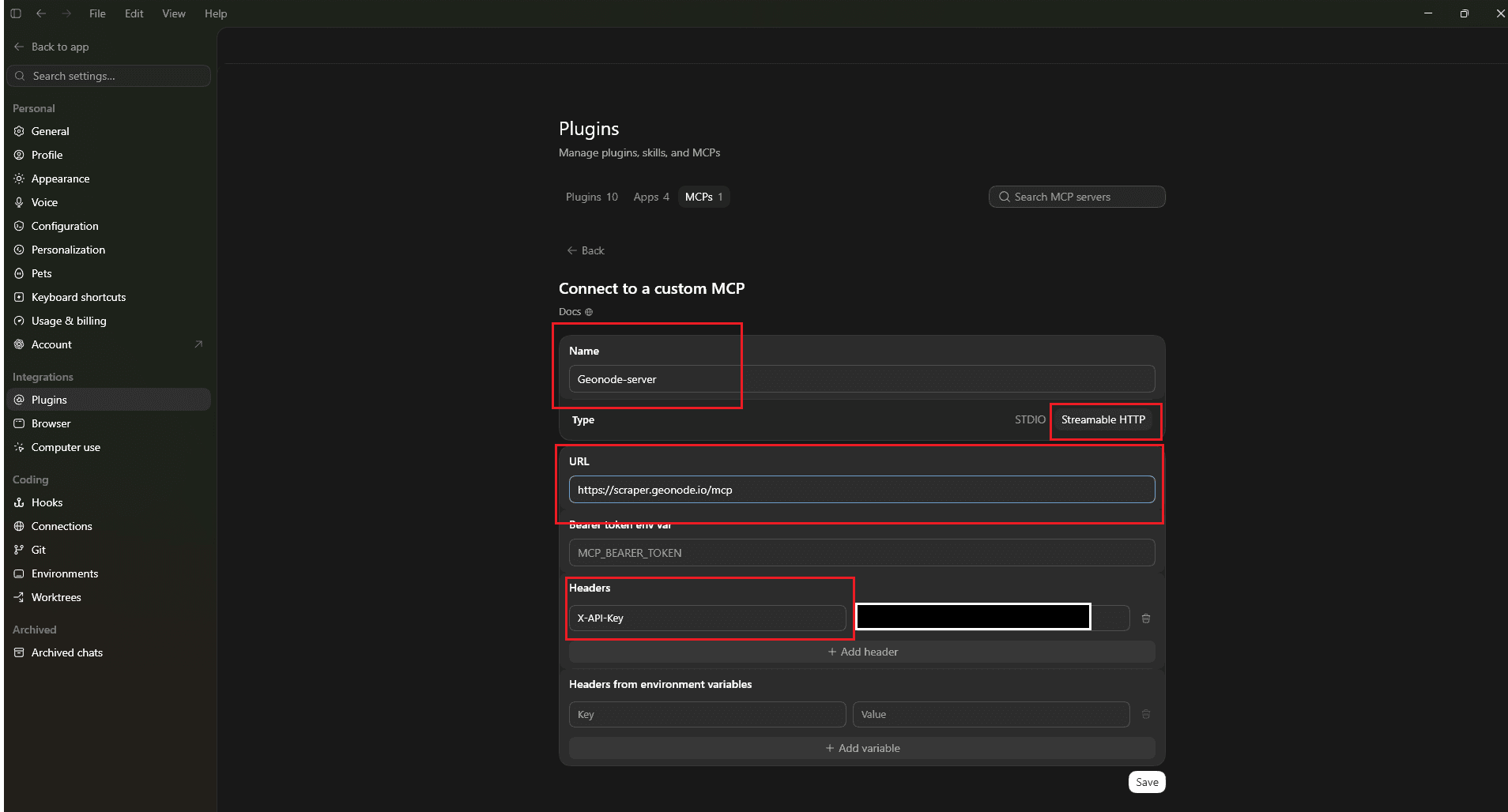
Enter the following information:
Name
You can use any descriptive name, for example:
geonode-serverType
Select:
Streamable HTTPURL
Enter the GeoNode MCP endpoint:
https://scraper.geonode.io/mcpAuthentication
Under Headers, add the following header:
| Key | Value |
|---|---|
X-API-Key | Your Geonode API key |
After completing the configuration, click Save.
Step 4 — Verify the Connection
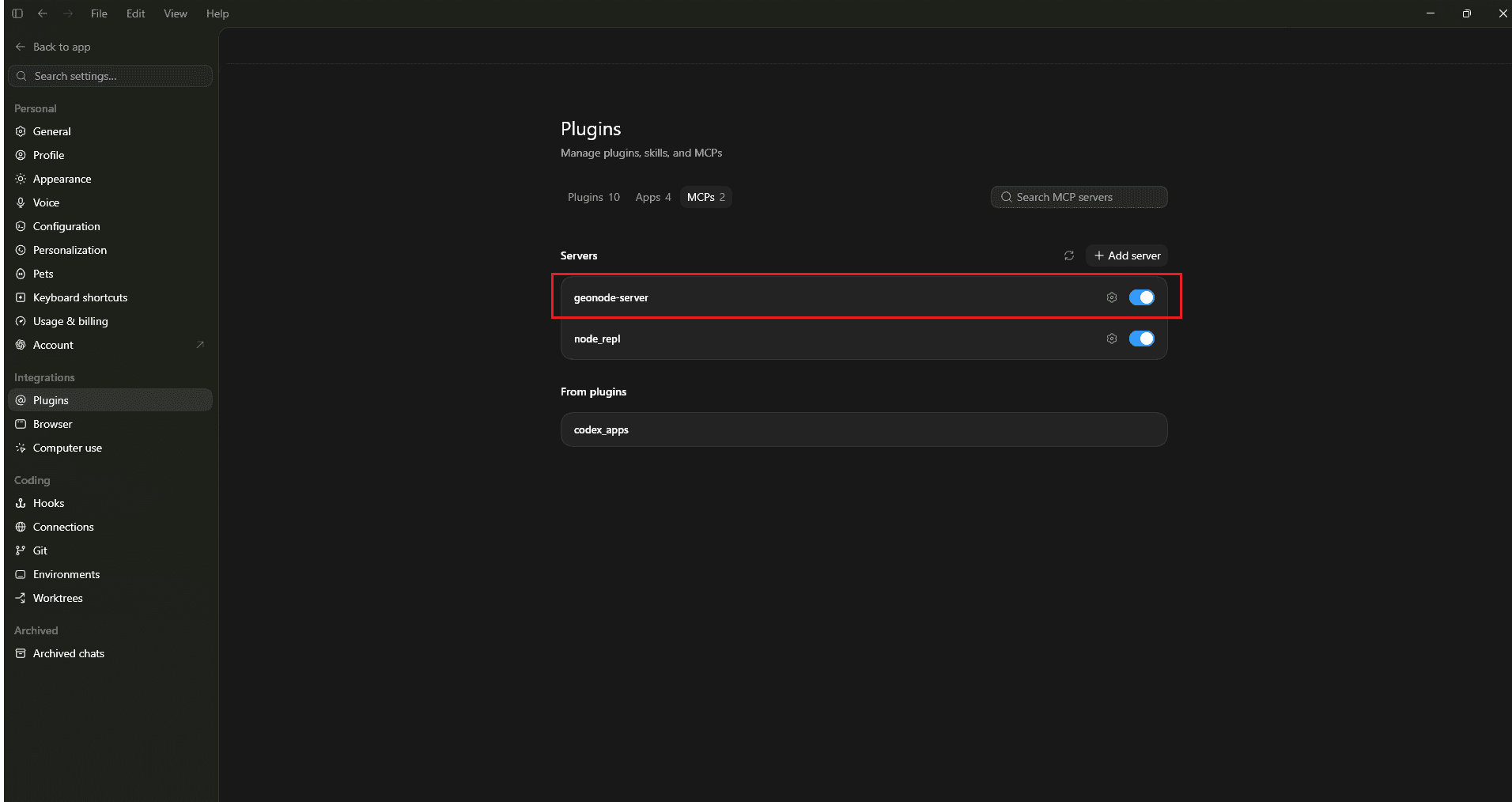
After saving the configuration, return to the MCP Servers page.
If the connection is successful, the GeoNode MCP server appears in the server list and is enabled.
Connection Successful
If the GeoNode MCP server appears in the server list and is enabled, Codex is successfully connected and ready to use the available MCP tools.
Step 5 — Test the MCP Server
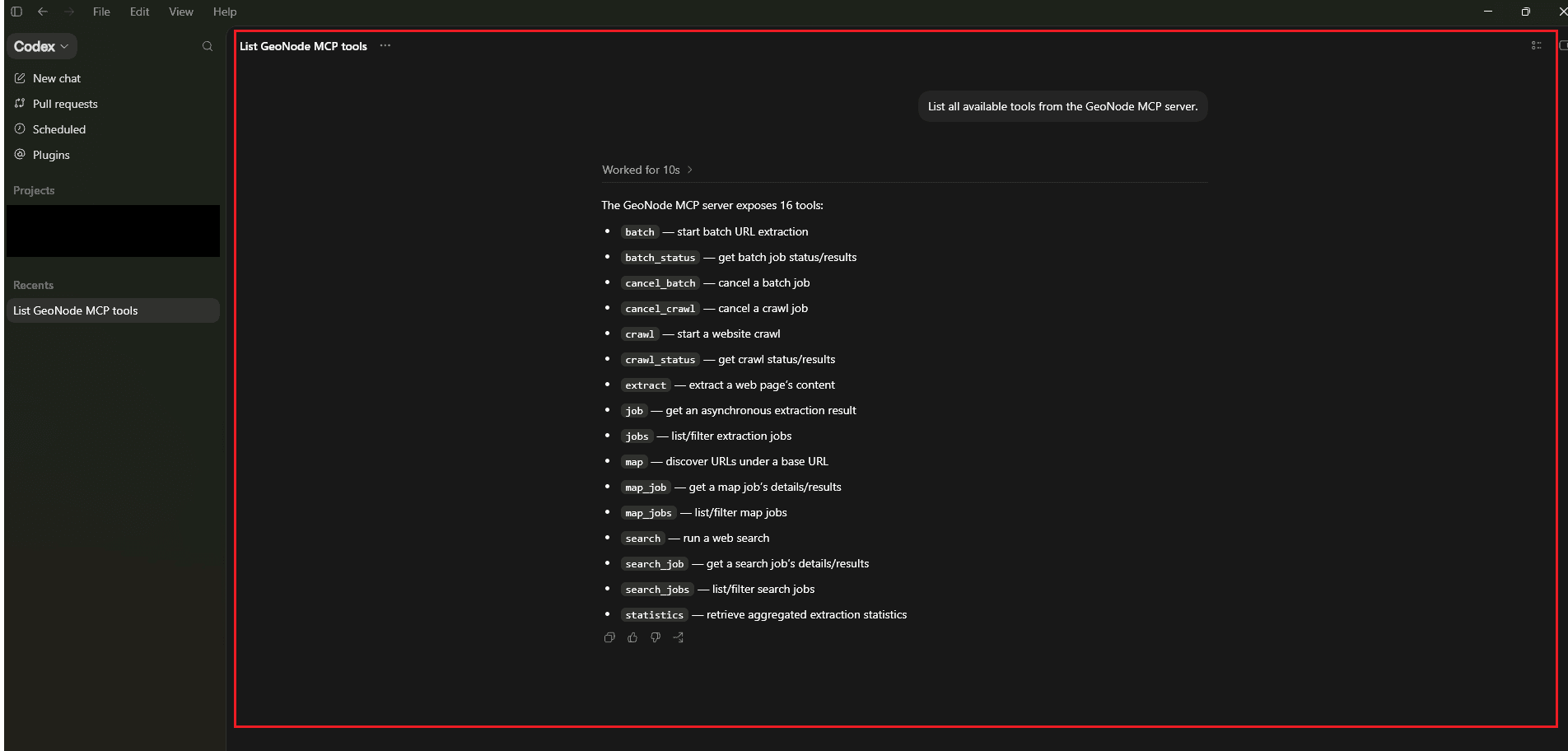
Open a new chat in Codex and ask it to list the available GeoNode MCP tools.
For example:
List all available tools from the GeoNode MCP server.If the integration is configured correctly, Codex will display the available MCP tools exposed by the GeoNode server.
Step 6 — Start Using GeoNode MCP
Once the MCP server is connected, you can interact with the GeoNode Scraper API using natural language.
For example:
Extract a web page
Extract the content from https://geonode.comSummarize a page
Read https://geonode.com and summarize the homepage.Crawl a website
Crawl https://docs.geonode.com and summarize its documentation.Process multiple URLs
Extract and summarize the following URLs:

https://example.com/page1
https://example.com/page2
https://example.com/page3
Codex automatically selects the appropriate GeoNode MCP tool based on your request.
How Codex Uses MCP
When you submit a prompt, Codex analyzes your request to determine whether an MCP tool is required.
If your request involves extracting web content, crawling websites, processing multiple URLs, or retrieving statistics, Codex automatically invokes the appropriate GeoNode MCP tool and returns the results directly in the conversation.
You don't need to manually choose or invoke MCP tools.
FAQs
Was this page helpful?