Selenium
This guide will help you integrate the Geonode API with Selenium to manage proxies effectively while running headless browsers.
We will be using Python for this guide.
Prerequisites: Get Proxy Credentials from Geonode
Before setting up a proxy, first, retrieve your proxy credentials from the Geonode dashboard.
Follow this guide: How to Obtain Proxy Server Information
Prerequisites
- Python installed on your system
- Geonode API credentials (username and password)
- ChromeDriver installed (compatible with your Chrome version)
Steps: Setting Up a Proxy in Brave
Follow these steps to configure a proxy in Selenium:
Step 1: Set Up a Virtual Environment
Creating a virtual environment helps isolate dependencies and avoid conflicts.
# Install virtualenv if not already installed
pip install virtualenv

# Create a virtual environment
python -m venv .venv

# Activate the virtual environment

## On Windows
.venv\Scripts\activate

## On macOS/Linux
source .venv/bin/activate
Step 2: Install Required Libraries
pip install selenium python-dotenv selenium-wire- Selenium: For browser automation
- python-dotenv: For managing environment variables
- selenium-wire: To handle proxy authentication, as Selenium doesn't provide it natively
Step 3: Configure Geonode Proxy Endpoint
With the help of the Endpoint Generator, you can easily generate the proxy with specific configurations such as:
- Target country
- Port
- Session persistence
- And many more
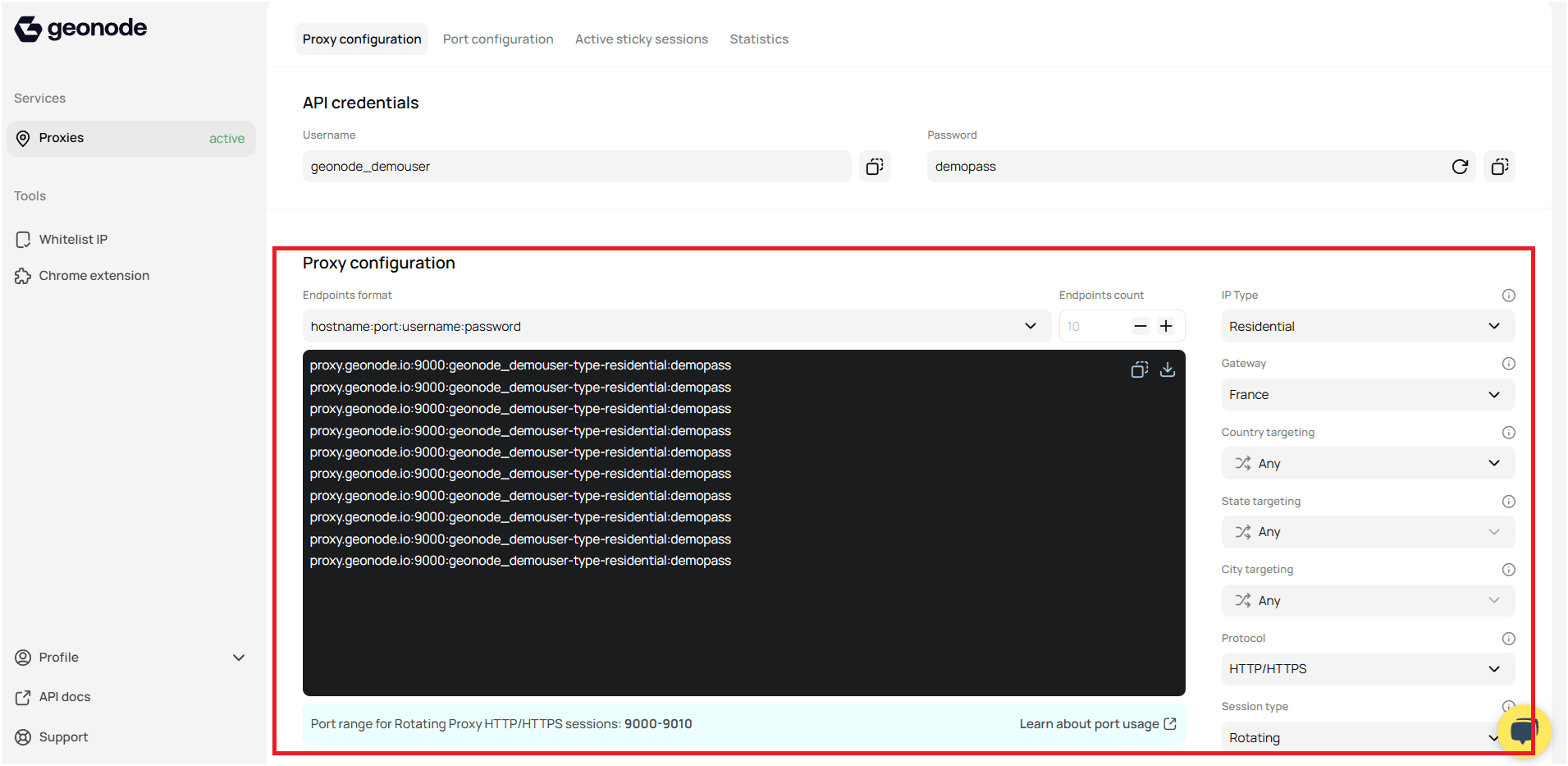
Refer to the guide How to Use the Endpoint Generator to generate your endpoints.
Step 4: Setting up environment variables
- Create a
.envfile in your project directory. - Add your credentials:
GEONODE_USERNAME=your_geonode_username
GEONODE_PASSWORD=your_geonode_password
GEONODE_HOST=proxy.geonode.io
GEONODE_PORT=9000
GEONODE_DNS=your_geonode_dns.env file to the internet.Code Implementation
I. Import
import os
from dotenv import load_dotenv
from seleniumwire import webdriver
from selenium.webdriver.chrome.options import Options
ii. Load environment variables
load_dotenv()

proxy_host = os.getenv('GEONODE_HOST')
proxy_port = os.getenv('GEONODE_PORT')
username = os.getenv('GEONODE_USERNAME')
password = os.getenv('GEONODE_PASSWORD')
GEONODE_DNS = os.getenv('GEONODE_PROXY')
iii. Configure Proxy options
proxy_options = {
    'proxy': {
        'http': f'http://{username}:{password}@{proxy_host}:{proxy_port}',
        'https': f'https://{username}:{password}@{proxy_host}:{proxy_port}',
    }
}
iv. Configure Browser Options
chrome_options = Options()
chrome_options.add_argument('--disable-gpu')
chrome_options.add_argument('--start-maximized')
chrome_options.add_argument('--ignore-certificate-errors')
v. Initialize Browser
browser = webdriver.Chrome(seleniumwire_options=proxy_options, options=chrome_options)vi. Open IP address website to check
urlToGet = "https://ip-api.com/"
browser.get(urlToGet)
Output:
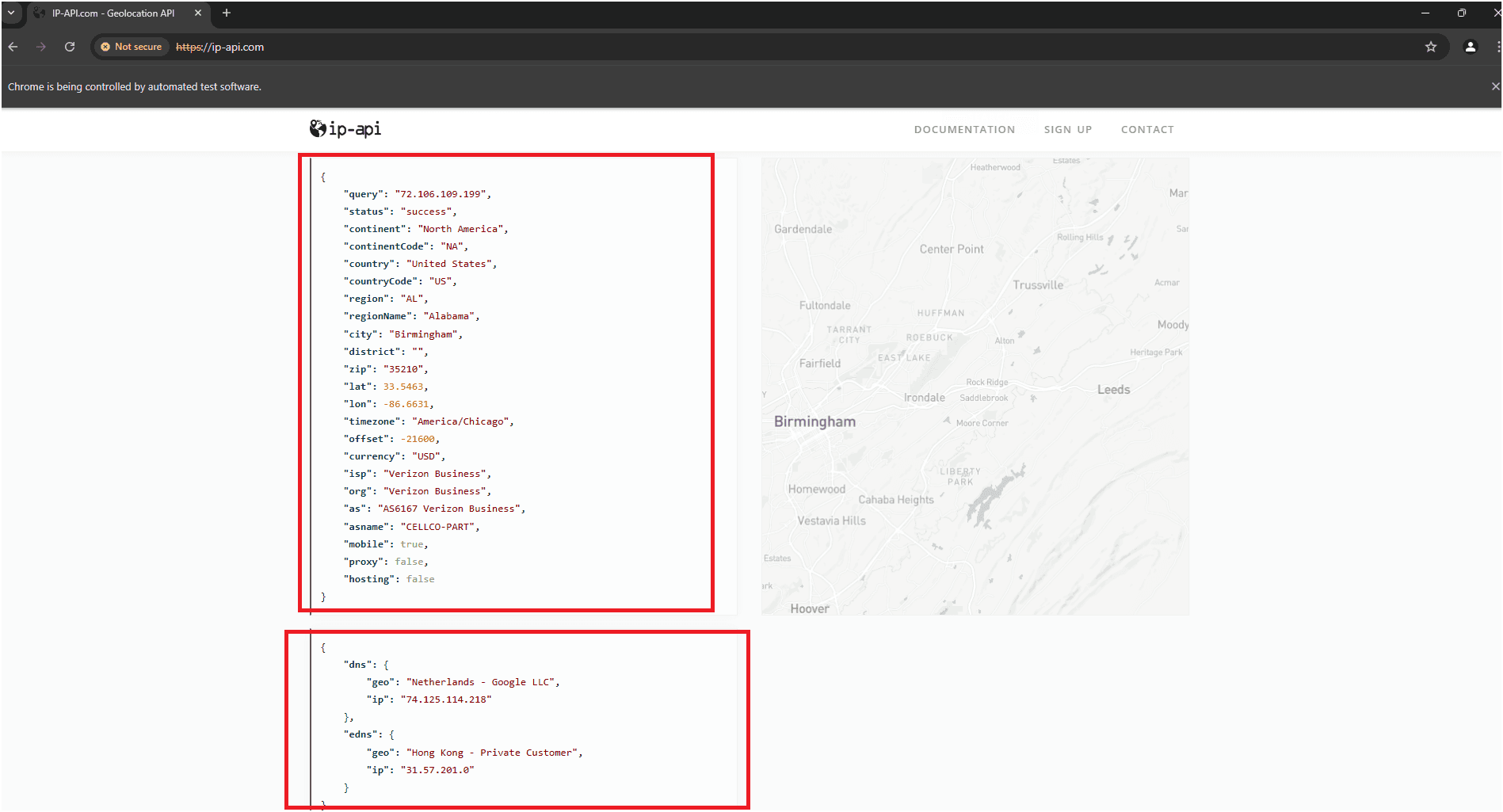
vii. Keep the browser open
input("Press Enter to close the browser...")viii. Quit the browser
browser.quit()xi. Full Code
import os
from dotenv import load_dotenv
from seleniumwire import webdriver
from selenium.webdriver.chrome.options import Options


load_dotenv()

proxy_host = os.getenv('GEONODE_HOST')
proxy_port = os.getenv('GEONODE_PORT')
username = os.getenv('GEONODE_USERNAME')
password = os.getenv('GEONODE_PASSWORD')
GEONODE_DNS = os.getenv('GEONODE_PROXY')

proxy_options = {
    'proxy': {
        'http': f'http://{username}:{password}@{proxy_host}:{proxy_port}',
        'https': f'https://{username}:{password}@{proxy_host}:{proxy_port}',
    }
}


chrome_options = Options()
chrome_options.add_argument('--disable-gpu')
chrome_options.add_argument('--start-maximized')
chrome_options.add_argument('--ignore-certificate-errors')

browser = webdriver.Chrome(seleniumwire_options=proxy_options, options=chrome_options)


urlToGet = "https://ip-api.com/"
browser.get(urlToGet)


input("Press Enter to close the browser...")

browser.quit()
x. Folder Stucture
Project Root
├── .venv/
├── .env
└── app.py
Source Code
You can find the full source code for this script on GitHub at the following link: https://github.com/geonodecom/proxy-testing-toolkit/tree/automation-framework/selenium
Use Cases of Integrating Geonode with Selenium
Integrating Geonode with Selenium can be beneficial for a wide range of applications, including:
- Web Scraping: Collect data from websites while maintaining anonymity to avoid IP bans.
- Ad Verification: Test and verify advertisements across different geographies to ensure proper delivery.
- Price Monitoring: Track pricing changes on e-commerce platforms without getting blocked.
- SEO Monitoring: Monitor search engine results and competitor websites without affecting personalized search results.
- Market Research: Gather data from various sources to analyze trends and competitor performance.
- Social Media Automation: Manage multiple social media accounts while avoiding detection.
- Fraud Detection: Simulate real-world traffic for security testing and fraud detection systems.
Explore more use cases here https://geonode.com/use-cases
Troubleshooting Tips
- Timeout Errors: Check if the proxy is active or switch to another proxy.
- Authentication Issues: Double-check your Geonode API credentials.
- Incompatible ChromeDriver: Ensure ChromeDriver matches your Chrome version.
If you encounter any issues, refer to the troubleshooting section or Geonode support.