FoxyProxy
This guide explains how to install, configure, and use Geonode proxies in the FoxyProxy browser extension.
What Is FoxyProxy
FoxyProxy is a browser extension that lets you easily manage and switch between multiple proxy configurations.
Instead of manually entering proxy details each time, you can save and control proxies directly within your browser.
Prerequisites: Get Proxy Credentials from Geonode
Before setting up a proxy, first, retrieve your proxy credentials from the Geonode dashboard.
Follow this guide: How to Obtain Proxy Server Information
Steps to Set Up Geonode Proxy in FoxyProxy
Follow these steps to configure your Geonode proxy using the FoxyProxy extension.
Step 1: Install the FoxyProxy Extension
-
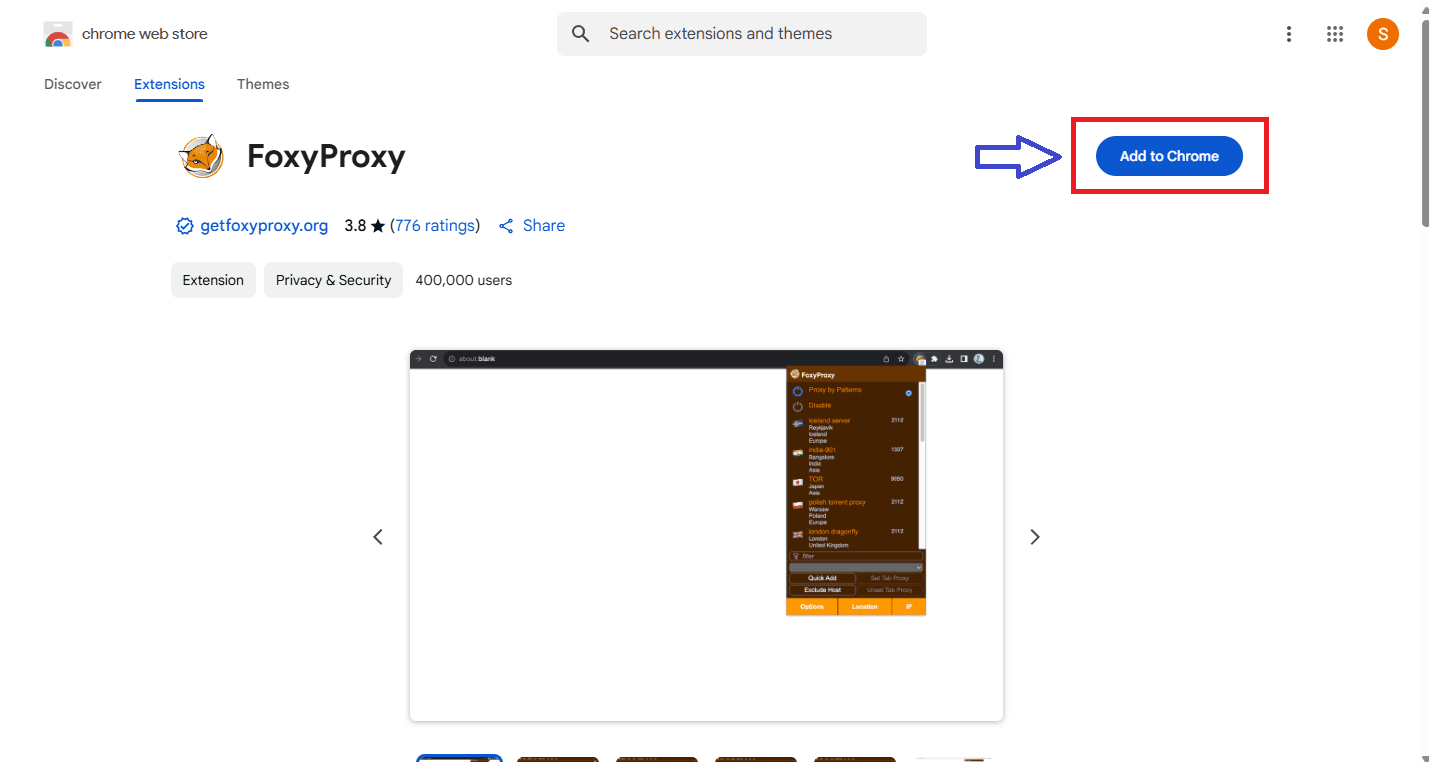
Open the FoxyProxy extension page in the Chrome Web Store.
-
Click Add to Chrome to install the extension.
-
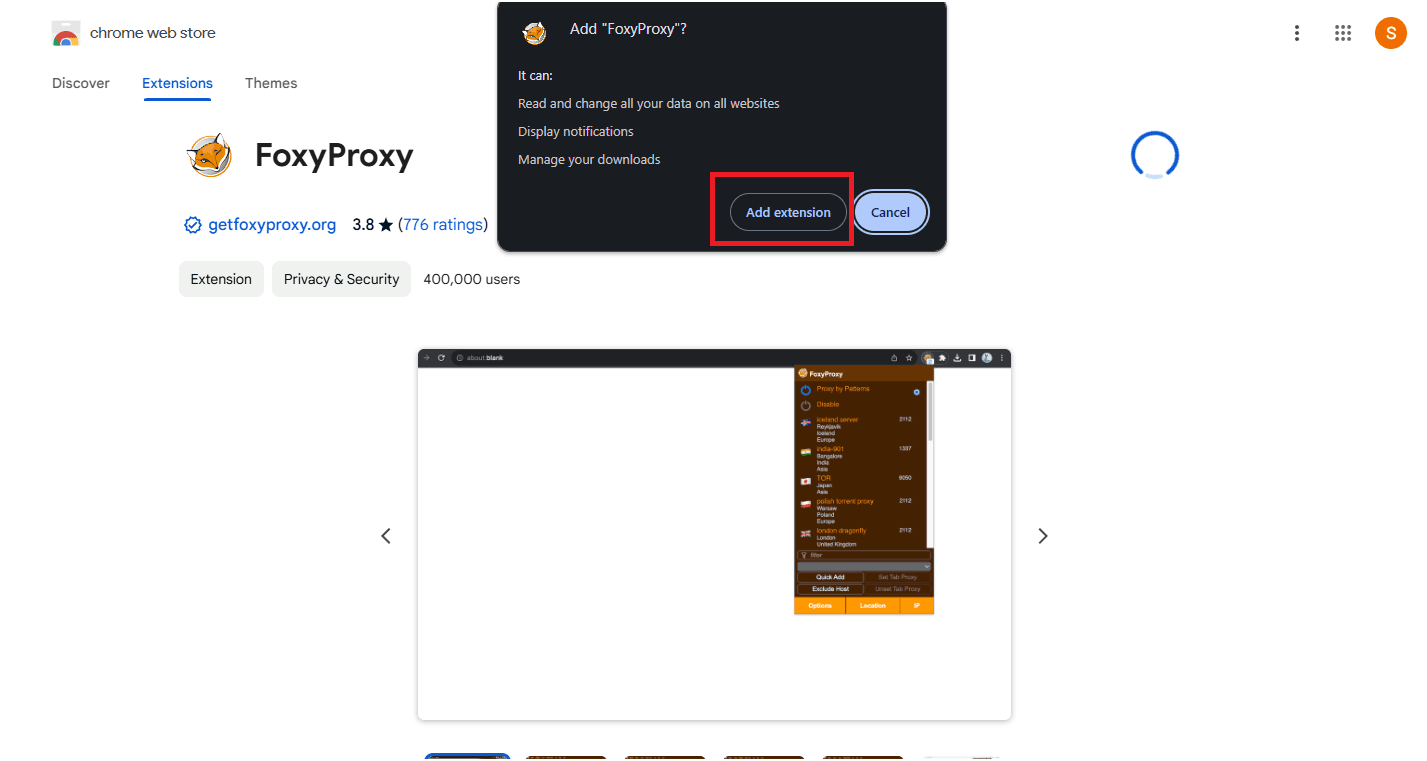
Confirm the installation by clicking Add Extension when prompted.
Step 2: Pin the Extension for Quick Access
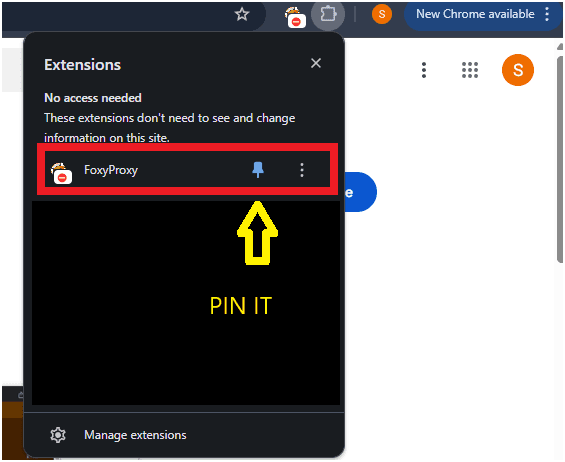
After installation, pin the extension to your Chrome toolbar for faster access.
-
Click the Extensions icon (puzzle piece) in Chrome.
-
Find FoxyProxy and click the Pin icon.
Step 3: Open FoxyProxy Settings
-
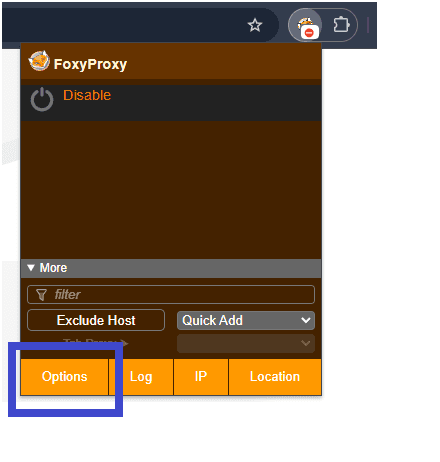
Click the FoxyProxy icon in your Chrome toolbar.
-
Select Options to open the settings panel.
-
You’ll be redirected to the Proxy Manager page.
Click on the Proxies tab.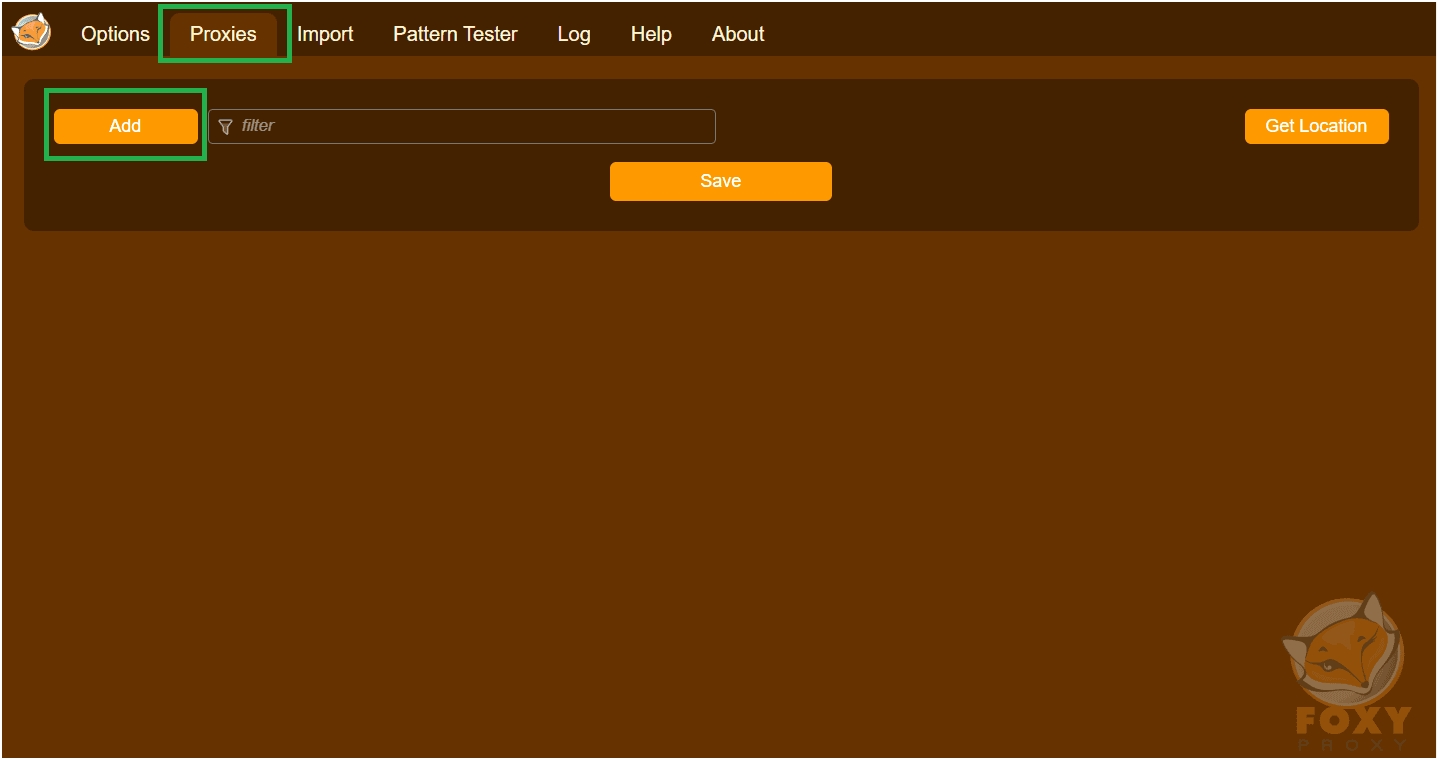
Step 4: Add a New Proxy
-
Click Add New Proxy.
-
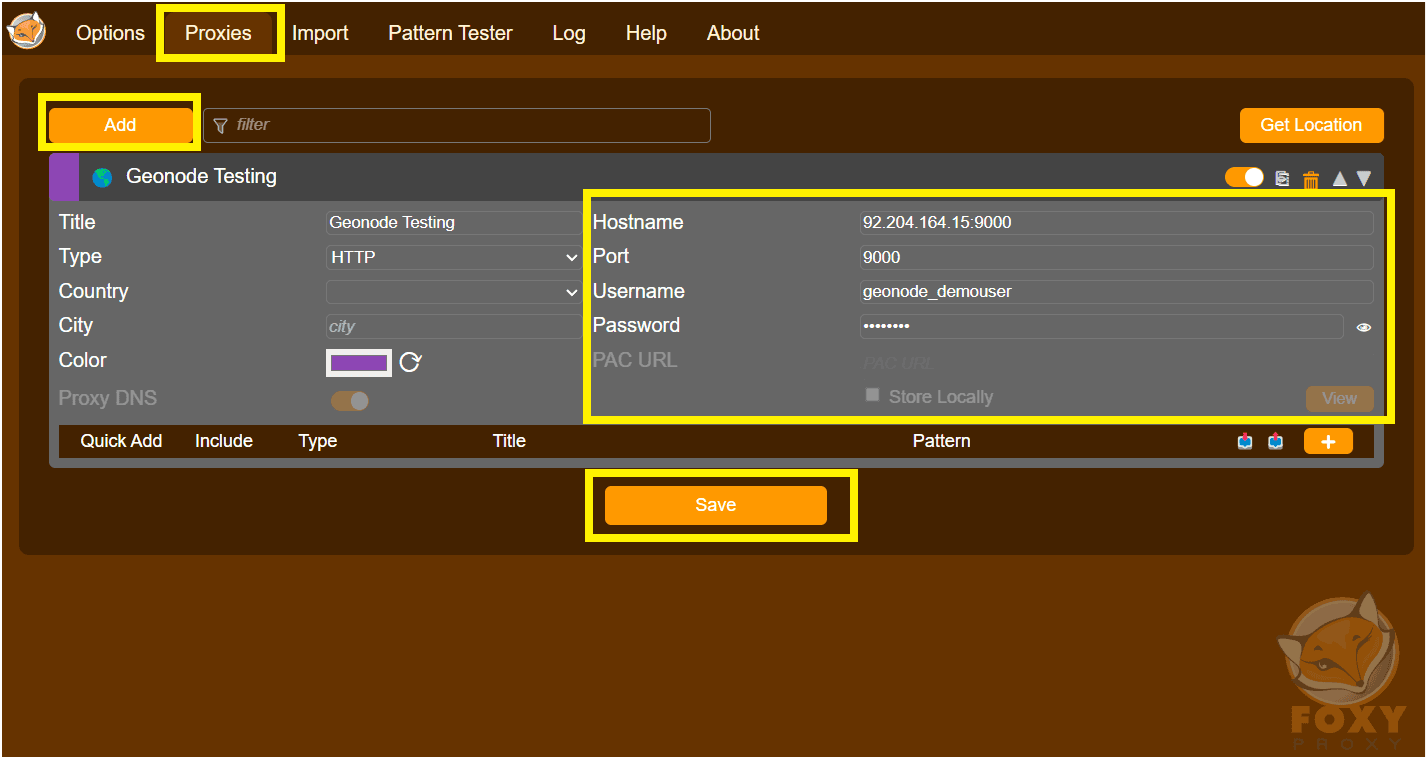
Fill in your proxy details in the popup window:
- Name: Any label for easy identification
- Host: Your proxy server (e.g.,
proxy.geonode.io) - Port: Usually
9000 - Username and Password: Your Geonode credentials
-
Click Add Proxy to save the configuration.
-
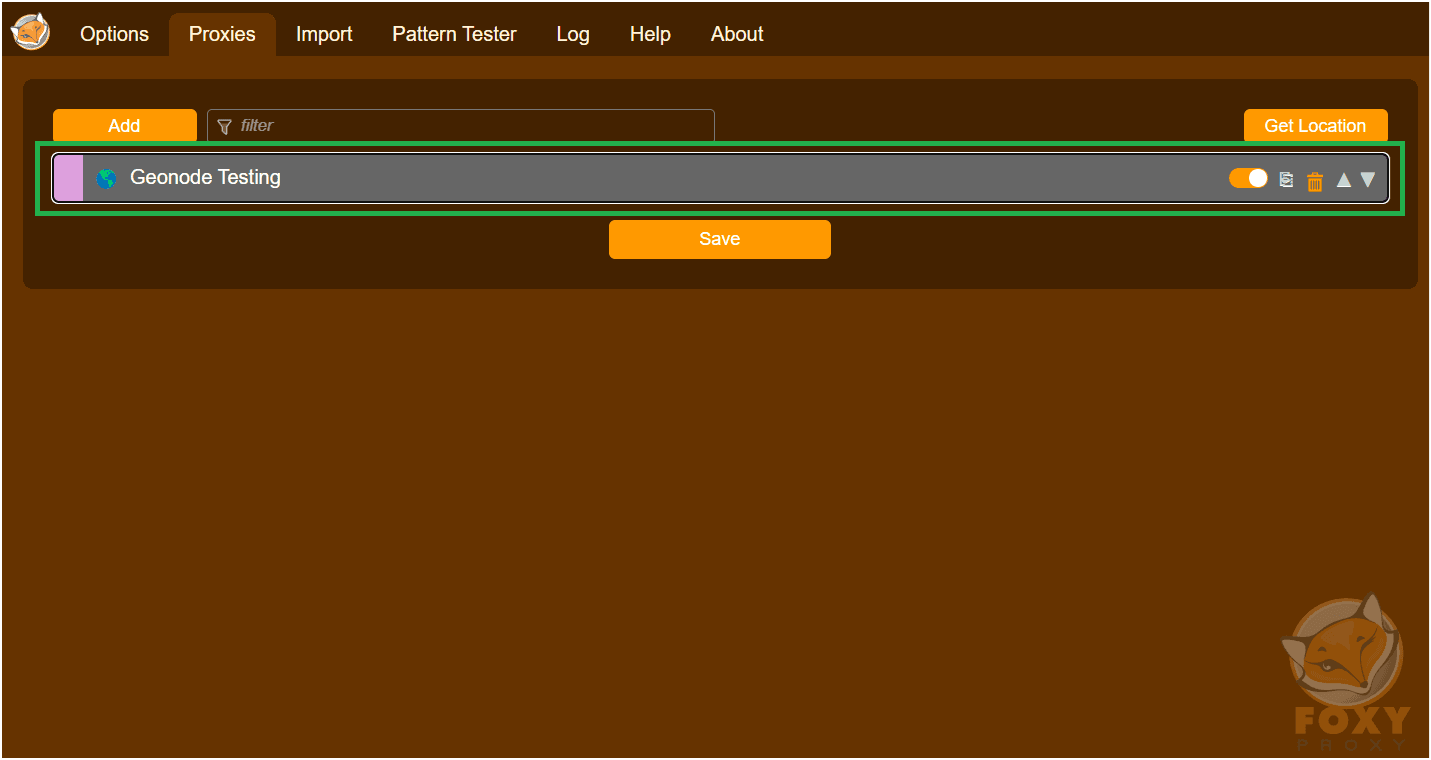
Return to the Proxy Manager to confirm that your new proxy appears in the list.
Step 5: Connect to the Proxy
-
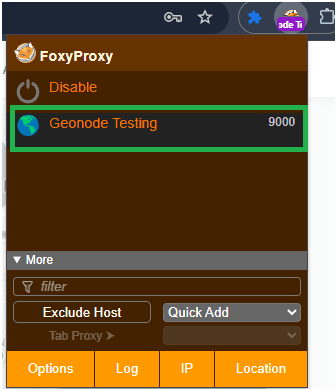
Click the FoxyProxy icon in the Chrome toolbar.
-
Select the proxy you added from the list.
-
Click Connect to activate the proxy.
Once connected, all your browser traffic will route through the selected proxy.
Verify Proxy Connection
To ensure the proxy is working, check your IP address using an online tool or follow this guide:
If you encounter any issues, refer to the troubleshooting section or Geonode support.