Octo Browser
This guide will help you configure a Geonode proxy in the Octo Browser.
Prerequisites: Get Proxy Credentials from Geonode
Before setting up a proxy, first, retrieve your proxy credentials from the Geonode dashboard.
Follow this guide: How to Obtain Proxy Server Information
Setting Up a Proxy in Octo Browser
Install Octo Browser
- Go to the Octo Browser Download Page.
- Download the version for your operating system.
- Install the software and create an account.
Create a New Profile
-
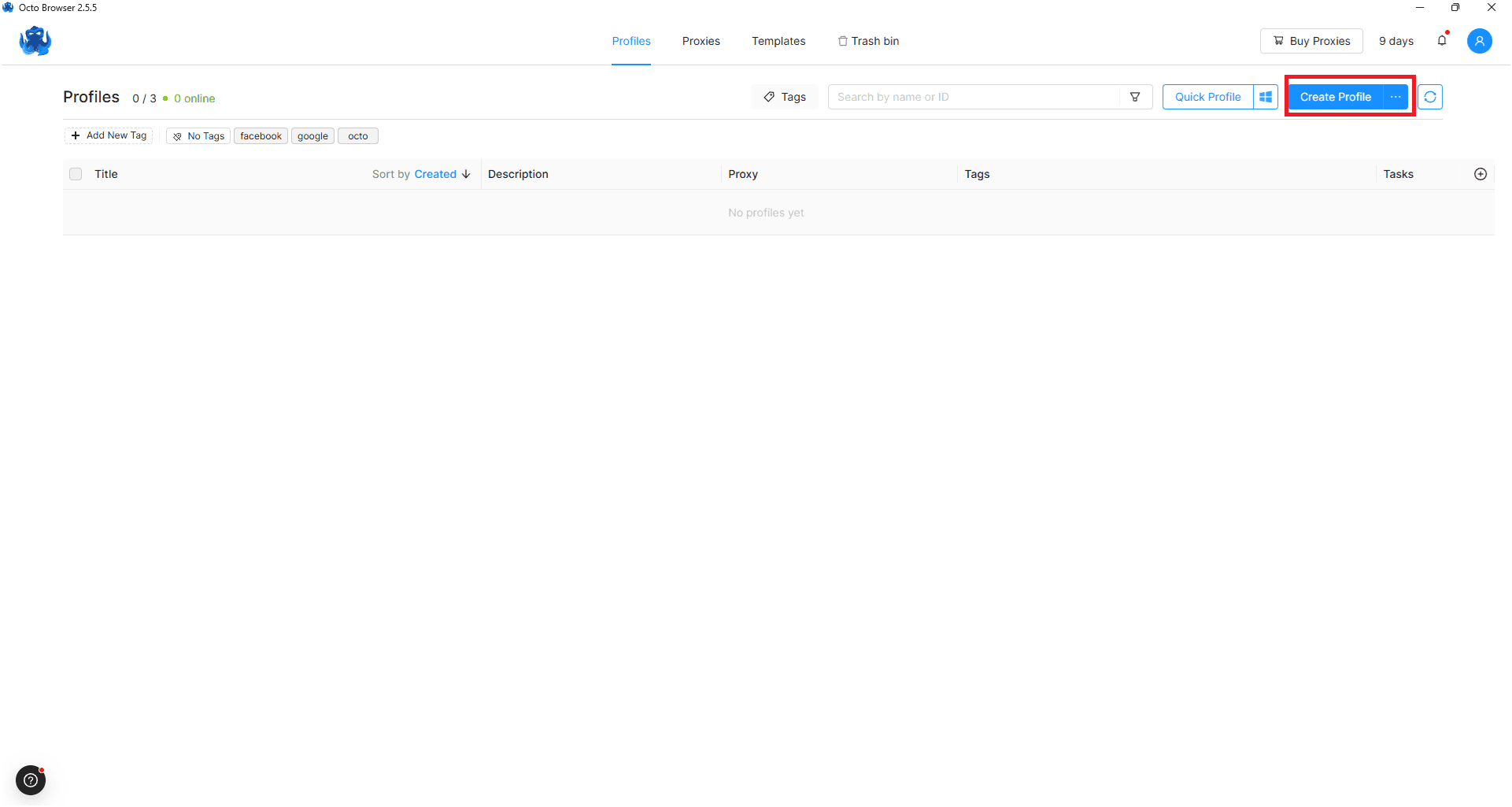
Open Octo Browser and click Add Profile.
-
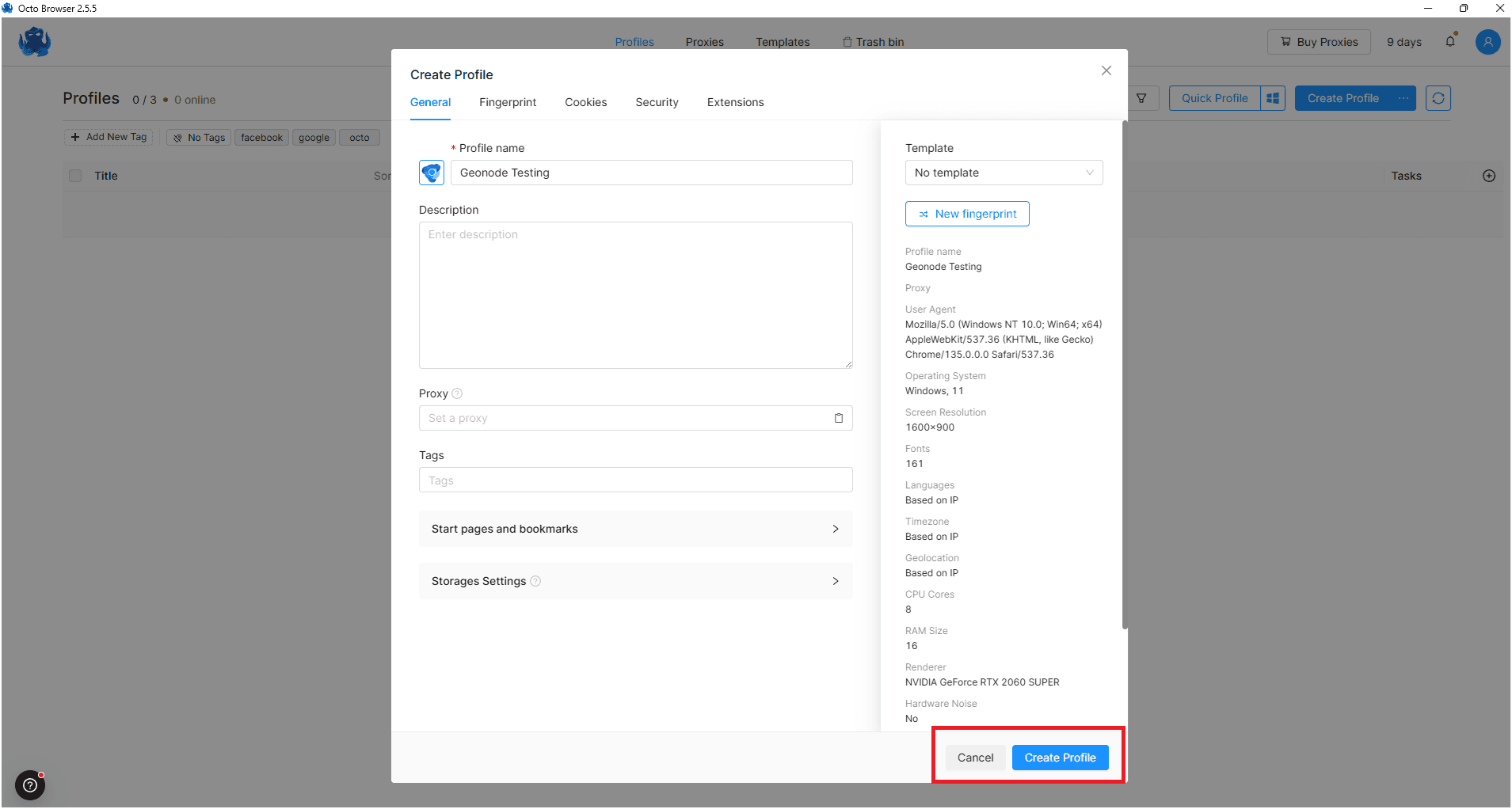
Enter the required details:
- Profile name
- Operating system
-
(Optional) Randomize the fingerprint for extra security.
-
Review your browser details.
Add Proxy Details
-
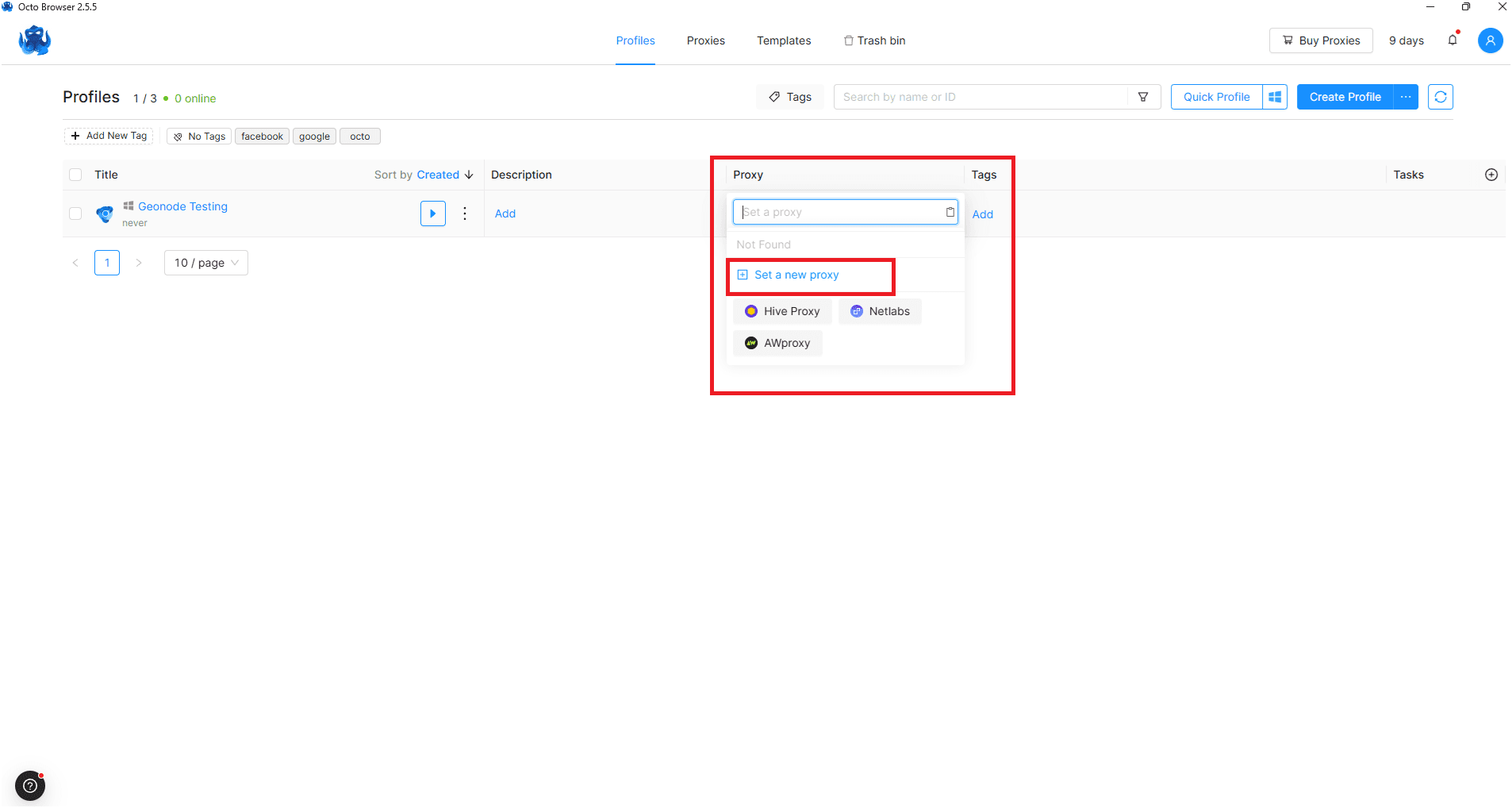
Click the Proxy button.
-
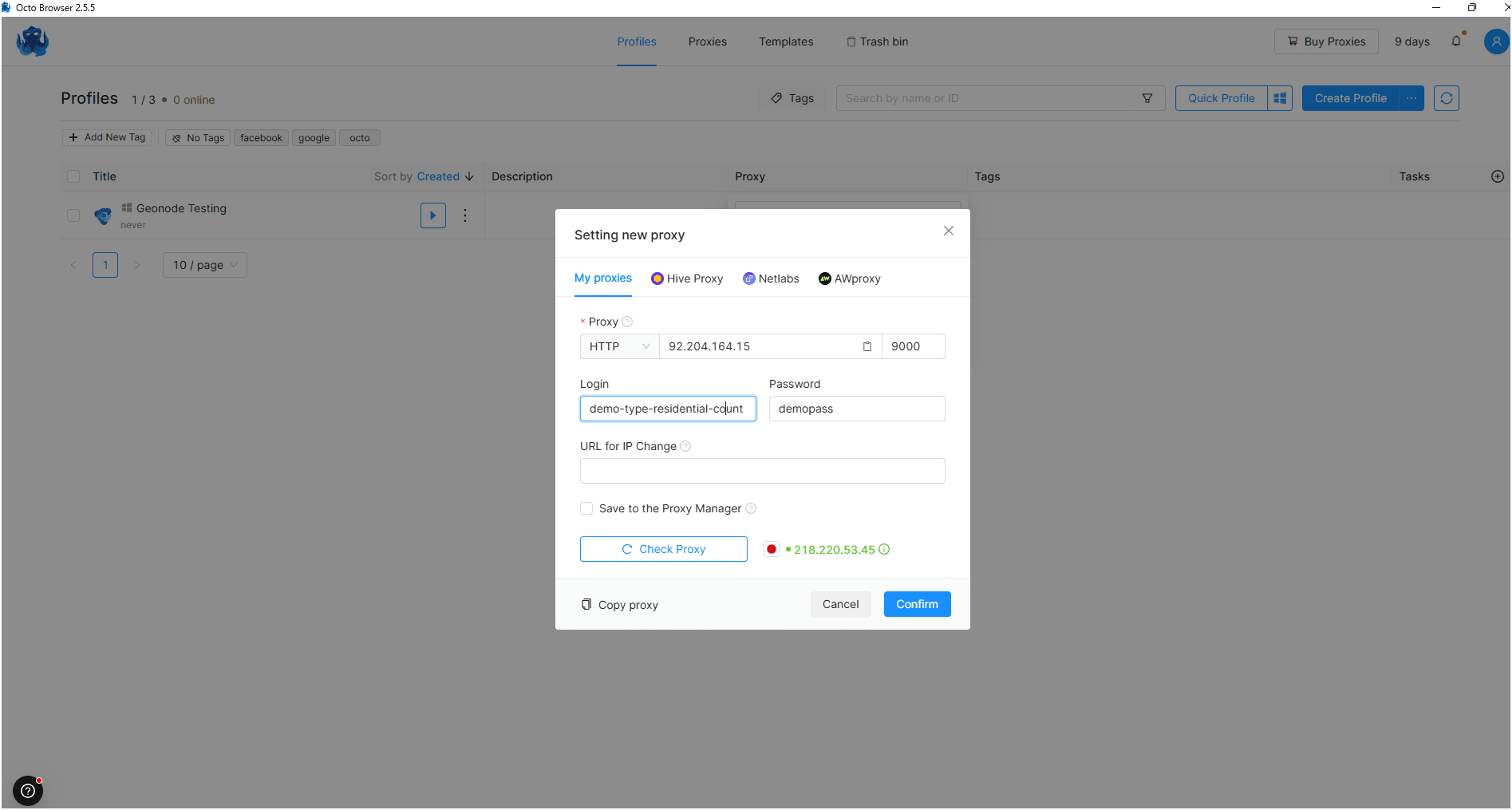
Choose a connection type — for this guide, select HTTP.
-
Enter your proxy credentials:
- Proxy (IP:Port)
- Username
- Password
-
Click Check Proxy Connection to test it.
-
Click Confirm to save your proxy settings.
Launch the Profile
-
Once created, the profile will appear in your list.
- If the proxy shows a location, it means it’s active.
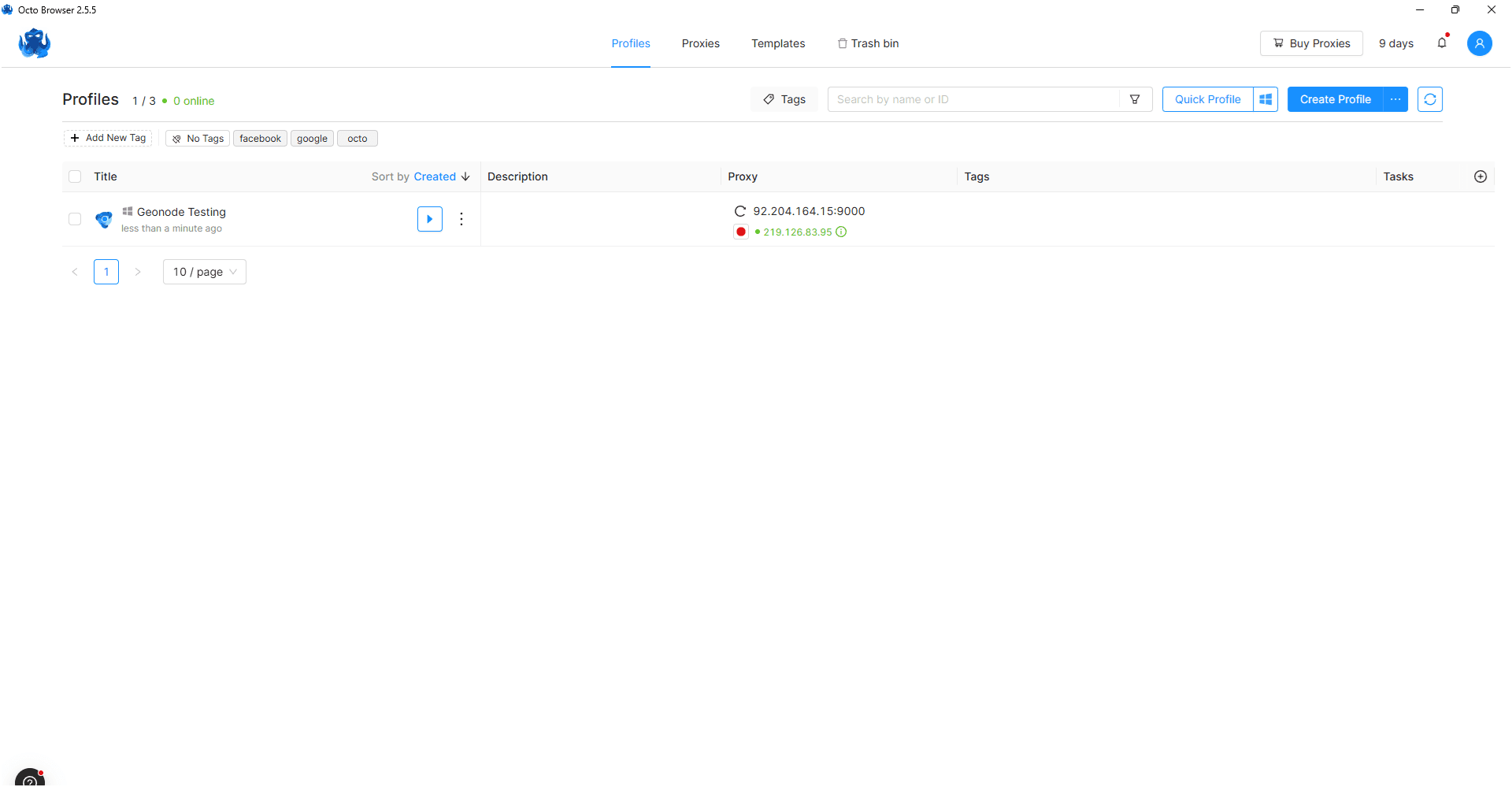
- If the proxy shows a location, it means it’s active.
-
Click Start to launch the browser with your configured proxy.
-
Visit
http://ip-api.comto verify your IP and proxy location.
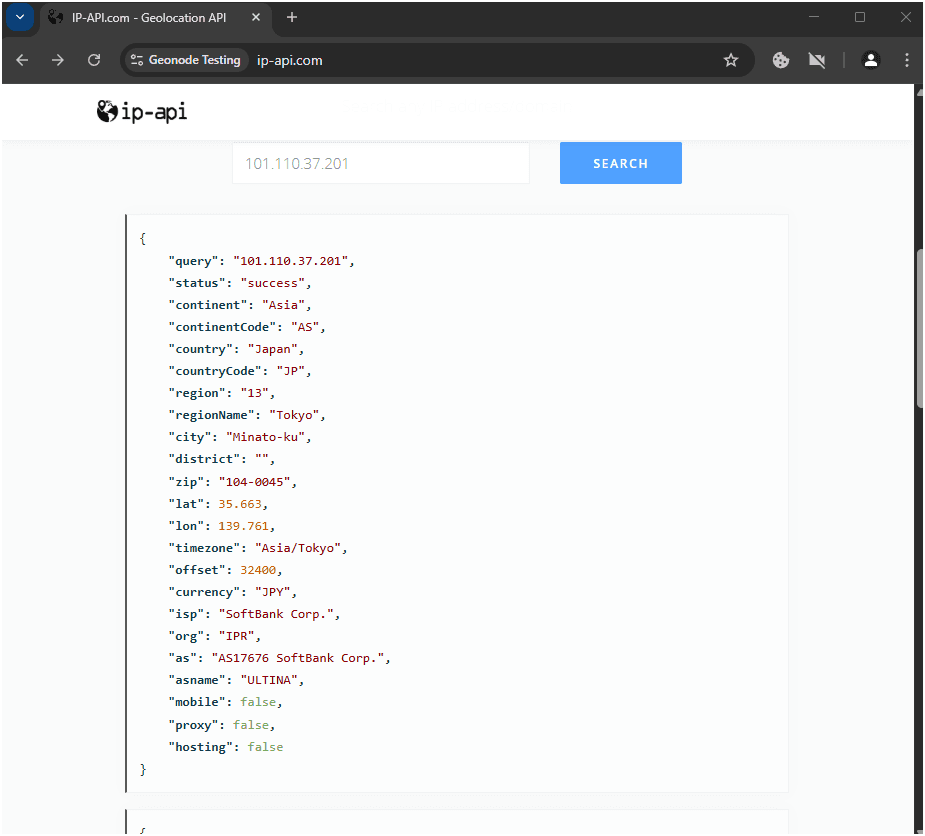
Your Geonode proxy is now successfully configured in Octo Browser.
If you encounter any issues, refer to the troubleshooting section or Geonode support.