Gateway Configuration
ProxiesThis guide explains how to select a proxy gateway, use the generated connection details, and configure gateway access in your Geonode dashboard.
Gateway Availability
Gateway selection depends on your proxy product.
| Proxy Product | Gateway Configuration |
|---|---|
| Residential Proxies | Select from available gateway locations |
| Rotating Datacenter Proxies | Predefined gateway |
| Unlimited Residential Proxies | Predefined gateway |
Gateway vs Country Targeting
A gateway determines which proxy server your application connects to. Country targeting determines the geographic location requested for your exit IP. These are separate settings.
How to Configure a Gateway
Find Gateway under Proxy configuration.
Select your preferred gateway location from the dropdown.
Copy the updated proxy endpoint and use it in your application.
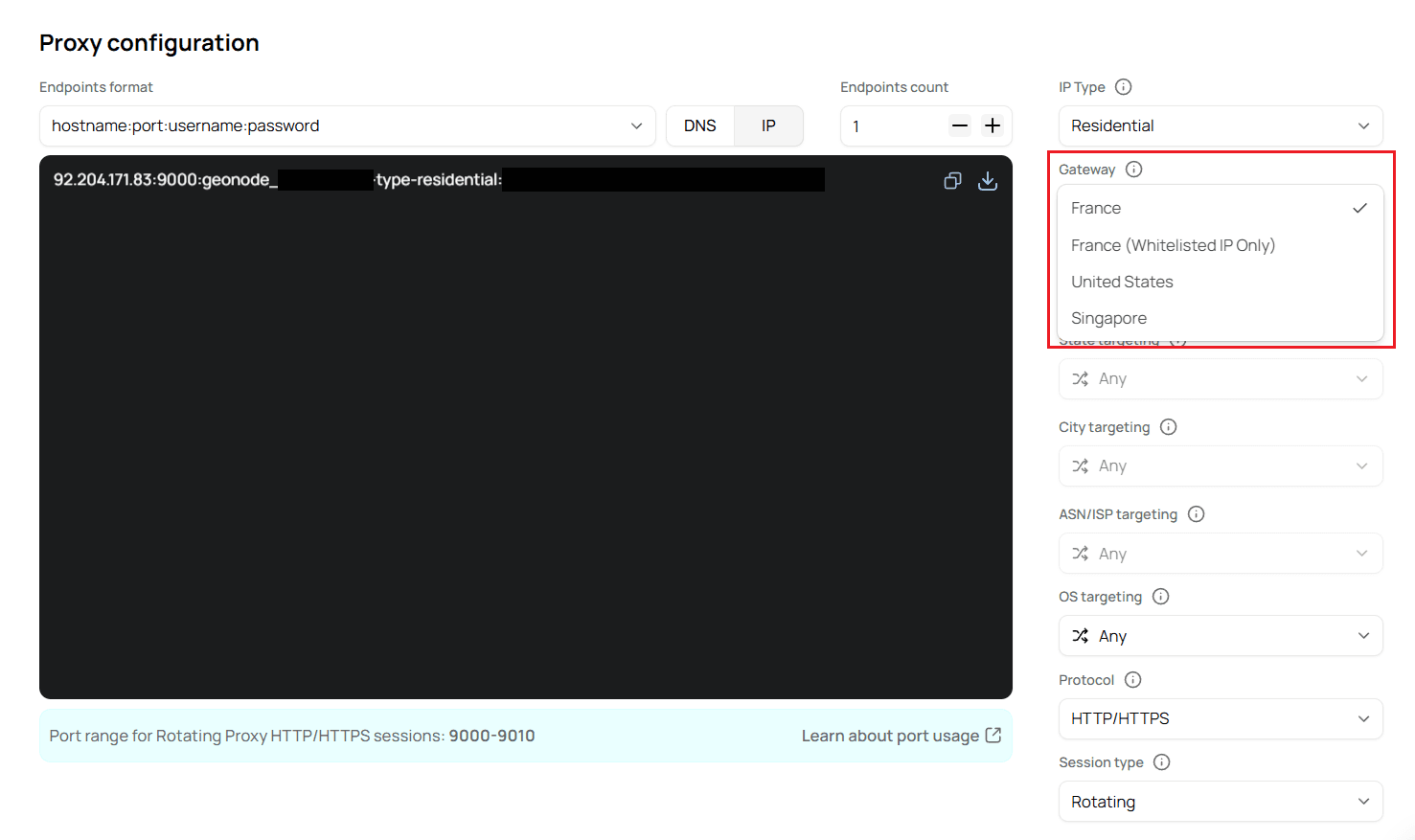
The generated proxy server address may change when you select a different gateway.
Gateway Examples
The following addresses were displayed in the Geonode dashboard with IP endpoint mode and HTTP/HTTPS selected.
| Gateway | Proxy Server IP | Port |
|---|---|---|
| Singapore | 103.66.181.189 | 9000 |
| United States | 173.201.38.229 | 9000 |
| France | 92.204.171.83 | 9000 |
| France (Whitelisted IP Only) | 92.204.164.13 | 9000 |
Connection Details
Gateway addresses and ports may vary. Always copy the latest endpoint from your dashboard rather than relying on the example addresses.
Connect Through a Gateway
Use the generated endpoint to connect your application to the selected gateway.
Request
The following example uses the Singapore gateway address displayed in the dashboard.
curl -x 103.66.181.189:9000 \
  -U "YOUR_PROXY_USERNAME:YOUR_PROXY_PASSWORD" \
  http://ip-api.com
Replace the placeholder credentials with your Geonode proxy credentials, including any configuration parameters in the generated username.
The -x option specifies the gateway address and port. The -U option supplies your proxy authentication credentials.
The returned IP information can help you verify the proxy connection. The exit IP may differ from the gateway IP.
Gateways Requiring IP Whitelisting
Some gateway options require your source IP address to be whitelisted before you can connect.
For example, the dashboard includes France (Whitelisted IP Only).
Open Proxy configuration and choose the gateway marked Whitelisted IP Only.
Follow the IP Whitelisting Guide to authorise your source IP address.
After completing the required setup, copy the generated gateway endpoint.
Use the endpoint in your application.
Whitelisting Required
Gateways marked Whitelisted IP Only require additional access configuration. Follow the IP whitelisting instructions before using these endpoints.
Frequently Asked Questions
Was this page helpful?