OS Targeting
ProxiesThis guide explains how to configure OS targeting for Geonode proxies and test your connection using the selected operating system.
When to Use OS Targeting
Use OS targeting when you need to:
- Select proxy IPs associated with a specific operating system.
- Test requests using IPs with particular OS characteristics.
- Filter the available proxy pool by operating system.
Selecting Any applies no operating-system restriction.
Available Operating Systems
| Option | Description |
|---|---|
| Any | No OS targeting restriction |
| Windows | Target Windows-associated proxy IPs |
| Android | Target Android-associated proxy IPs |
| iOS | Target iOS-associated proxy IPs |
| macOS | Target macOS-associated proxy IPs |
Availability
OS targeting is available for Residential Proxies, Rotating Datacenter Proxies, and Unlimited Residential Proxies.
How to Configure OS Targeting
Open your Geonode Dashboard and select your proxy product.
Find OS targeting under Proxy configuration.
Select your preferred operating system, such as Windows.
Copy the updated proxy endpoint.
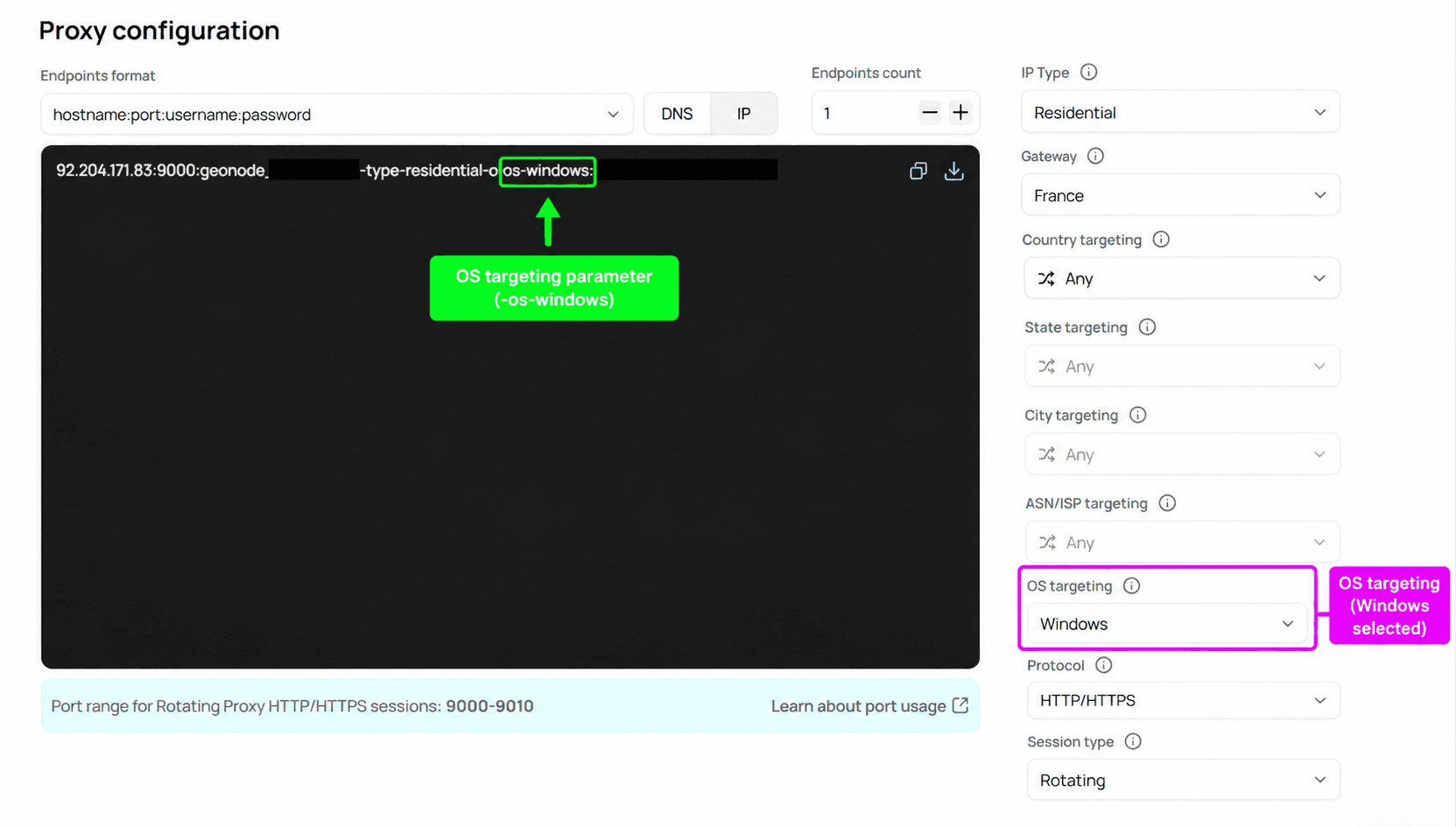
The selected operating system is added to your generated proxy username.
| OS Target | Username Parameter |
|---|---|
| Windows | -os-windows |
| Android | -os-android |
| iOS | -os-ios |
| macOS | -os-macos |
The Windows parameter is confirmed by the generated endpoint and test. The other parameters follow the same naming pattern and should be checked against the dashboard before publication.
Test Your OS Targeting
Use cURL to test a connection with your selected OS targeting option.
Request
The following request uses Windows OS targeting with a Residential proxy.
curl -x 92.204.171.83:9000 \
  -U "YOUR_PROXY_USERNAME-type-residential-os-windows:YOUR_PROXY_PASSWORD" \
  http://ip-api.com
Replace the placeholder credentials with your Geonode credentials. Use the hostname or IP address and port generated in your dashboard.
Response
The tested request returned:
{
  "status": "success",
  "continent": "Europe",
  "continentCode": "EU",
  "country": "Russia",
  "countryCode": "RU",
  "region": "PRI",
  "regionName": "Primorye",
  "city": "Vladivostok",
  "district": "",
  "zip": "690000",
  "lat": 43.1068,
  "lon": 131.8692,
  "timezone": "Asia/Vladivostok",
  "offset": 36000,
  "currency": "RUB",
  "isp": "JSC \"VimpelCom\"",
  "org": "",
  "as": "AS16345 PJSC Vimpelcom",
  "asname": "BEE-AS",
  "mobile": true,
  "proxy": false,
  "hosting": false,
  "query": "46.42.144.69"
}
The request succeeded with Windows targeting enabled and returned exit IP 46.42.144.69 from Vladivostok, Russia.
OS Verification
The IP lookup confirms the proxy connection and its reported IP information. It does not identify the operating system associated with the proxy IP, so this response alone cannot verify Windows targeting.
Frequently Asked Questions
Was this page helpful?