Port Configuration
The Port Configuration section in your Geonode dashboard lets you set up and manage proxy ports with precise geo-targeting and connection options.
Step 1 — Open the Port Configuration page
- Log in to your Geonode dashboard.
- Select Port Configuration from the top navigation bar.
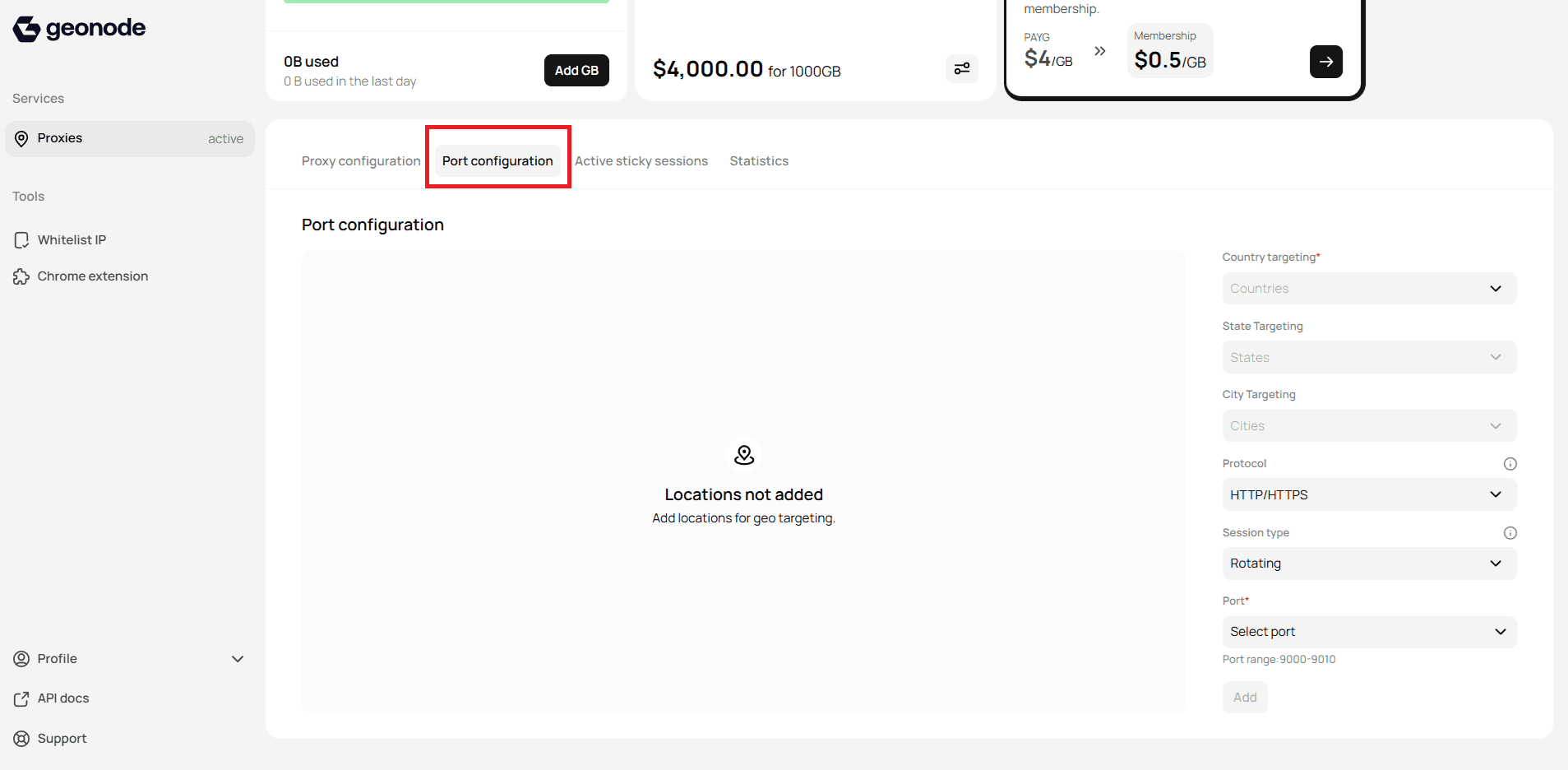
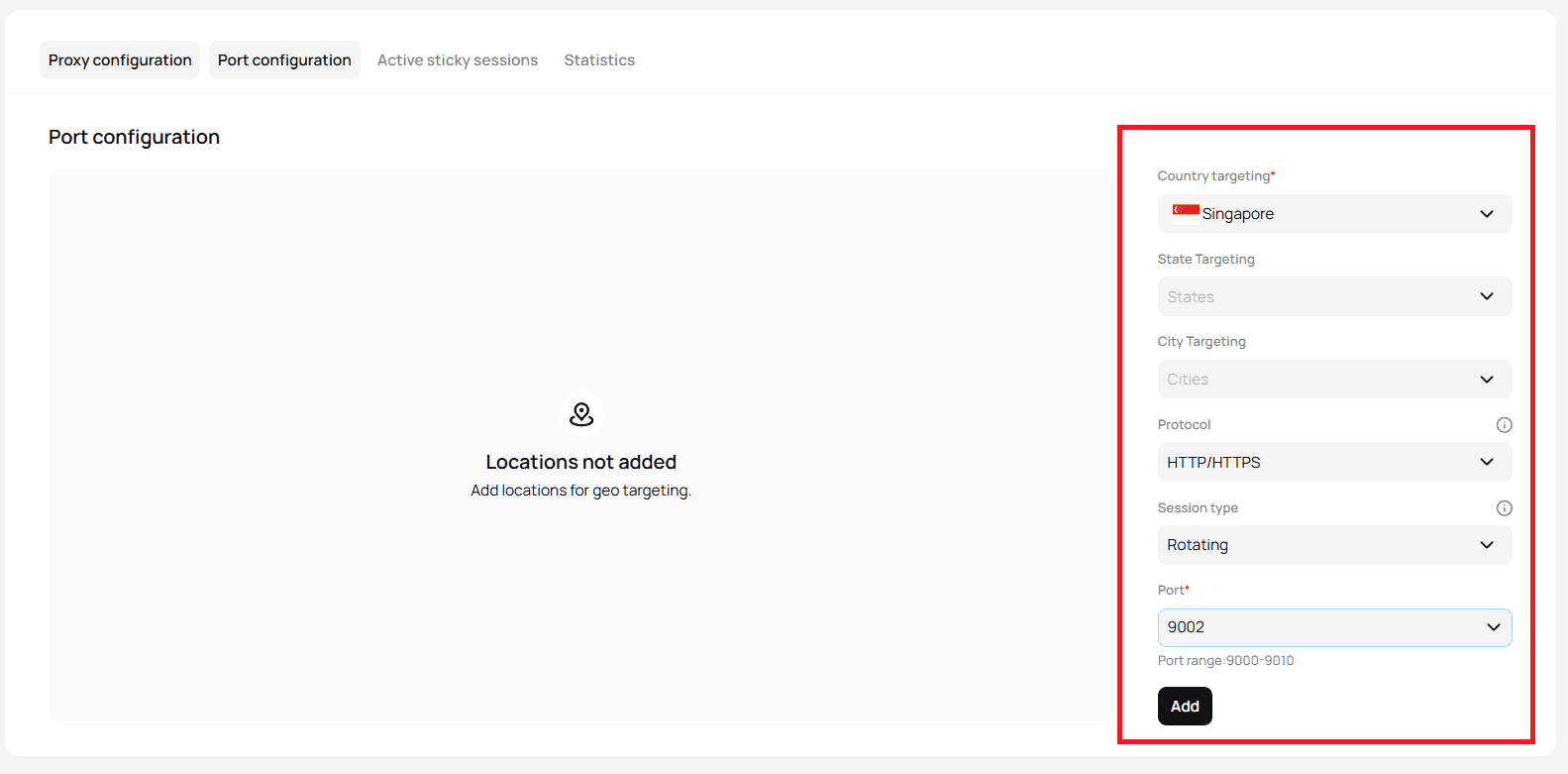
You’ll see configuration options on the right and a list of added locations in the center.
Step 2 — Configure your port settings
1. Country targeting (required)
- Open the Countries dropdown.
- Select the country you want to target — this field is required for geo-targeting.
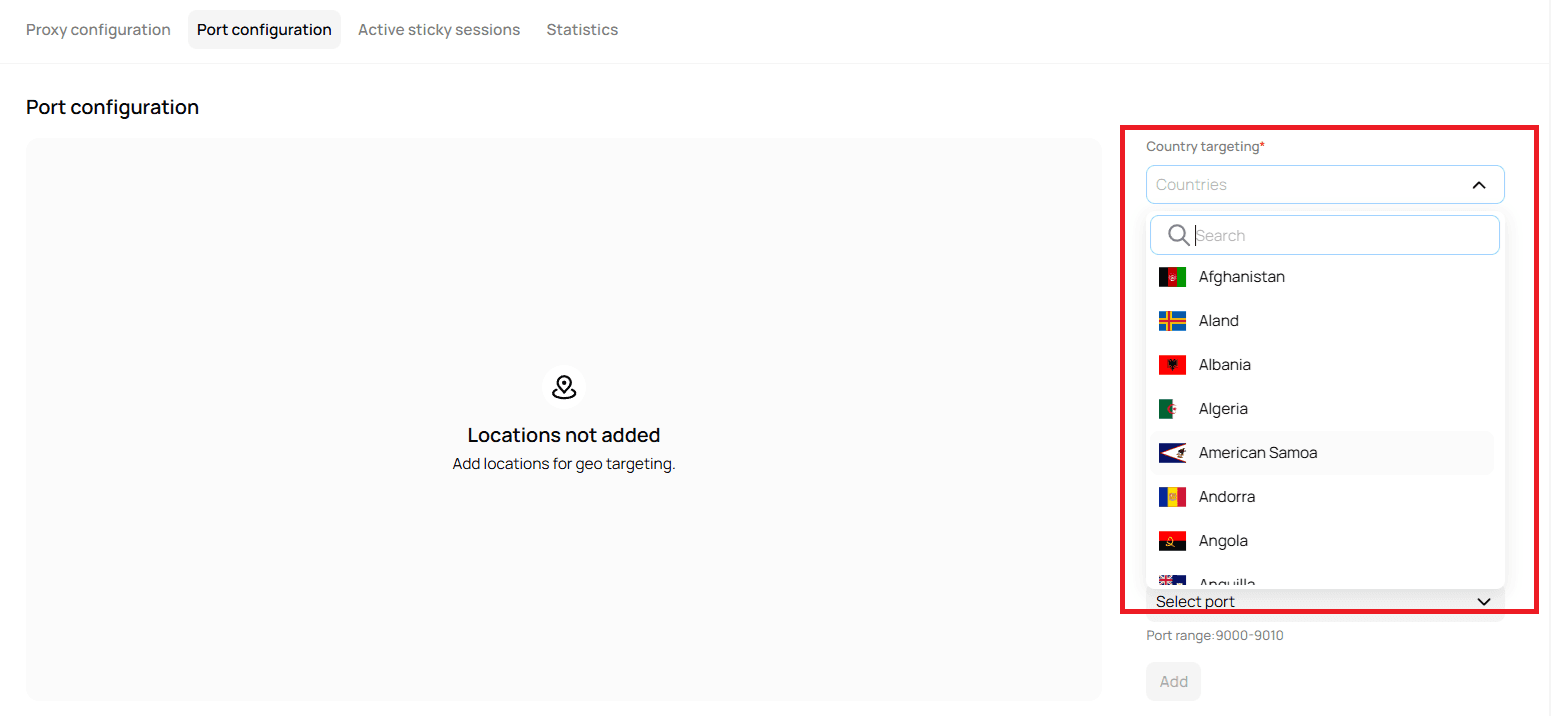
2. State targeting (optional)
- Once a country is selected, the States dropdown becomes active.
- Choose a specific state if needed.
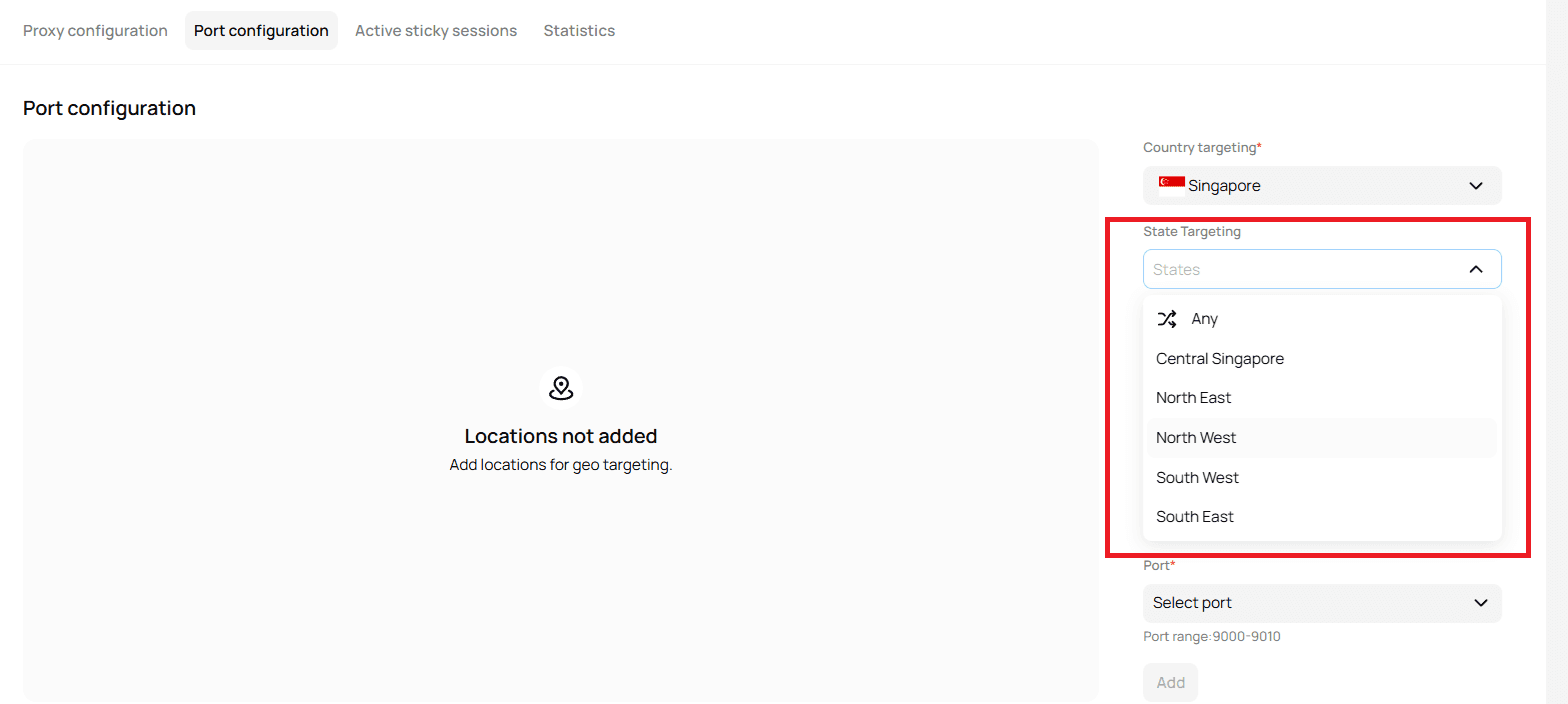
3. City targeting (optional)
- After choosing a state, the Cities dropdown will be enabled.
- Select a city for more precise targeting.
4. Protocol selection
- Click the HTTP/HTTPS dropdown.
- Choose a protocol:
- HTTP/HTTPS — standard web traffic.
- SOCKS5 — advanced, more flexible option (if available).
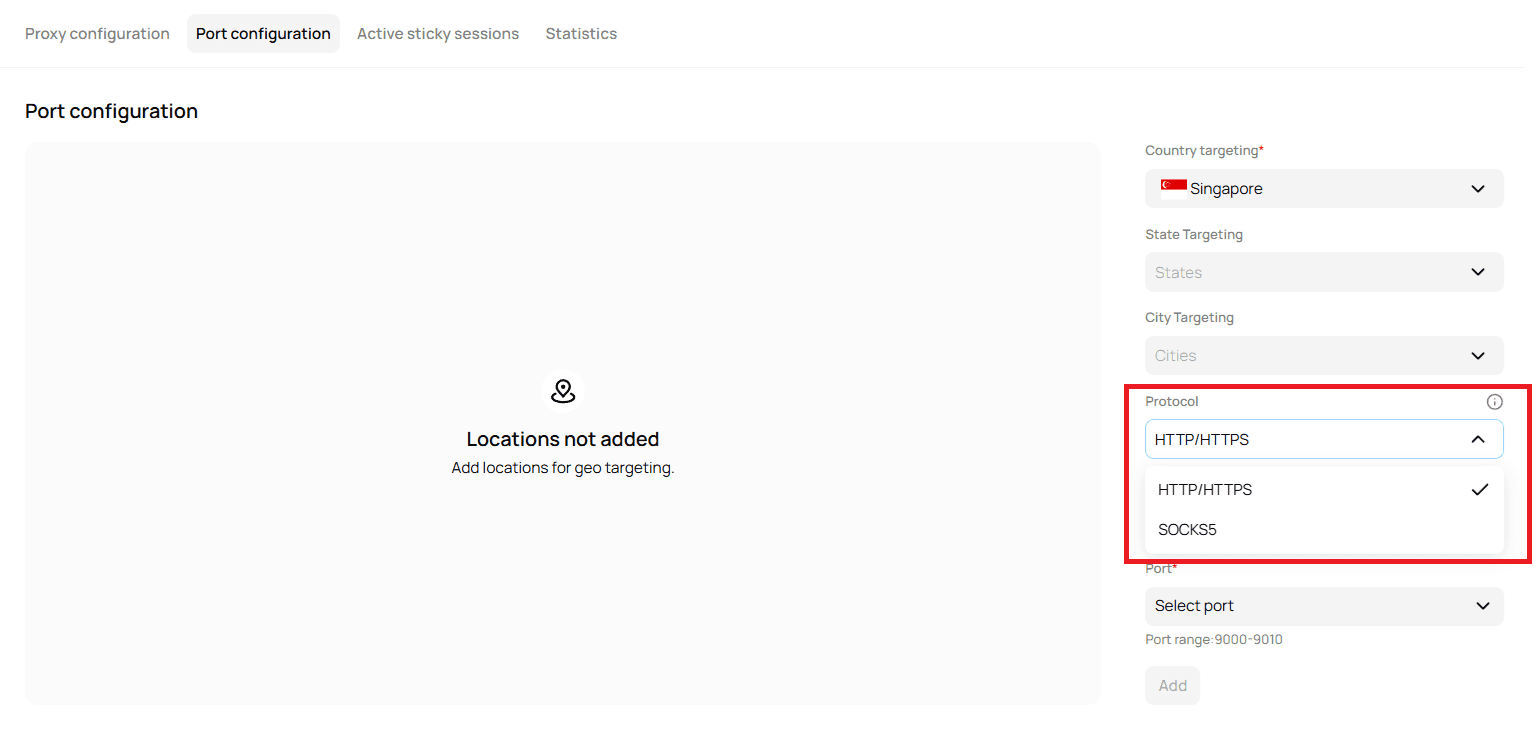
→ Understanding Protocol Type for Proxy Configuration
5. Session type
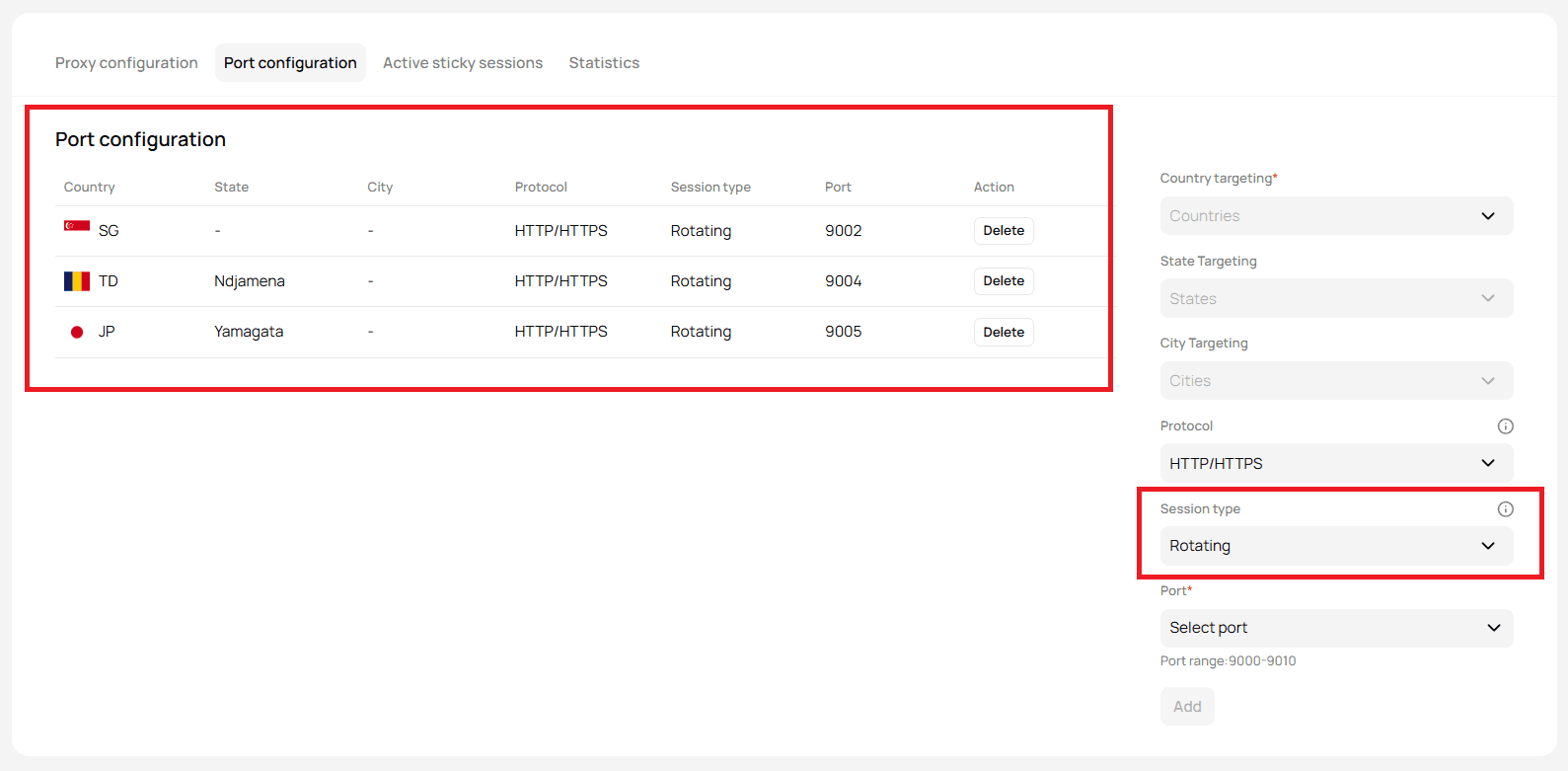
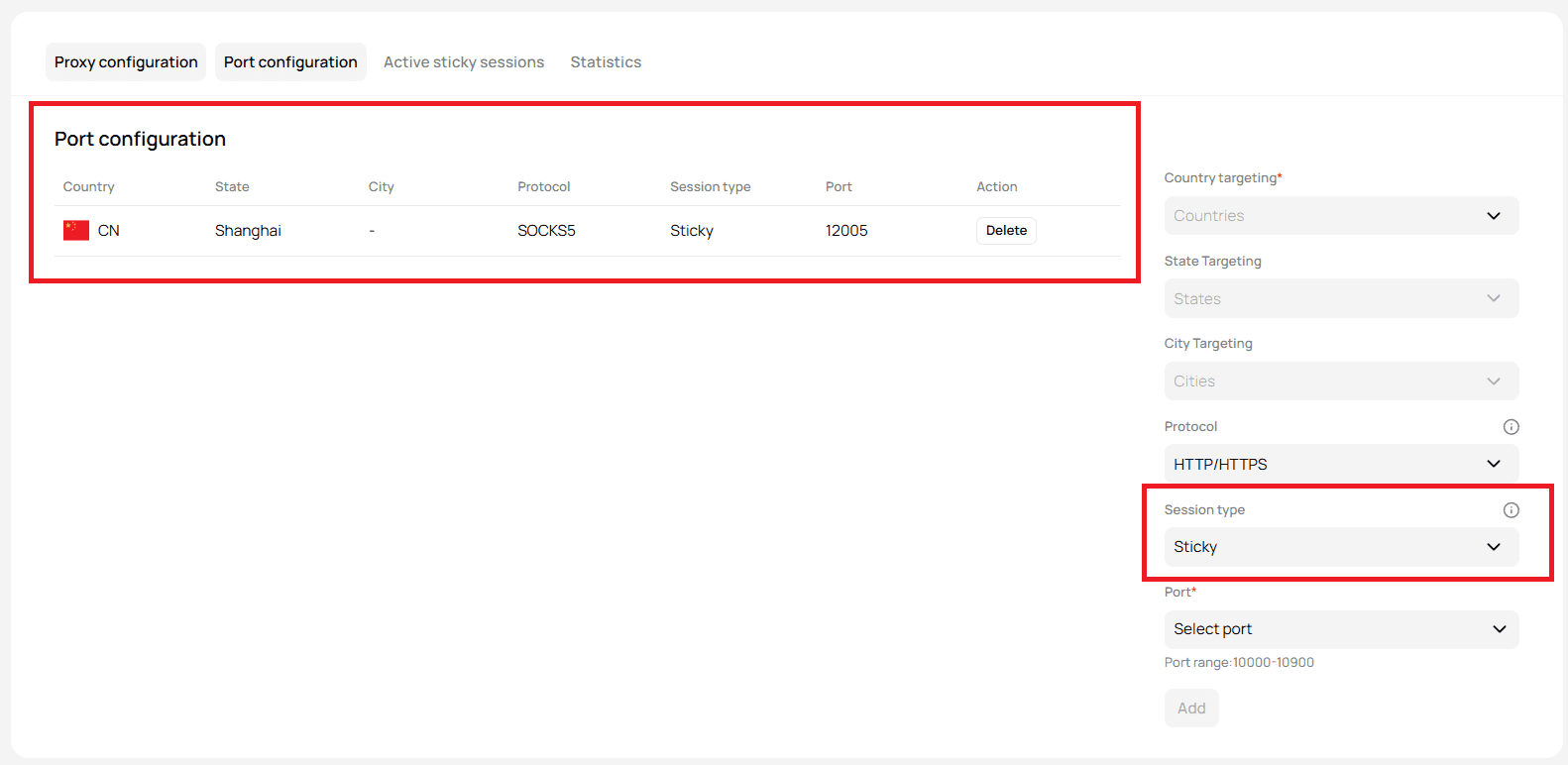
- Select a session mode:
- Rotating — IP changes periodically (best for scraping/automation).
- Sticky — one IP per session (best for login or persistent tasks).
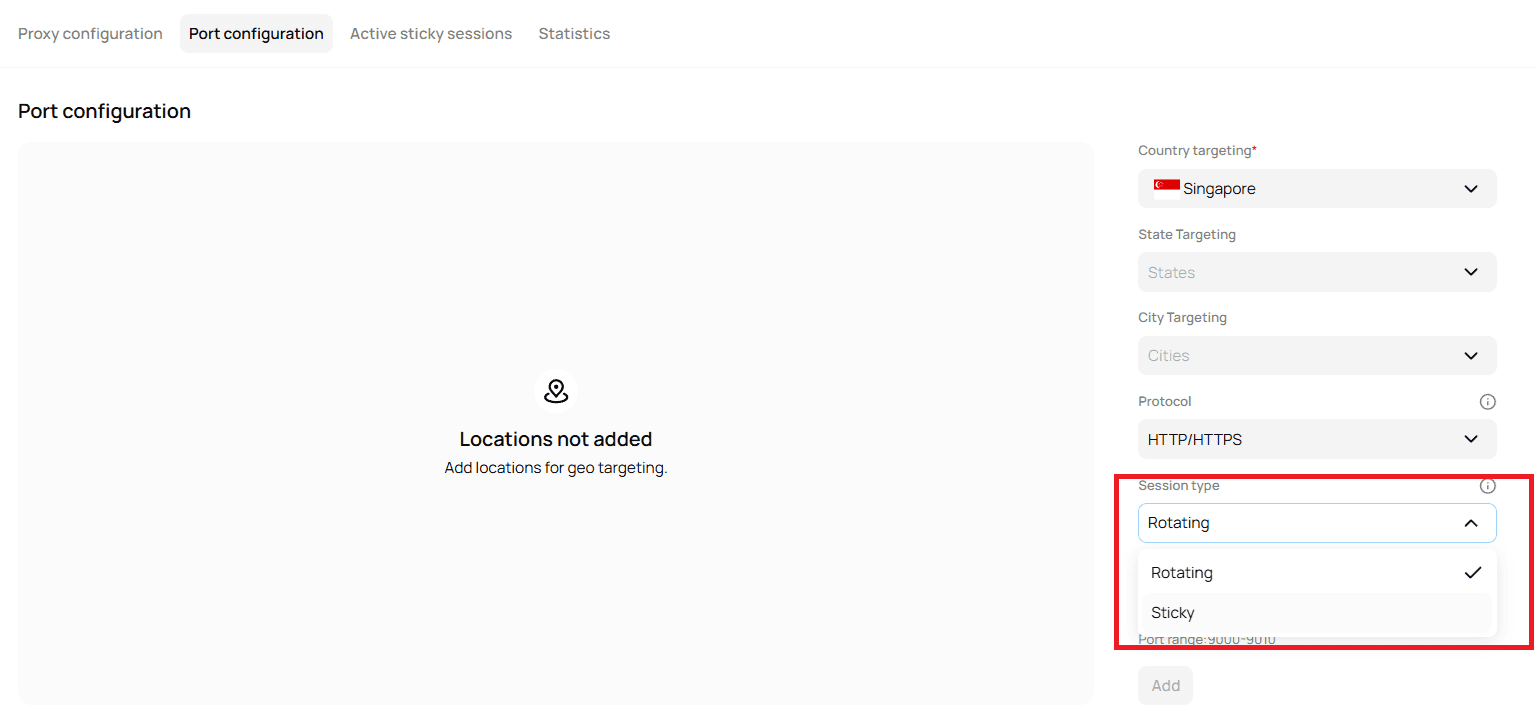
→ Understanding Session Type for Proxy Configuration
6. Port selection (required)
- Click Select Port to choose from available ports.
- This field is required to complete setup.
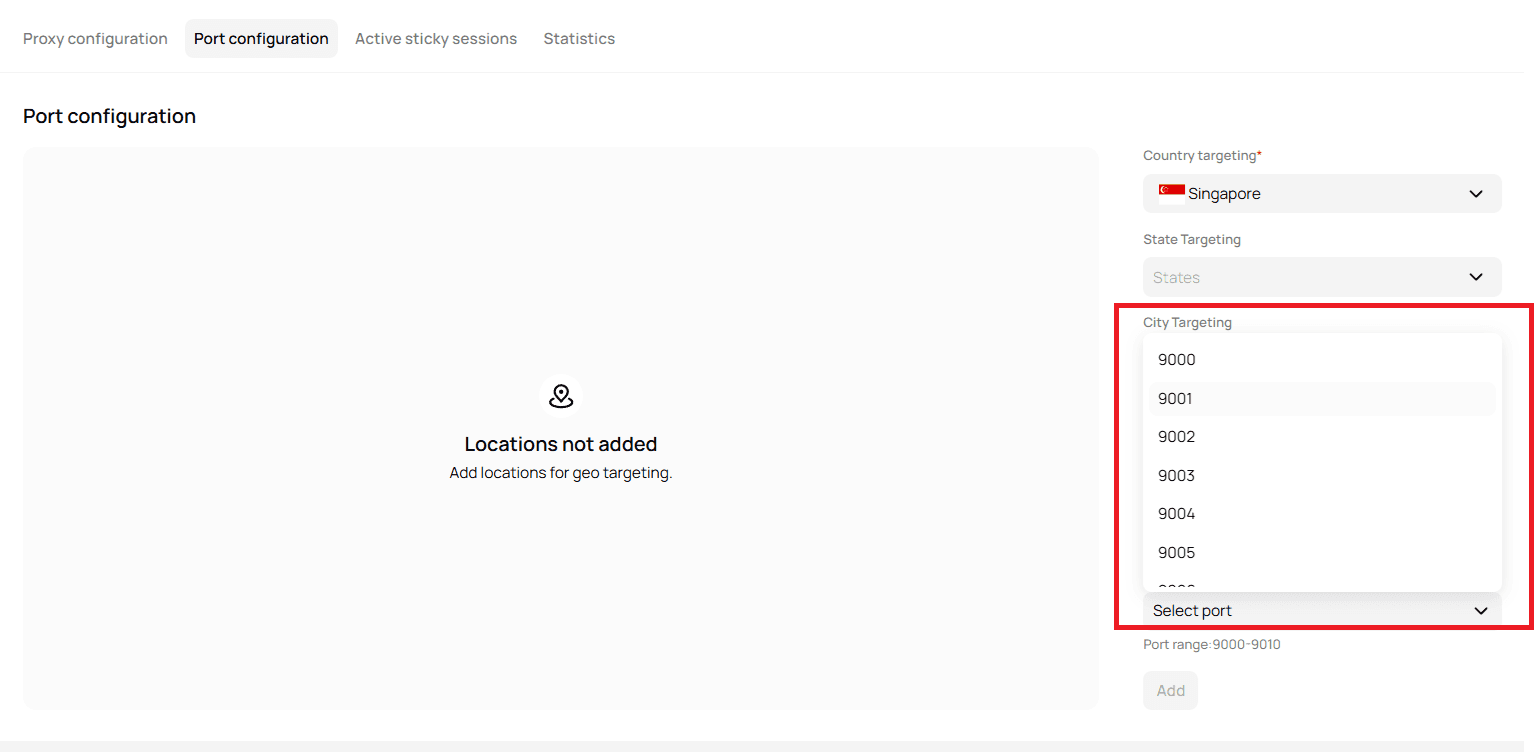
→ Understanding Port Usage for Proxy Configuration
Step 3 — Add the configuration
When all required fields are filled, the Add button becomes active.
Click Add to save your configuration.
Step 4 — Review added locations
After saving, all configured ports and locations appear in the list.
You can view, edit, or delete configurations at any time.
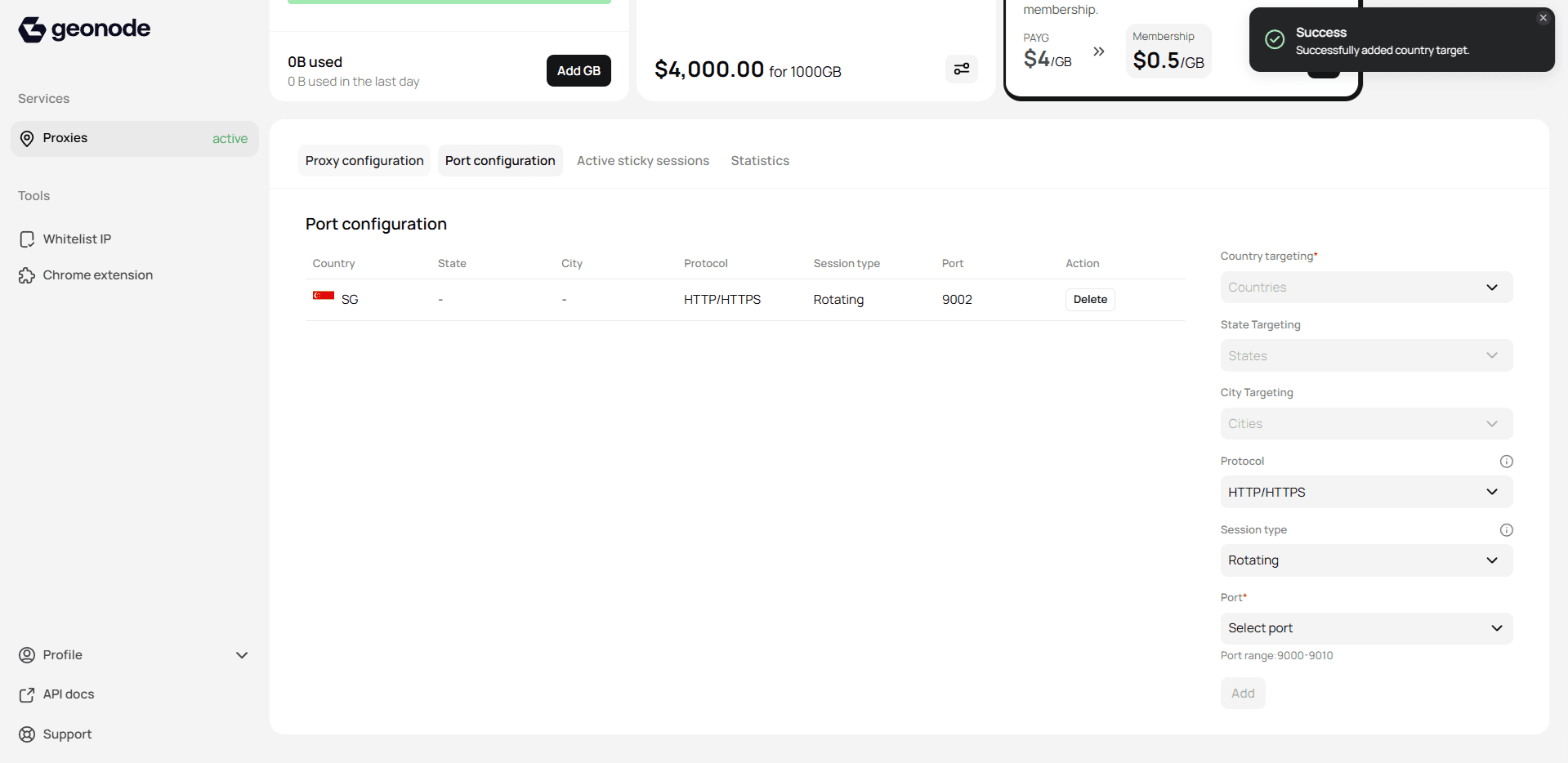
Port in use
When a port is assigned to a specific country, it can’t be reused elsewhere.
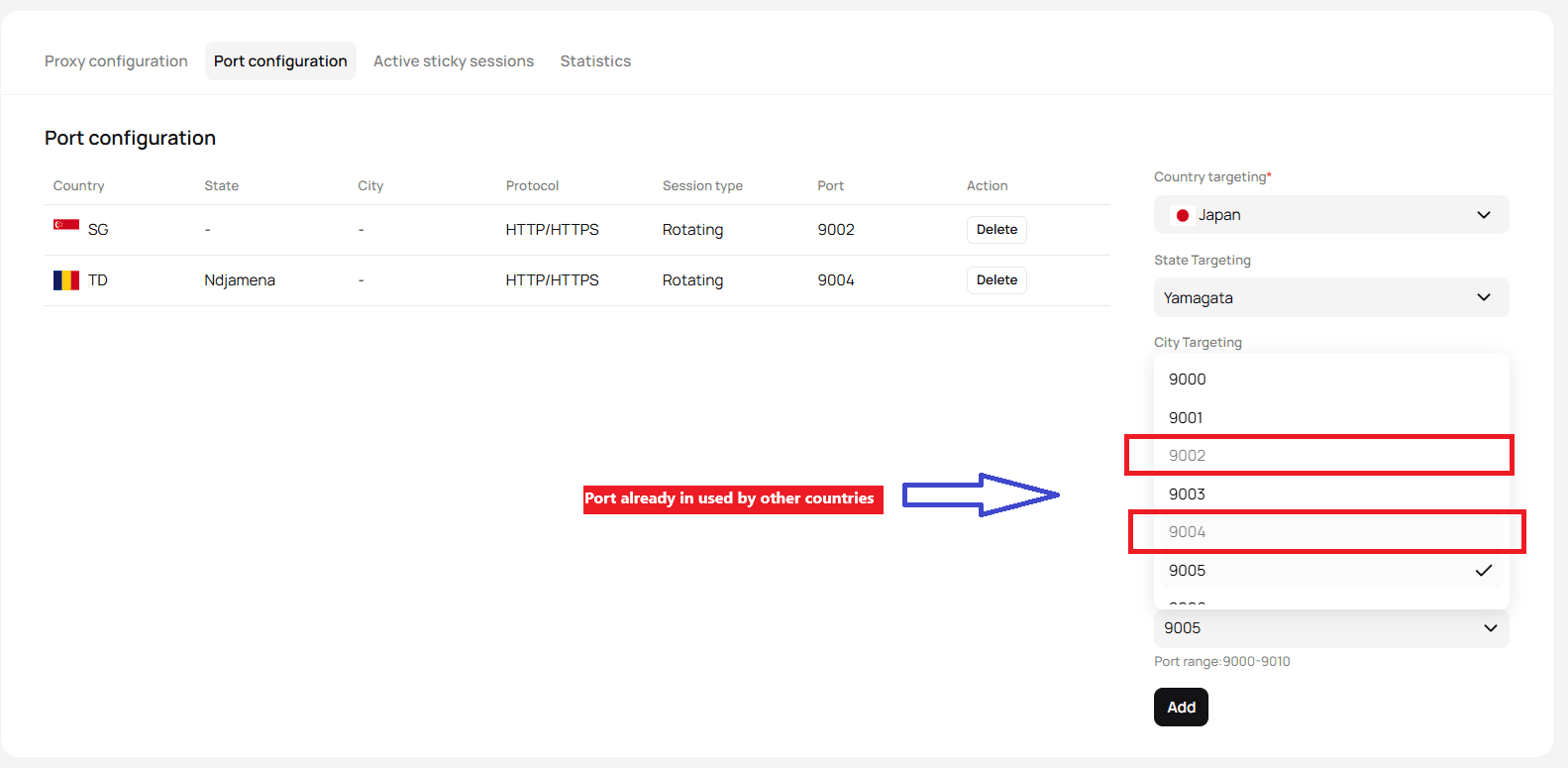
Final result
You’re now ready to manage ports efficiently in Geonode.
-
Rotating Example
-
Sticky Example
Troubleshooting
- Add button disabled: make sure Country and Port are selected.
- State/City inactive: these fields unlock only after a country is chosen.
- Connection issues: verify your protocol and session settings.
If you encounter any issues, refer to the troubleshooting section or Geonode support.