Windows
Prerequisites: Get Proxy Credentials from Geonode
Before setting up a proxy, first, retrieve your proxy credentials from the Geonode dashboard.
Follow this guide: How to Obtain Proxy Server Information
Step-by-step setup for Windows 10/11
Follow these steps to configure your proxy manually:
Step 1 — Open Proxy Settings
-
Click the Windows Search Bar and type:
"Change proxy settings"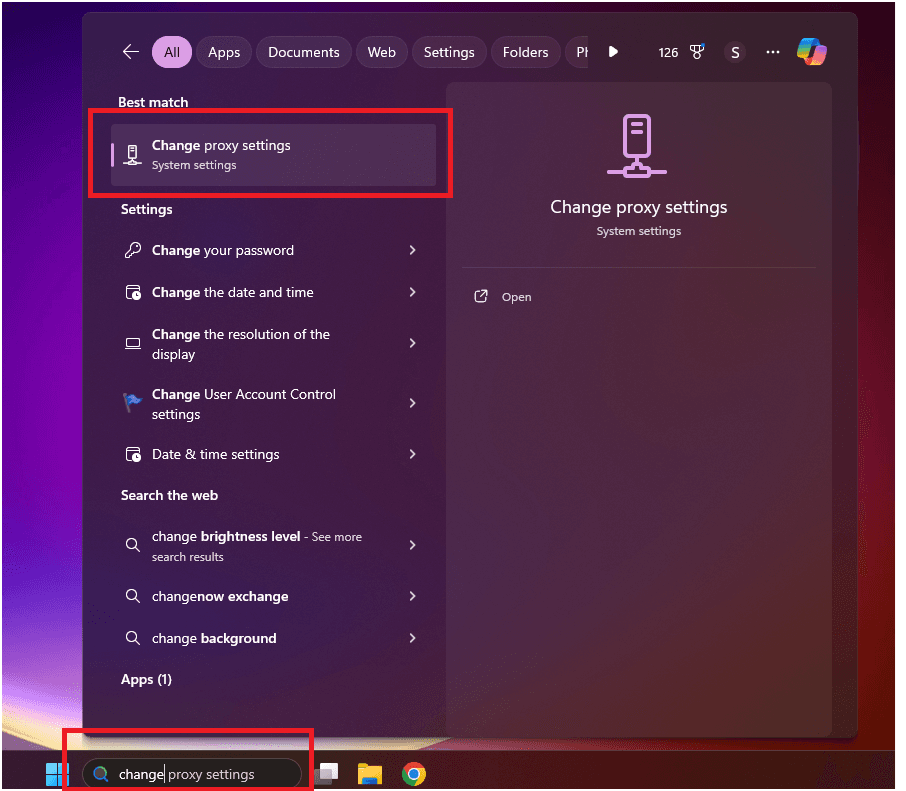
-
In the settings window, scroll to Manual Proxy Setup.
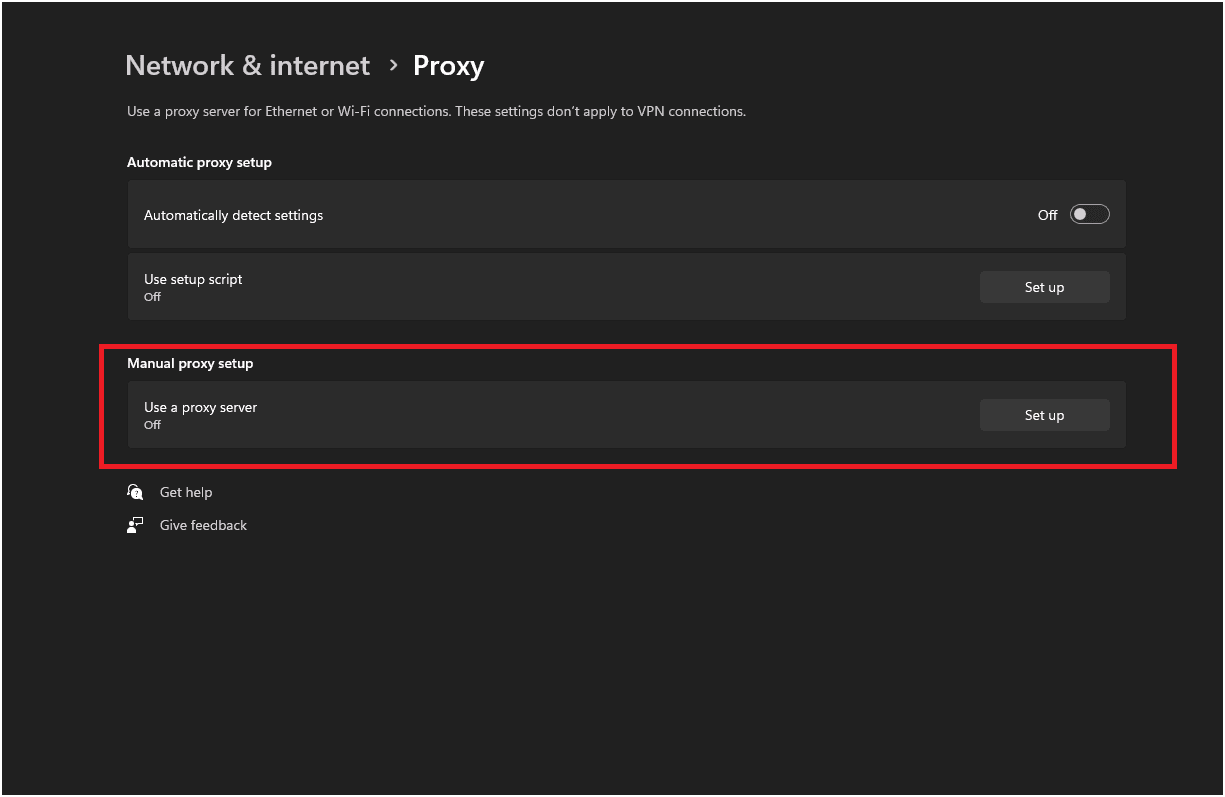
Step 2 — Enter Proxy Details
-
A configuration window will open:
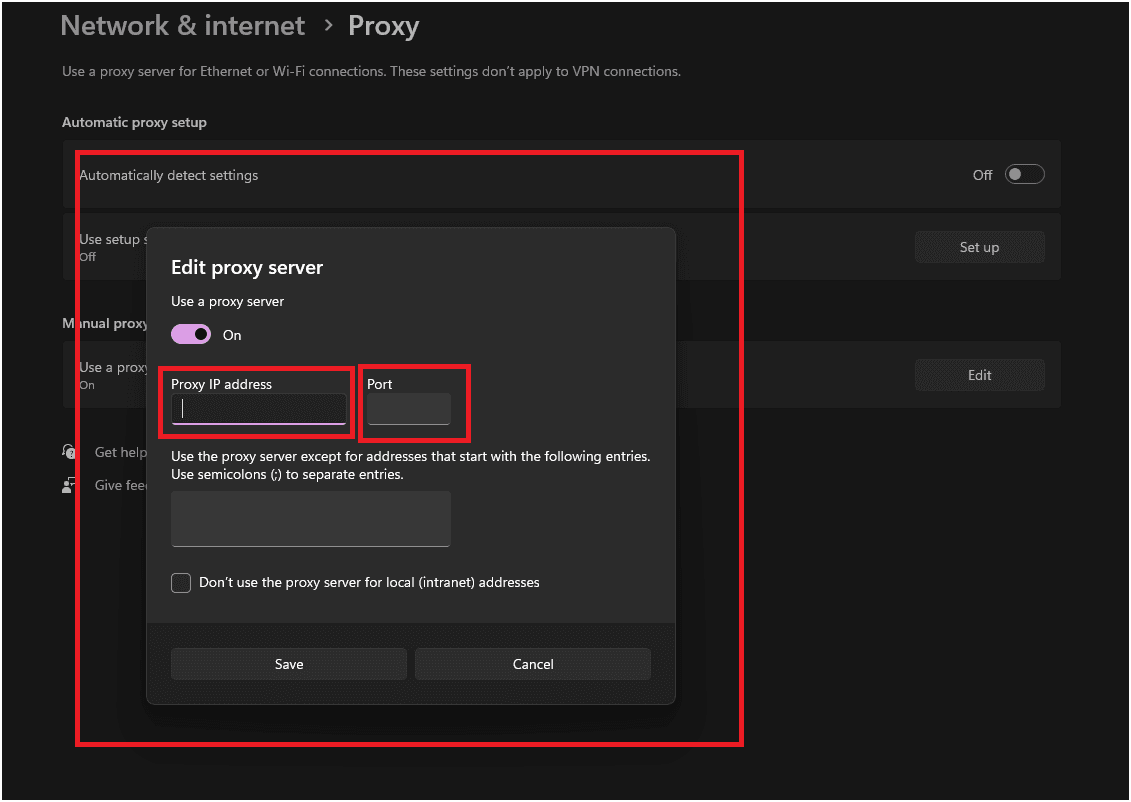
-
Enter the Proxy IP and Port you copied from your Geonode Dashboard.
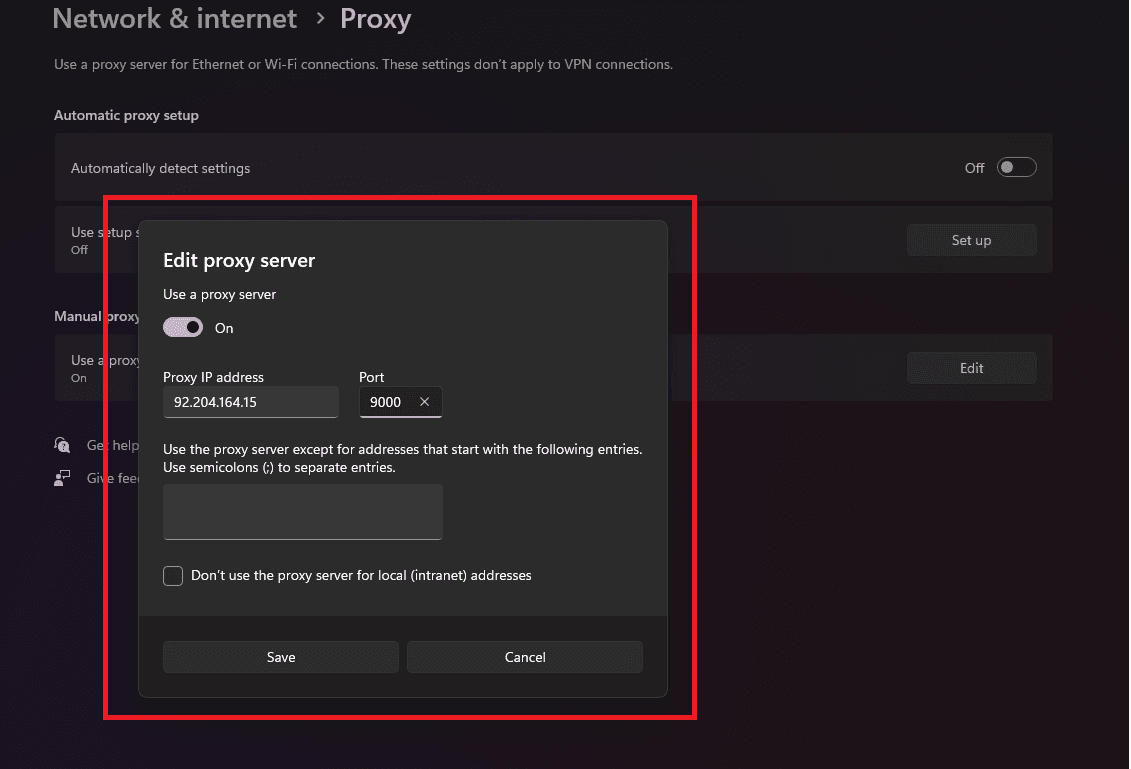
-
Click Save to apply the settings.
Once the proxy server is set up, some apps (like Chrome or other system programs) may ask for proxy authentication — your proxy username and password.
This is required to continue using the proxies.
If you prefer not to enter credentials manually, you can whitelist your IP instead.
See: How to Whitelist an IP
Verify Proxy Connection
To ensure the proxy is working, check your IP address using an online tool or follow this guide:
If you encounter any issues, refer to the troubleshooting section or Geonode support.