Android
Android settings may look slightly different depending on the device model and Android version, but the overall process remains the same.
Prerequisites: Get Proxy Credentials from Geonode
Before setting up a proxy, first, retrieve your proxy credentials from the Geonode dashboard.
Follow this guide: How to Obtain Proxy Server Information
Step-by-step setup for Android
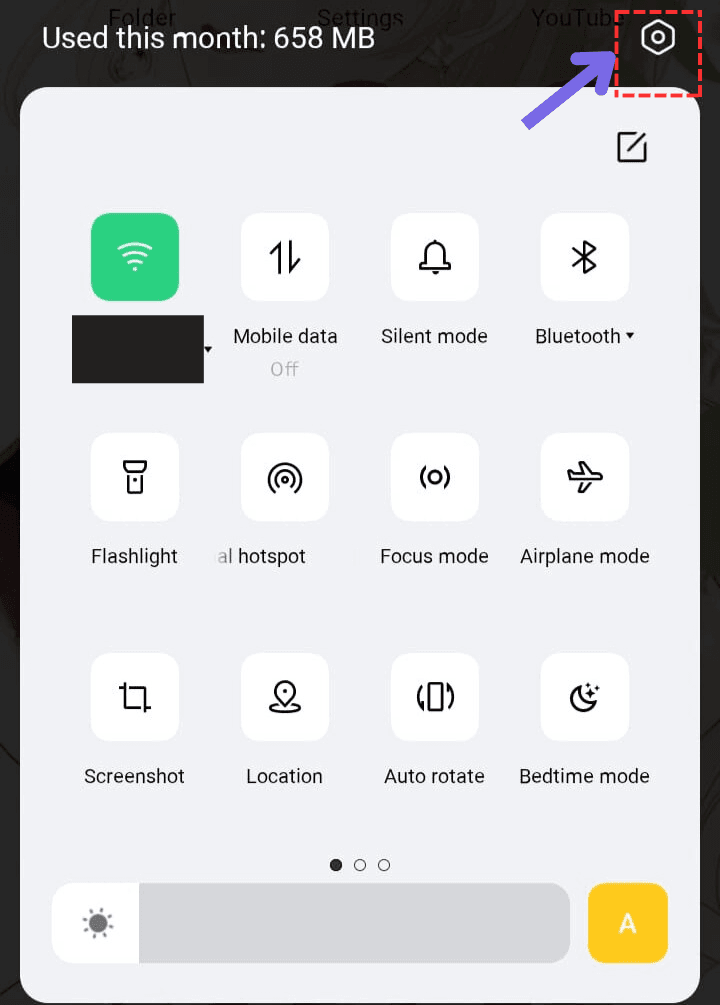
Step 1 — Open Settings
- Tap the Settings app (gear icon).
Step 2 — Go to Wi-Fi Settings
- Scroll down and tap Network & Internet or Wi-Fi, depending on your device.
- Tap and hold the Wi-Fi network you’re connected to.
- Select Modify network or tap the gear (⚙) or “i” icon next to the Wi-Fi name.
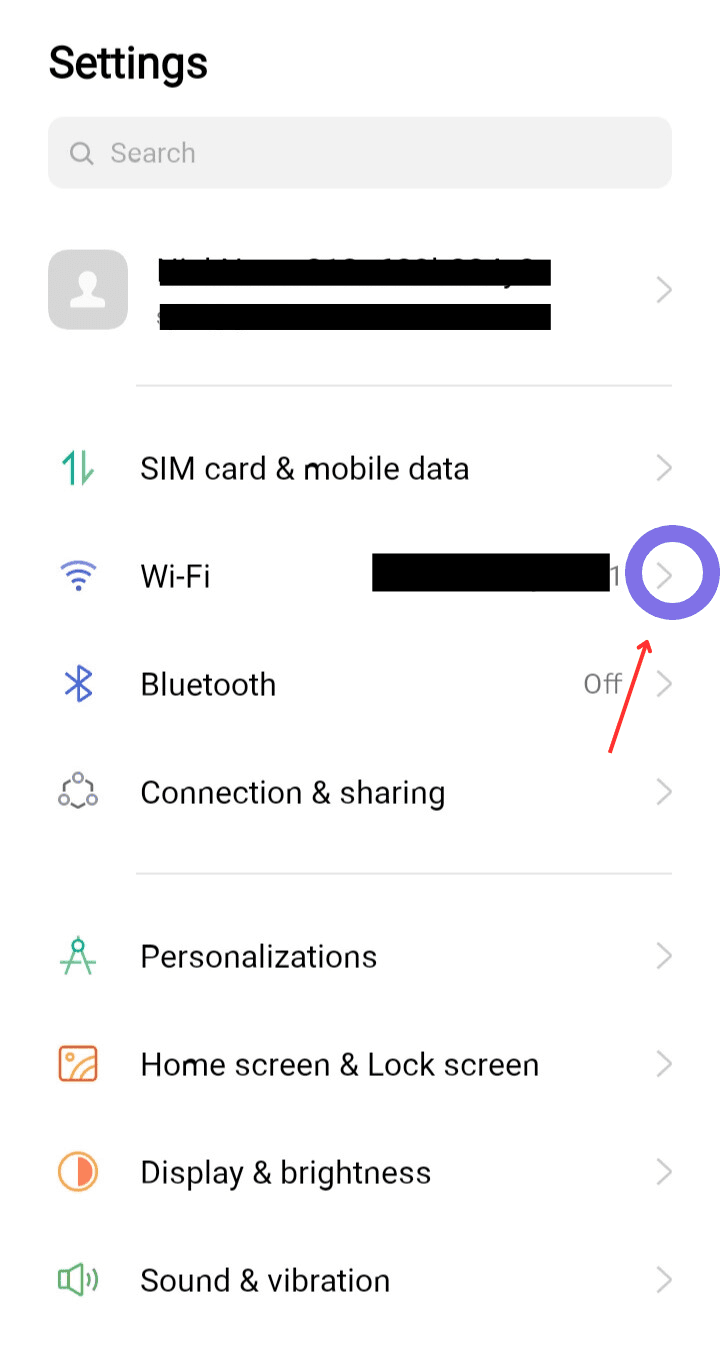
Ensure Wi-Fi is turned on and connected to the network you want to configure the proxy for.
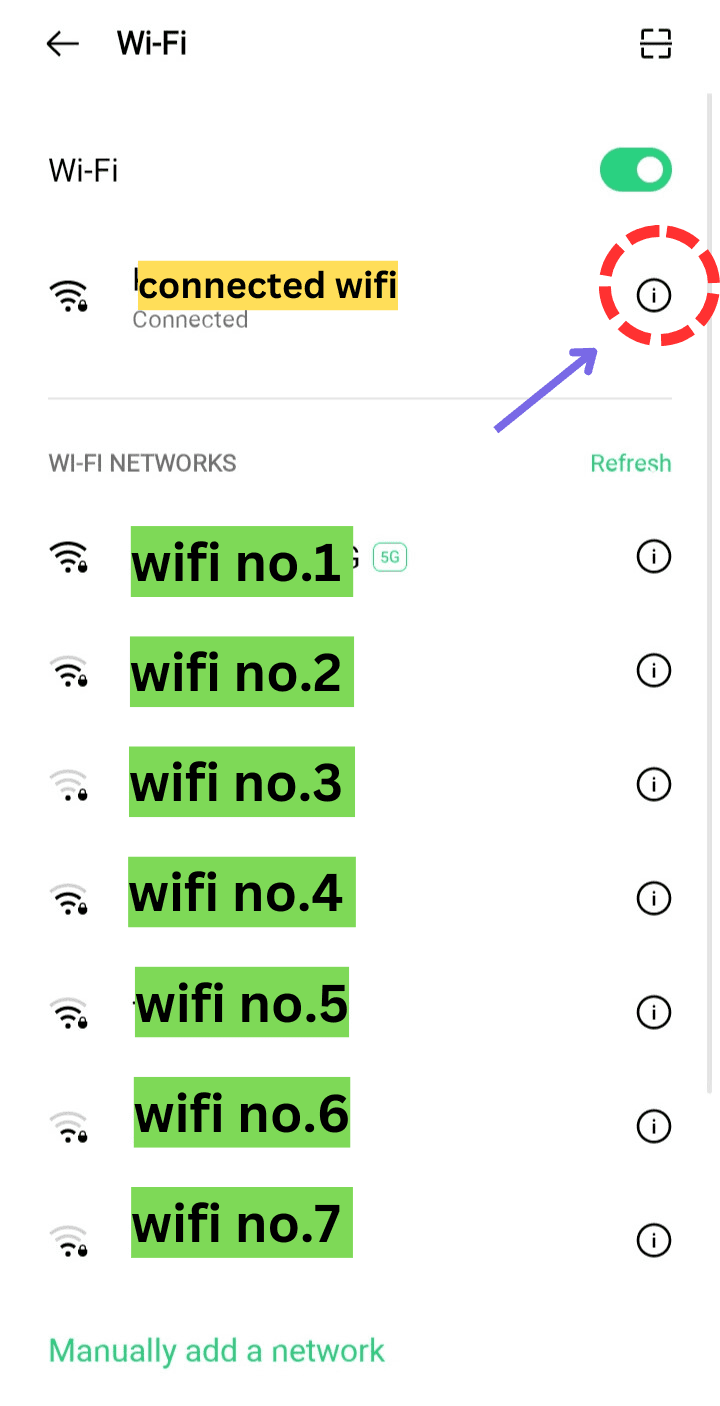
Step 3 — Access Wi-Fi List
You will now see a list of available Wi-Fi networks.
Step 4 — Find Proxy Settings
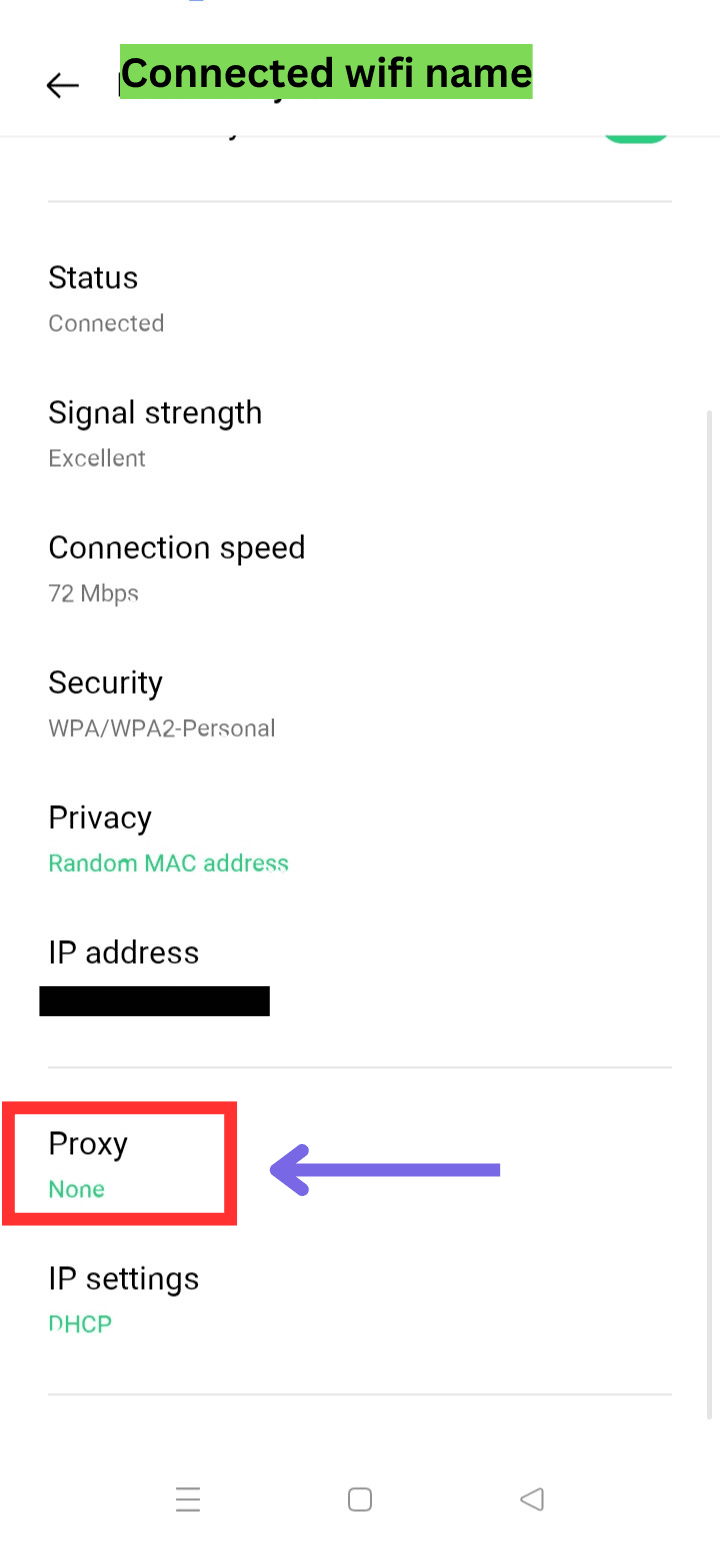
- Scroll down until you find Proxy settings.
- Tap Proxy to expand available options.
You’ll also see your current IP address — write it down for future reference.
Step 5 — Choose Manual Configuration
Select Manual from the proxy settings.
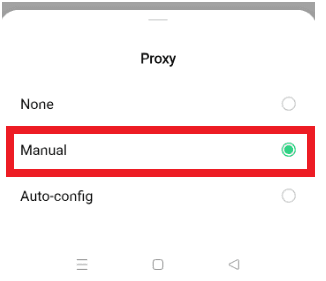
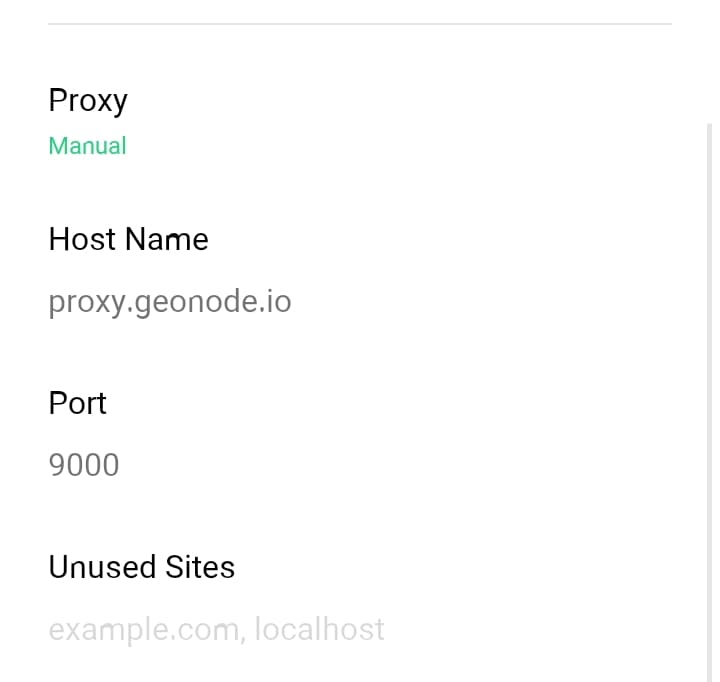
Step 6 — Enter Proxy Details
- Enter the Proxy IP Address and Port from your Geonode Dashboard.
Once the proxy server is set up, some apps (like Chrome or other system programs) may ask for proxy authentication — your proxy username and password.
This is required to continue using the proxies.
If you prefer not to enter credentials manually, you can whitelist your IP instead.
See: How to Whitelist an IP
Step 7 — Save and Exit
- Scroll down and tap Save to apply the settings.
- If your device doesn’t have a Save button, simply exit — the configuration will be applied automatically.
Verify Proxy Connection
To ensure the proxy is working, check your IP address using an online tool or follow this guide:
If you encounter any issues, refer to the troubleshooting section or Geonode support.