Incogniton
This guide will help you configure a Geonode proxy in the Incogniton browser.
Prerequisites: Get Proxy Credentials from Geonode
Before setting up a proxy, first, retrieve your proxy credentials from the Geonode dashboard.
Follow this guide: How to Obtain Proxy Server Information
Setting Up a Proxy in Incogniton
Install Incogniton
- Go to the Incogniton Download Page.
- Download the version for your operating system.
- Install the software and create an account.
Create a New Profile
-
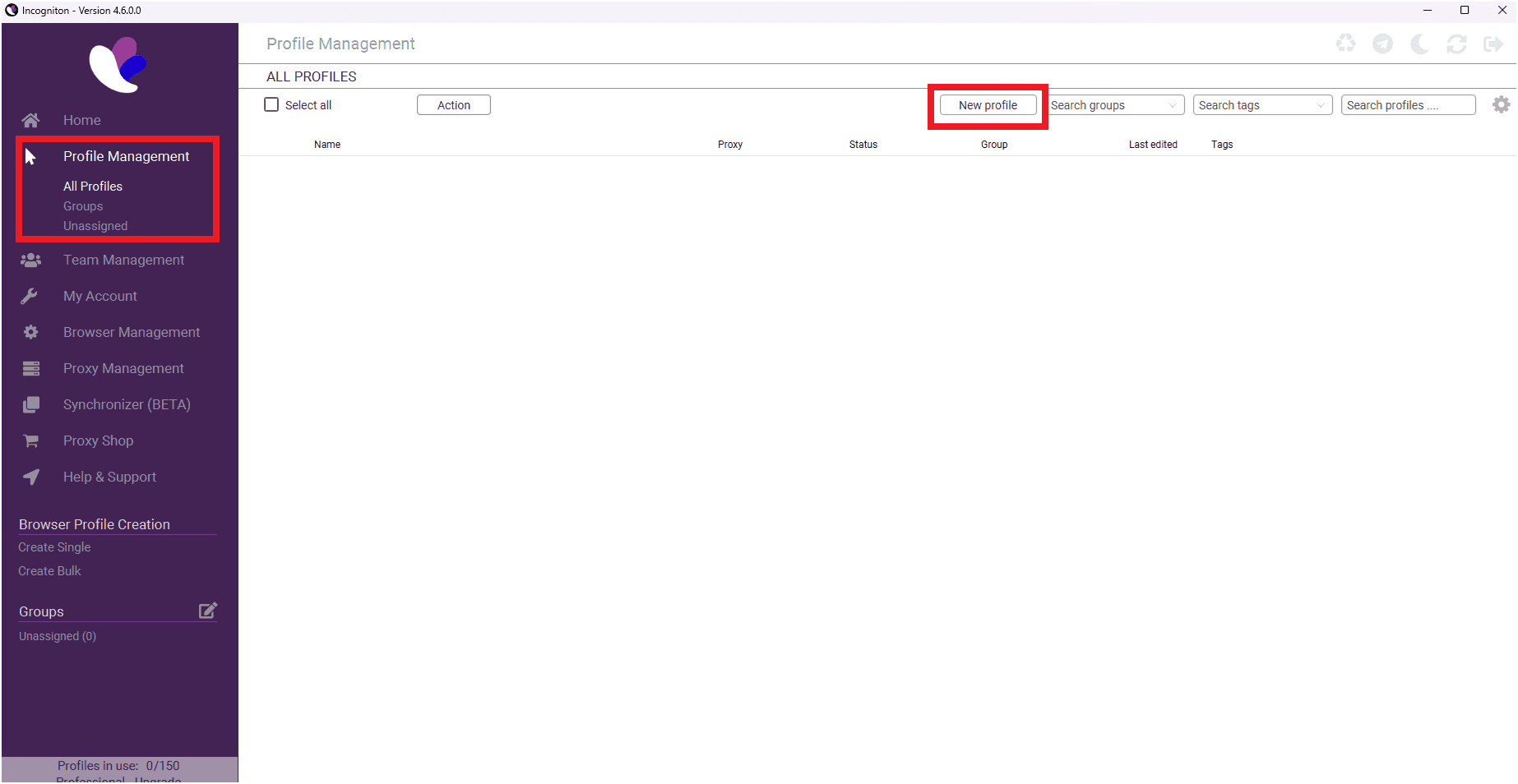
Open Incogniton and click New Profile.
-
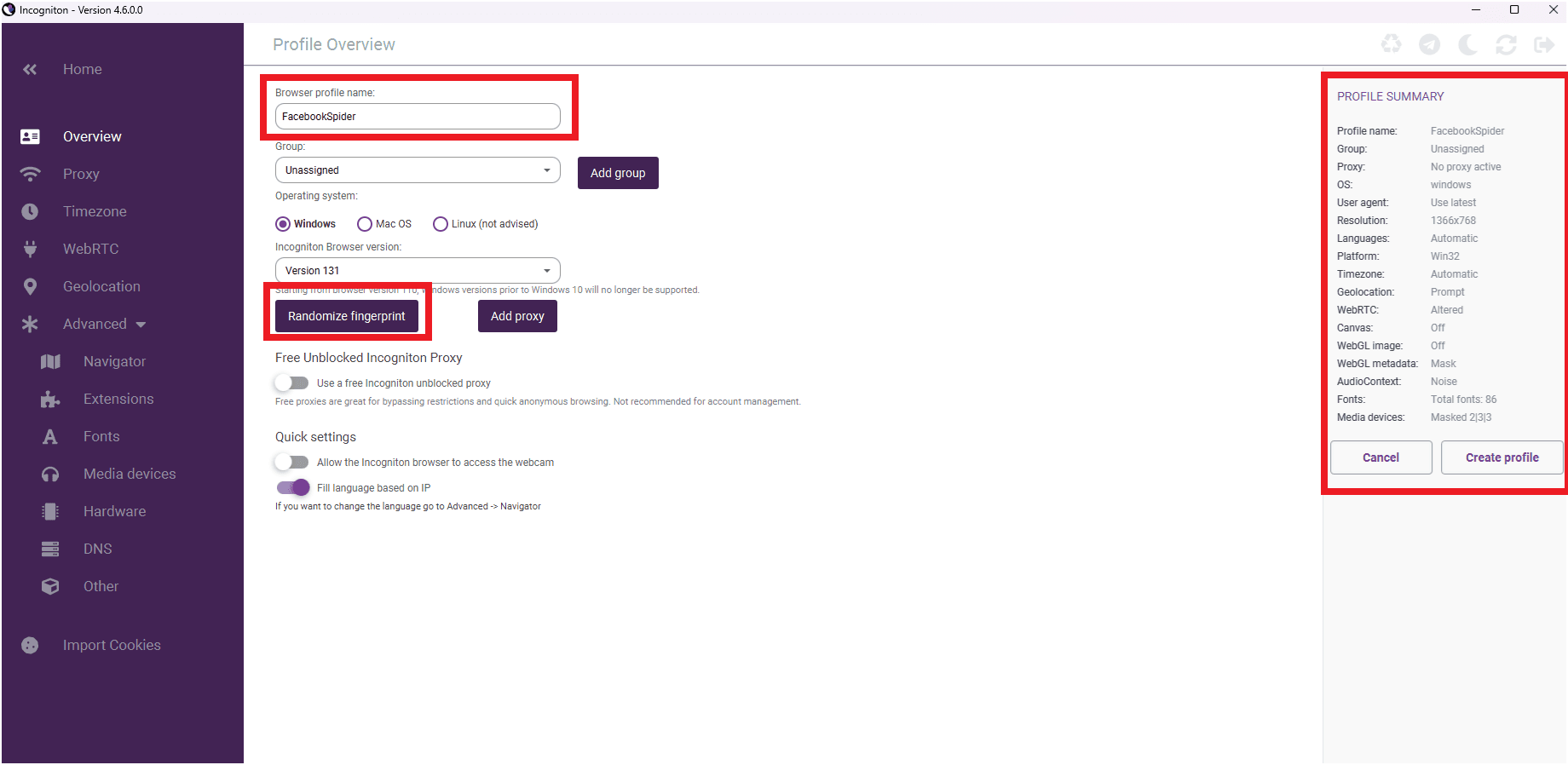
Fill in the required details:
- Profile name
- Operating system
- Browser version
-
(Optional) Randomize the fingerprint for added security.
-
Review your browser details on the right panel.
Add Proxy Settings
-
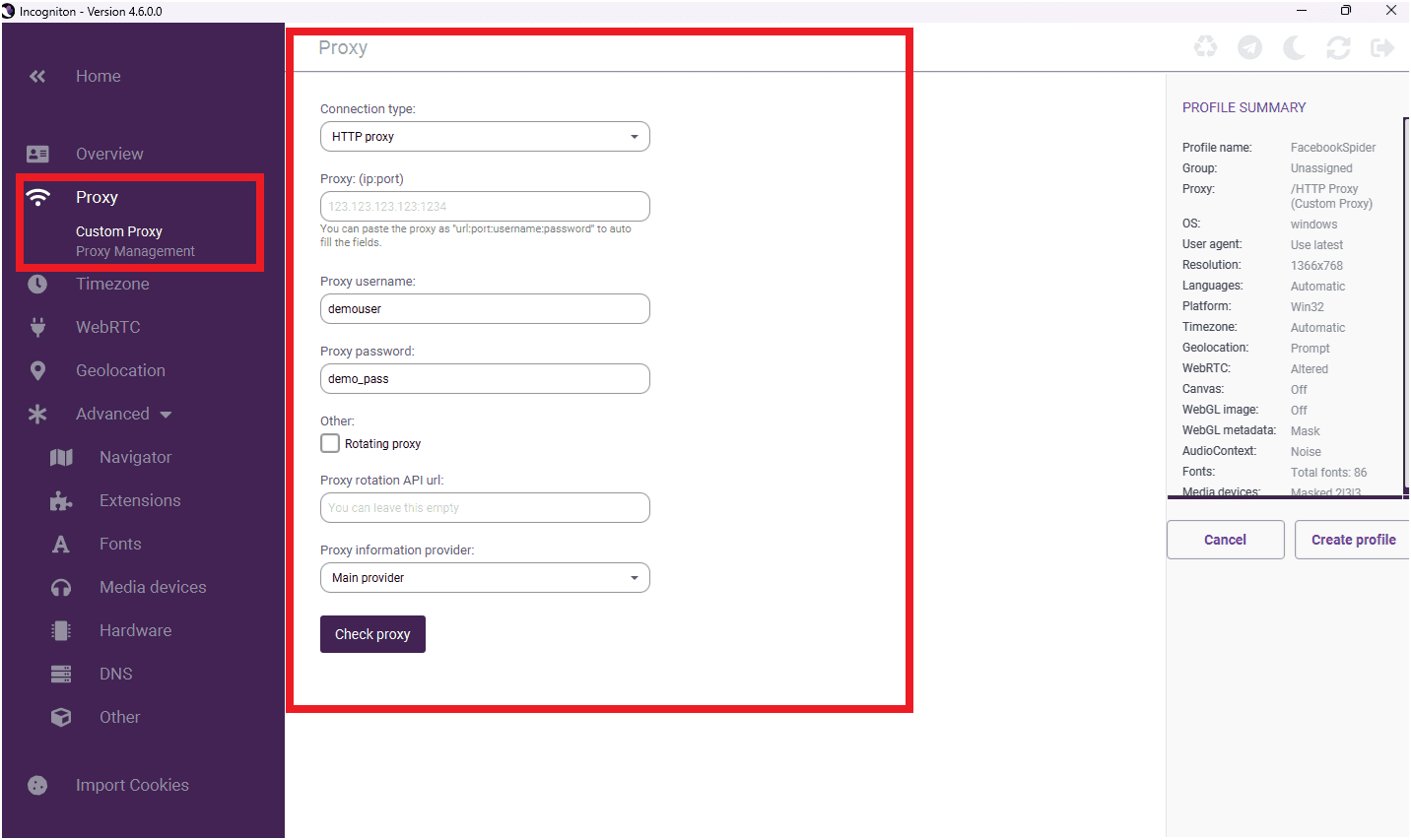
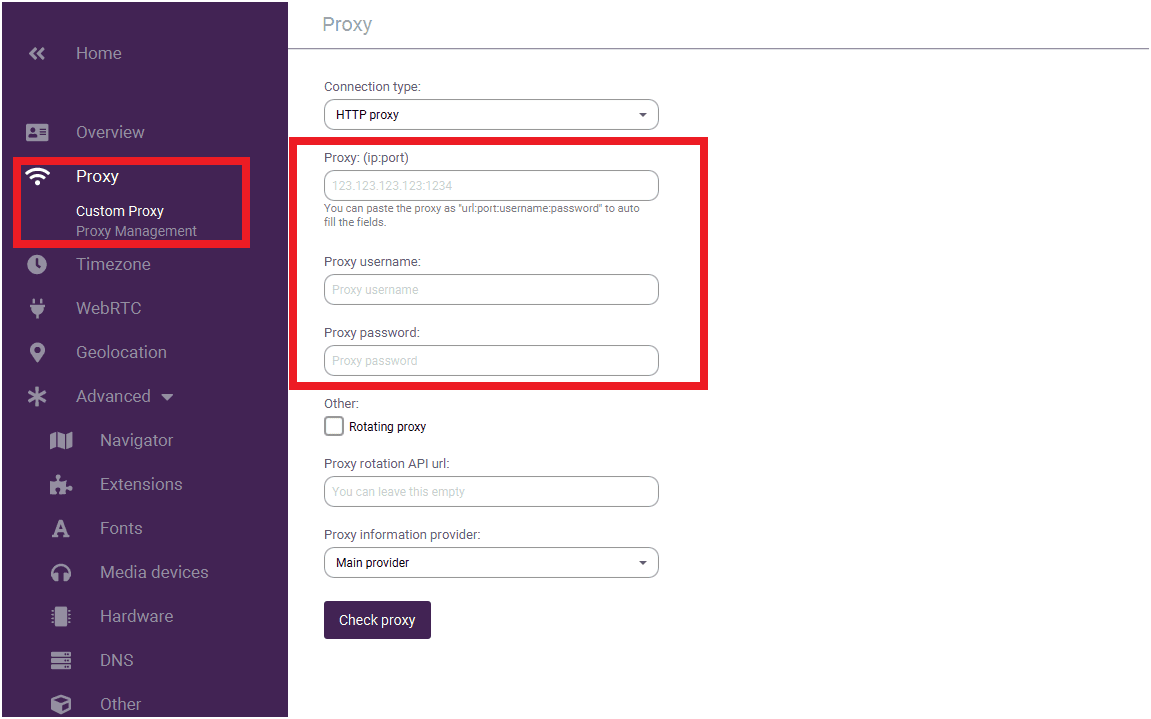
Go to the Proxy Management page.
-
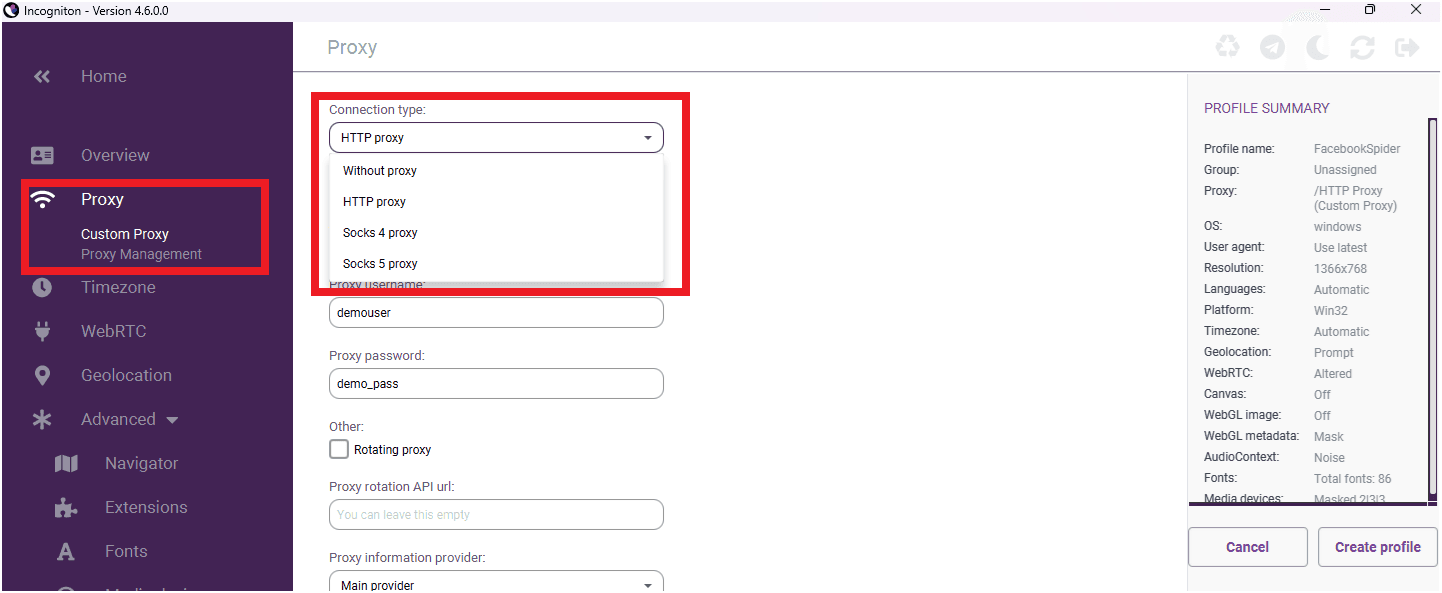
Choose the connection type — for this guide, select HTTP.
-
Enter your proxy credentials:
- Proxy (IP:Port)
- Username
- Password
Check the Proxy Connection
-
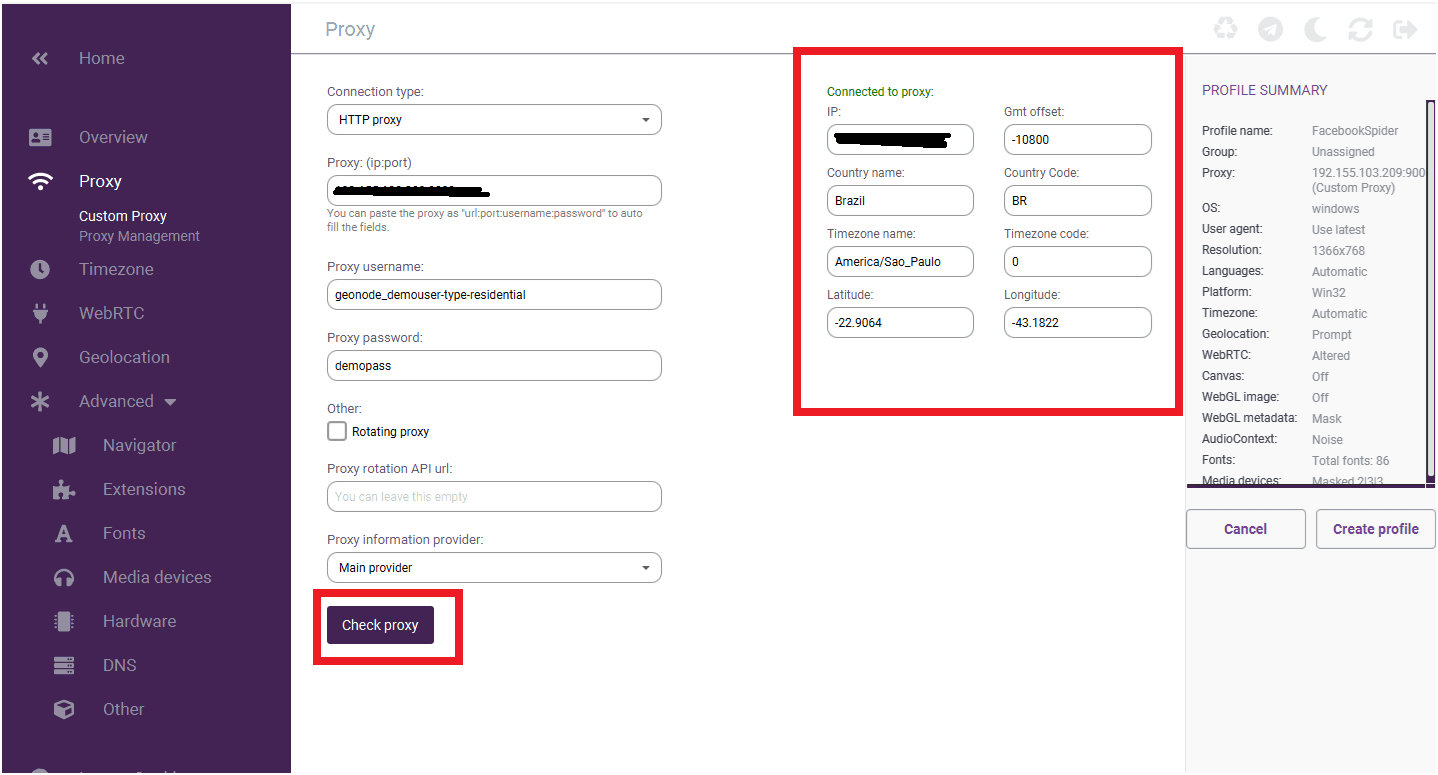
Click Check Proxy to verify the connection.
-
If successful, the proxy will show as active.
Create and Launch the Profile
-
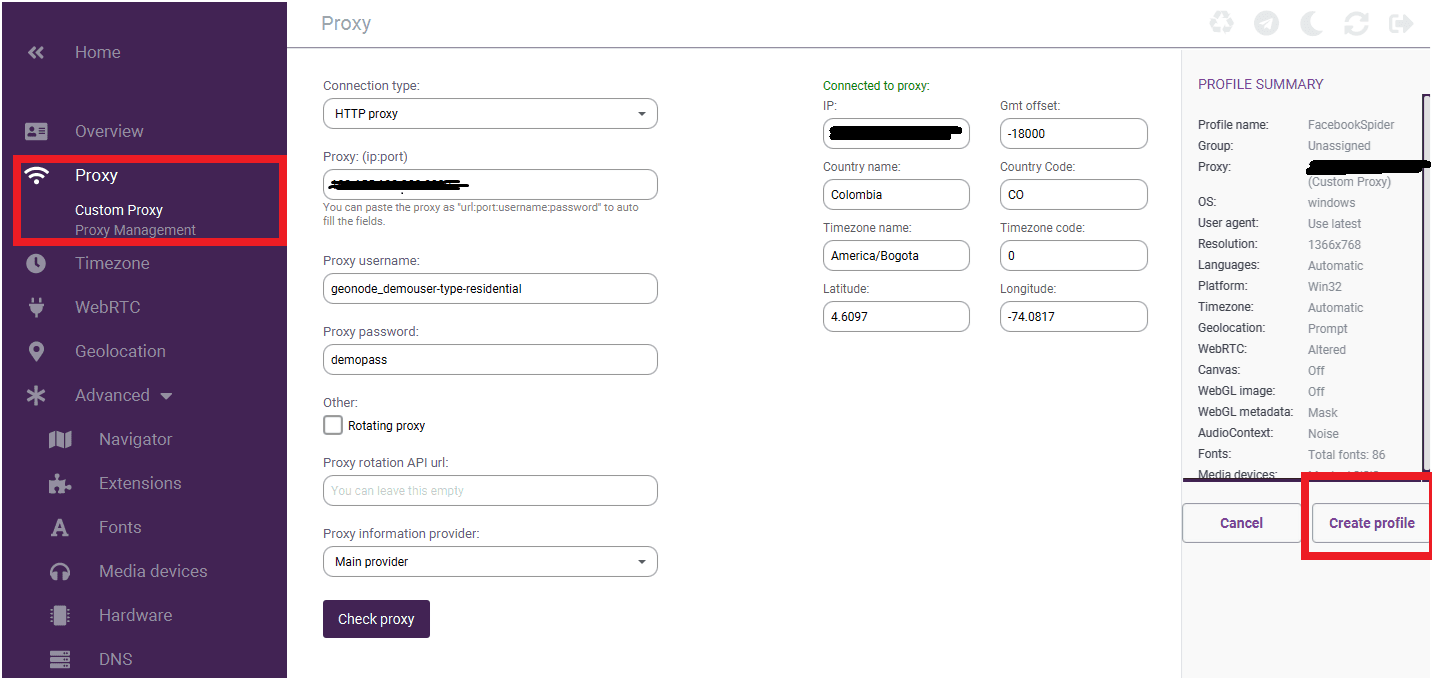
Click Create Profile to save your settings.
-
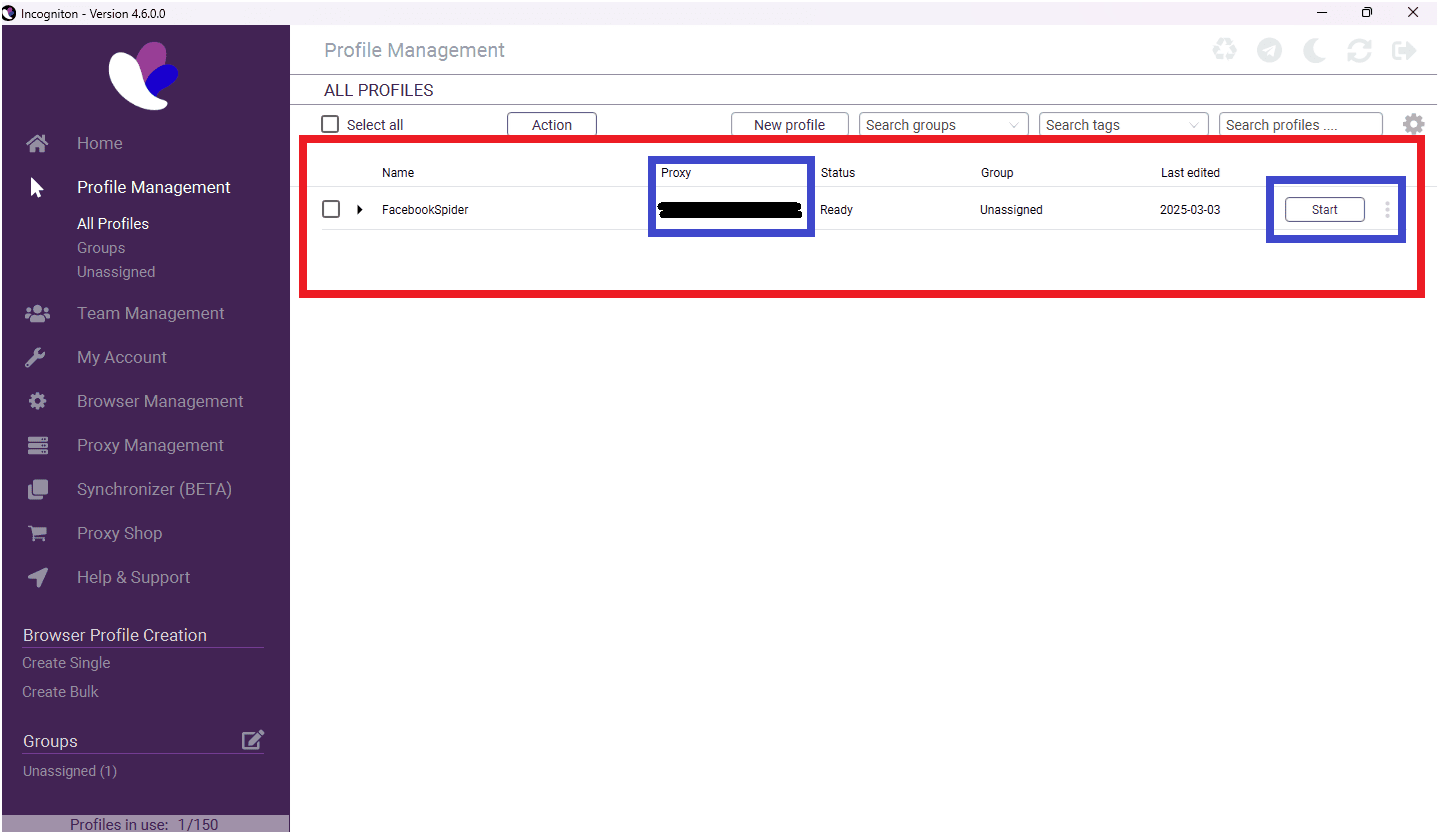
Once created, you’ll see the profile in your list.
- If the proxy shows a green tick, it means it’s active.
- If the proxy shows a green tick, it means it’s active.
-
Click Start to launch the browser with your configured proxy.
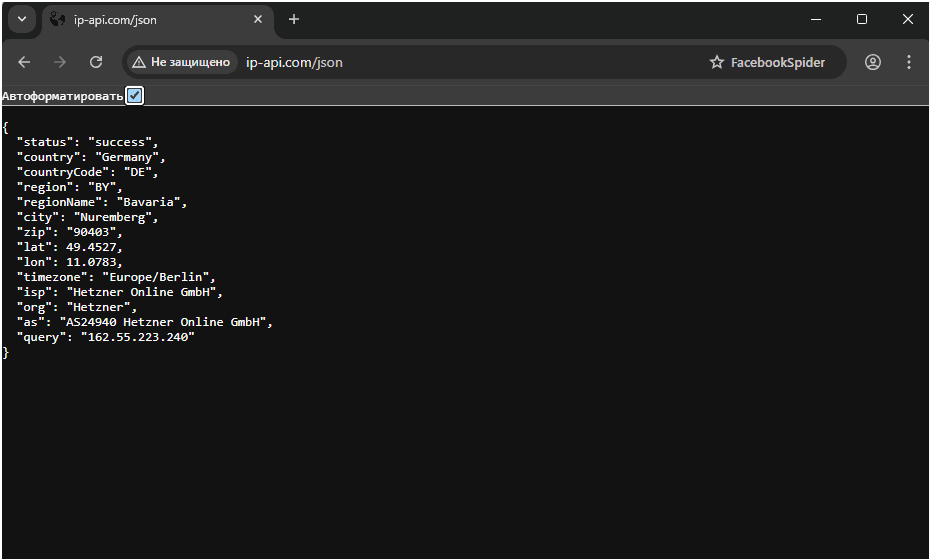
Your Geonode proxy is now successfully configured in Incogniton.
If you encounter any issues, refer to the troubleshooting section or Geonode support.