Safari
This guide will help you configure a Geonode proxy in Safari.
Prerequisites: Get Proxy Credentials from Geonode
Before setting up a proxy, first, retrieve your proxy credentials from the Geonode dashboard.
Follow this guide: How to Obtain Proxy Server Information
Setting Up a Proxy in Safari
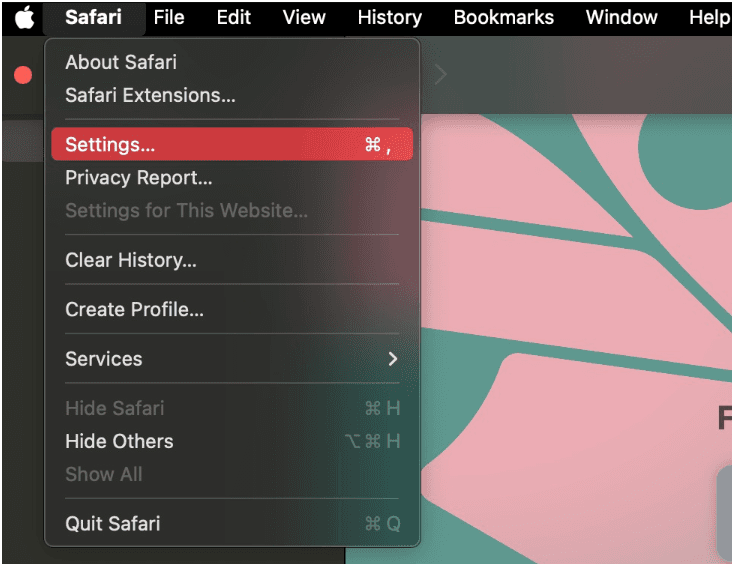
Open Safari Settings
-
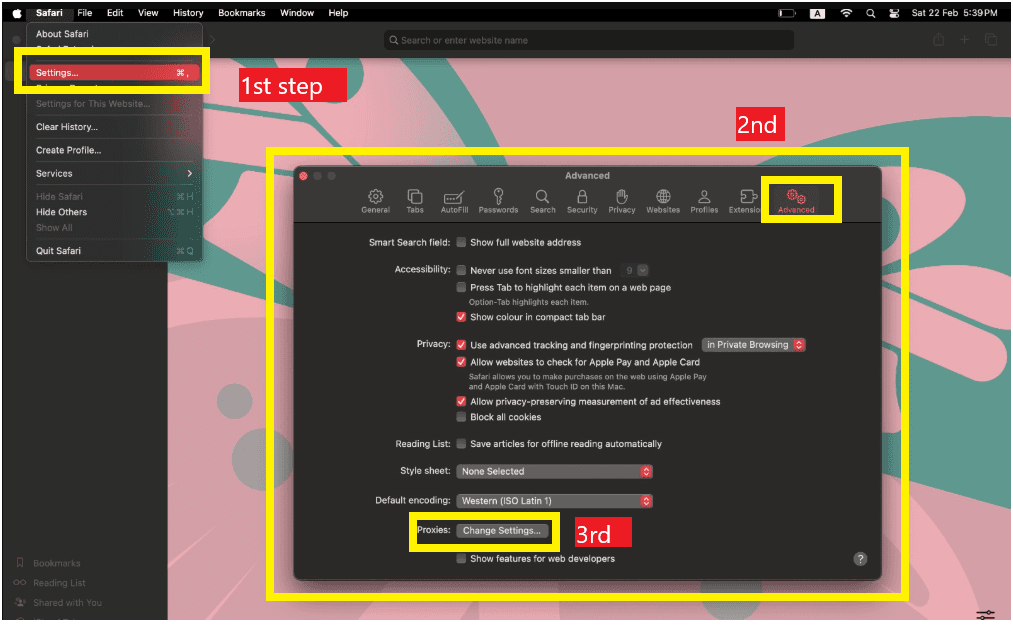
In the top menu bar, click Safari → Settings (or Preferences on older macOS versions).
-
Select the Advanced tab.
-
Click Change Settings next to Proxies.
Configure the Proxy on macOS
-
The Network window will open in System Preferences.
-
Select your active network connection (Wi-Fi or Ethernet).
-
Click Advanced → Proxies.
-
Choose the protocol you want to configure (e.g., HTTP or HTTPS).
-
Enter your Geonode proxy credentials:
- Proxy server: IP and Port
- Username / Password if required
-
Click OK, then Apply to save your settings.
Verify the Proxy Connection
Once configured, Safari will automatically route traffic through your Geonode proxy.
You can verify that it’s working correctly below.
Verify Proxy Connection
To ensure the proxy is working, check your IP address using an online tool or follow this guide:
If you encounter any issues, refer to the troubleshooting section or Geonode support.